Installing Apps on Managed iOS Devices
MobiHeal allows IT administrators to deploy applications directly to managed iOS devices through the Install Apps section of an iOS policy. Unlike Android where you configure installation type and update priority per app, iOS app deployment in MobiHeal uses a simple toggle-based approach — enable the toggle for each app you want installed on the managed iOS devices assigned to this policy.
Before You Begin
- The iOS application must first be added to your MobiHeal App Management catalog before it appears in the Install Apps list.
- Apple APNs must be configured in your MobiHeal console for iOS app deployment to function.
- The managed iOS devices must be enrolled and assigned to the policy you are configuring.
For adding iOS apps to your catalog → ios-app-management
For APNs certificate setup → apple-device-enrollment-apns
How to Deploy Apps to iOS Devices
Step 1 — Open the iOS Policy
Go to Policy Management in the left sidebar. Open the iOS policy assigned to the devices you want to deploy apps to — or create a new iOS policy if needed.
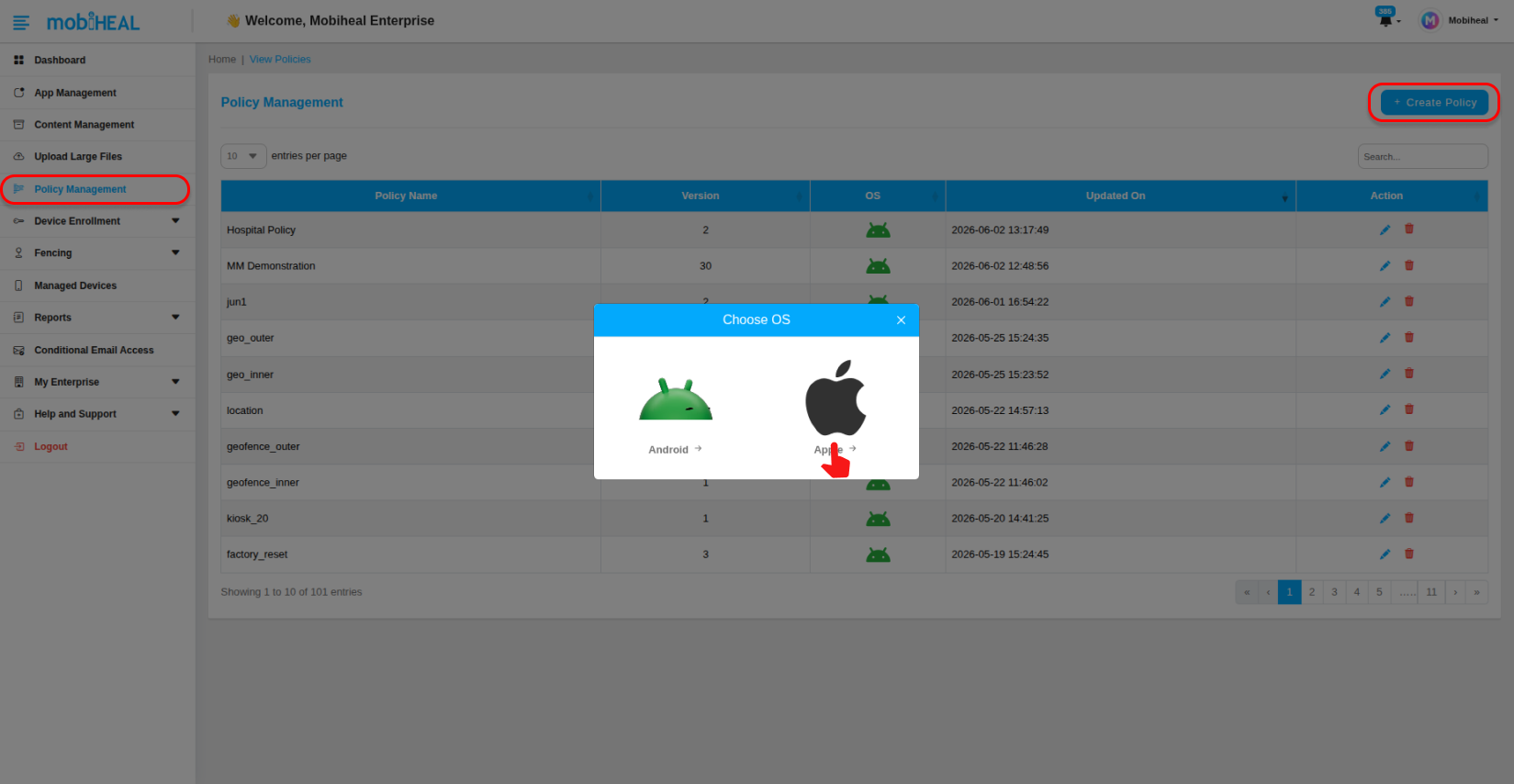
Step 2 — Navigate to Install Apps
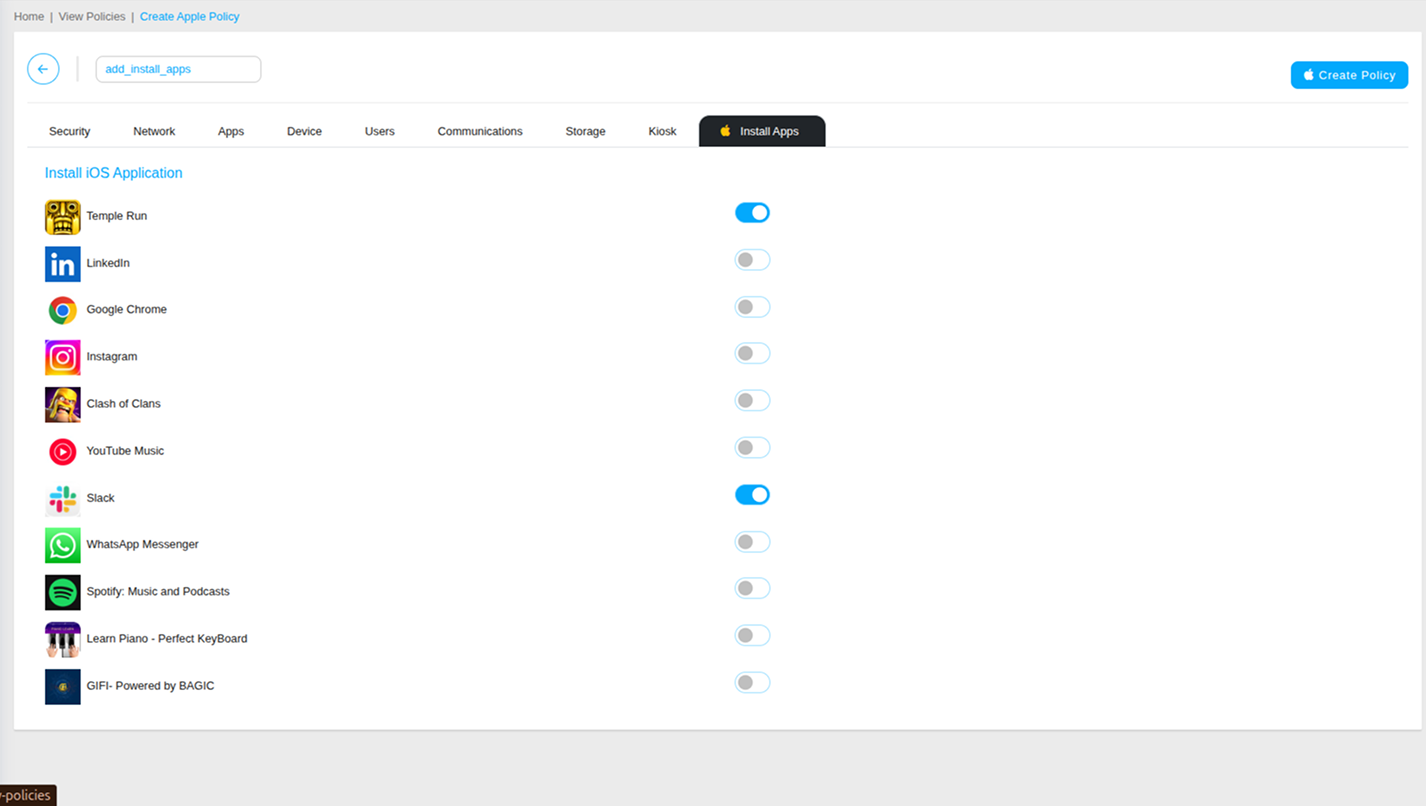
Inside the iOS policy configuration, click the Install Apps tab in the policy navigation. You will see a list of all iOS applications currently available in your App Management catalog.
Step 3 — Enable the Apps to Deploy
For each application you want to install on managed iOS devices, enable the toggle next to the app name. When a toggle is enabled, that app will be automatically deployed to all iOS devices assigned to this policy.
- Toggle ON — The app will be pushed and installed on all managed iOS devices assigned to this policy.
- Toggle OFF — The app will not be deployed. If previously deployed, the app may be removed from managed devices depending on your policy configuration.
Step 4 — Save the Policy
Once you have enabled the toggles for all required apps, click Save Policy to save the changes. The selected apps will be pushed to all managed iOS devices assigned to this policy — installed silently without any user action required.
What Happens on the iOS Device
After the policy is saved and synced, the enabled applications are automatically downloaded and installed on the managed iOS devices. The apps appear on the device home screen without the user needing to visit the App Store or take any action. If an app toggle is later disabled in the policy, the app will be removed from managed devices on the next policy sync.
Apps deployed through MobiHeal's Install Apps are managed apps — the organization controls their installation and removal. If an employee leaves the organization or the device is unenrolled, managed apps are automatically removed along with their corporate data. All 9 iOS Policy Management articles are ready to paste into Payload CMS. Here is the complete structure: