iOS Policy — Device Functionality Controls
Updated on Jun 5, 2026 4 Minutes to read
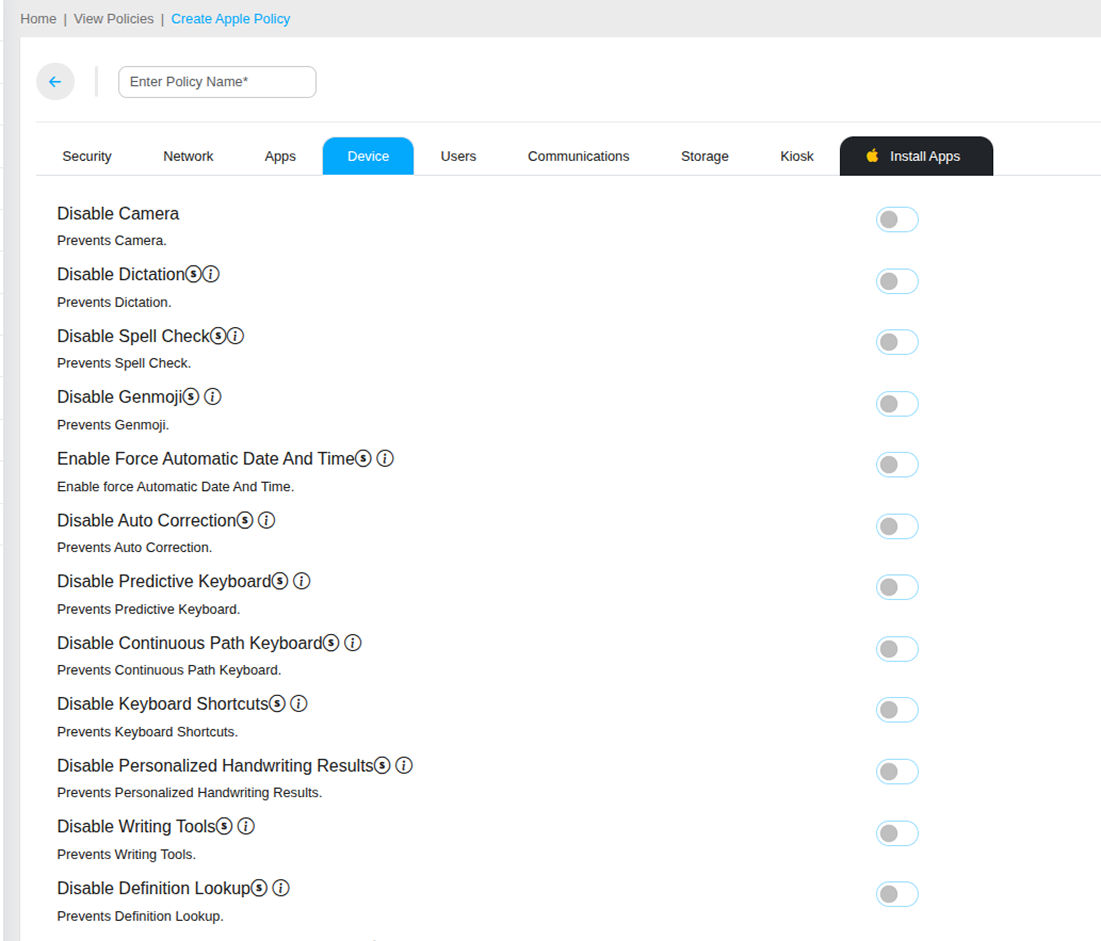
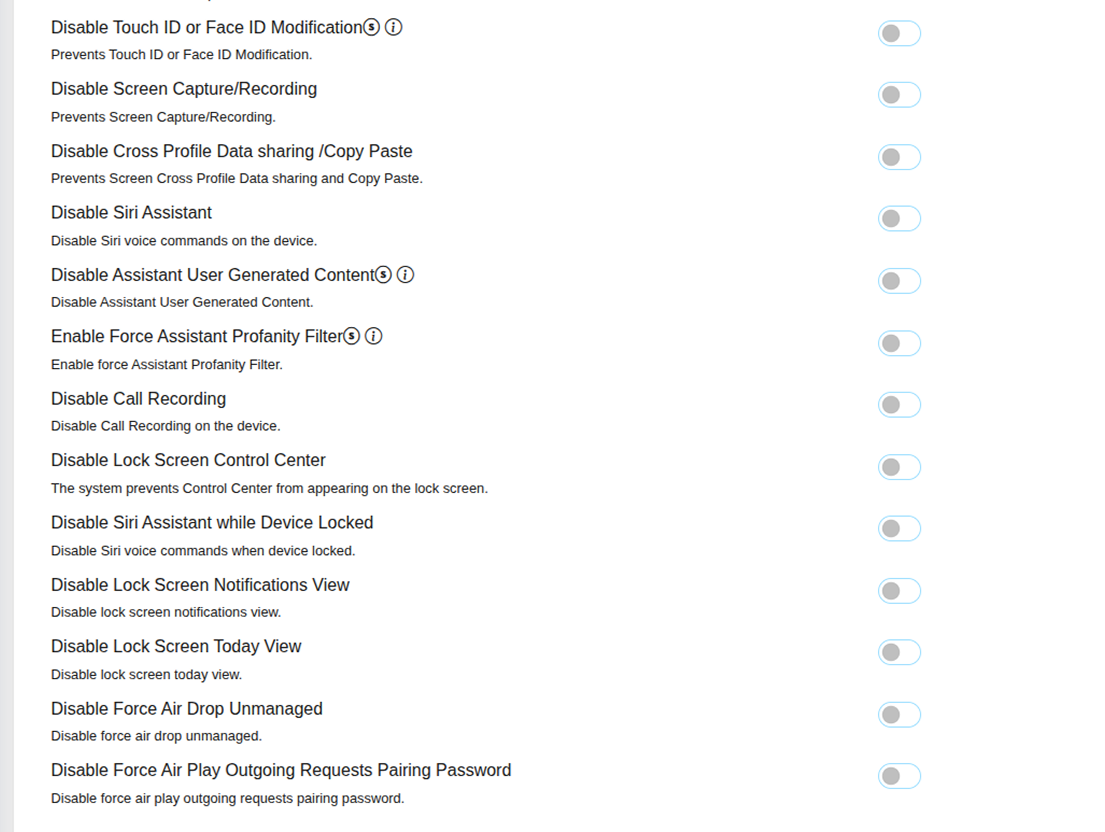
The Device tab within an iOS policy provides granular control over the hardware features, keyboard behaviors, assistant settings, and lock screen capabilities of managed Apple devices. These settings allow IT administrators to restrict specific device functions that may pose security risks or reduce productivity in a corporate environment.
Hardware Controls
- Disable Camera — Disables the camera hardware entirely on the managed iOS device. Recommended for high-security environments such as data centers, research facilities, or secure offices where photography is not permitted.
- Disable Screen Capture and Recording — Prevents users from taking screenshots or recording the device screen. Protects sensitive corporate information displayed on screen from being captured and shared outside the organization.
- Disable Call Recording — Disables the ability to record phone calls on the managed iOS device. Recommended for compliance environments where unauthorized recording is prohibited.
- Disable Cross Profile Data Sharing and Copy Paste — Prevents data from being shared or copied between managed and unmanaged apps, maintaining a hard boundary between corporate and personal data on the device.
Keyboard & Input Controls
- Disable Dictation — Prevents users from using voice dictation to input text on the managed iOS device. Disabling dictation ensures no audio is captured by the system microphone during text input in corporate apps.
- Disable Spell Check — Prevents the iOS spell checker from running while users type, giving organizations complete control over text input behavior on managed devices.
- Disable Auto Correction — Prevents the iOS keyboard from automatically correcting typed words. Useful for specialized corporate applications where auto-correction would interfere with precise data entry.
- Disable Predictive Keyboard — Disables the QuickType predictive text suggestions that appear above the iOS keyboard, preventing the device from learning and predicting user input patterns.
- Disable Continuous Path Keyboard — Prevents the use of swipe-to-type keyboard input on the managed iOS device.
- Disable Keyboard Shortcuts — Prevents the use of external keyboard shortcuts on the managed iOS device.
- Disable Personalized Handwriting Results — Prevents the device from personalizing and learning from handwriting input.
- Disable Writing Tools — Disables Apple's AI-powered Writing Tools feature that provides text editing suggestions across the system.
- Disable Definition Lookup — Prevents users from looking up word definitions by selecting text and tapping Look Up on the managed iOS device.
- Disable Genmoji — Prevents users from creating custom AI-generated emoji using Apple's Genmoji feature.
Siri & AI Assistant Controls
- Disable Siri Assistant — Disables Siri voice commands and the Siri assistant entirely on the managed iOS device. Recommended for environments where voice input poses a security or privacy risk.
- Disable Siri Assistant While Device Locked — Disables Siri specifically when the device is locked, preventing voice commands from being issued to a locked unattended corporate device.
- Disable Assistant User Generated Content — Prevents Siri from generating or accessing user-created content through Apple Intelligence features.
- Enable Force Assistant Profanity Filter — Enables Siri's profanity filter, preventing the assistant from producing or displaying explicit language in its responses.
Lock Screen Controls
- Disable Lock Screen Control Center — Prevents Control Center from appearing when the iOS device is locked. Users must unlock the device before accessing Control Center features such as Wi-Fi, Bluetooth, brightness, and camera.
- Disable Lock Screen Notifications View — Disables the display of notification content on the iOS lock screen, ensuring sensitive alerts from corporate apps are not visible to anyone who picks up the device.
- Disable Lock Screen Today View — Disables the Today View widget panel from appearing on the iOS lock screen.
System & Accessibility Controls
- Disable Touch ID or Face ID Modification — Prevents users from adding, removing, or modifying Touch ID fingerprints or Face ID facial data on the managed iOS device.
- Enable Force Automatic Date and Time — Forces the device to automatically set the correct date and time based on network time servers. Prevents users from manually changing the date or time, which could affect app functionality and log accuracy.
- Disable Force AirDrop Unmanaged — Prevents managed corporate content from being AirDropped to unmanaged or personal devices outside the organization's control.
- Disable Force AirPlay Outgoing Requests Pairing Password — Disables the pairing password requirement for outgoing AirPlay requests initiated from the managed device.
Click to zoom
Click to zoom