iOS Policy — Network Configuration
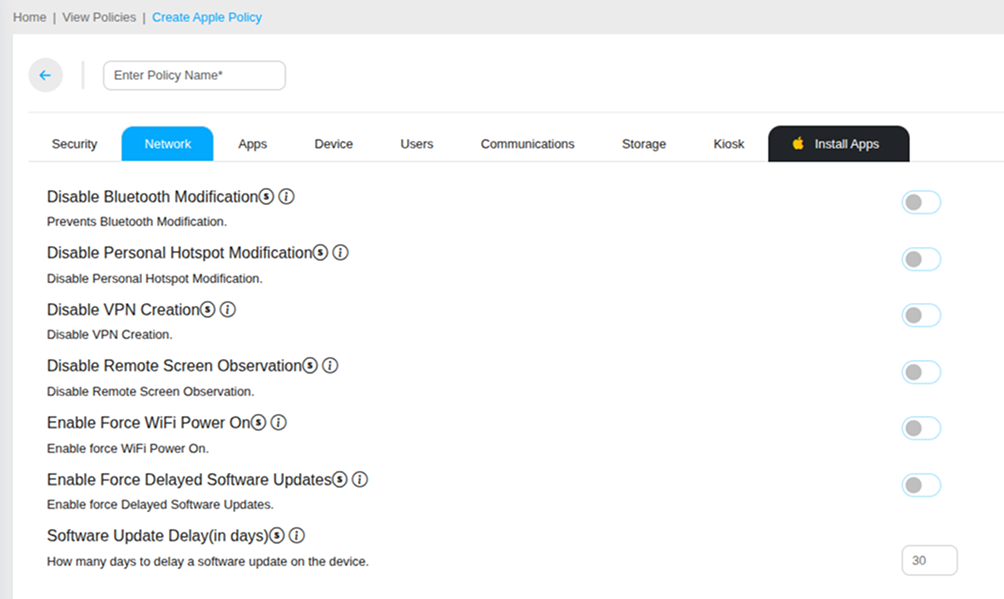
The Network tab within an iOS policy provides controls over how managed Apple devices connect to networks and handle connectivity settings. These settings ensure corporate iPhones and iPads remain connected through authorized channels, prevent unauthorized network modifications, and control when iOS software updates are applied to the fleet.
Bluetooth Controls
Disable Bluetooth Modification
Prevents users from modifying Bluetooth settings on the managed iOS device. When enabled, the current Bluetooth state is locked — users cannot turn Bluetooth on or off, pair new devices, or change any Bluetooth configuration. This is useful when Bluetooth peripherals are pre-configured for the device and should not be changed by the end user.
Personal Hotspot & Network Controls
Disable Personal Hotspot Modification
Prevents users from enabling, disabling, or modifying the Personal Hotspot setting on the iOS device. Use this to prevent corporate devices from being used as unauthorized internet sharing points for personal devices.
Disable VPN Creation
Prevents users from manually creating or modifying VPN configurations on the iOS device. When enabled, only VPN configurations pushed by MobiHeal through the policy are active — users cannot add personal VPN profiles that could bypass corporate network controls.
Display & Remote Access Controls
Disable Remote Screen Observation
Prevents the iOS device screen from being observed remotely by unauthorized parties. When enabled, third-party screen monitoring or remote access tools cannot view the device display without the user's explicit consent — protecting sensitive on-screen corporate data from remote interception.
Enable Force Wi-Fi Power On
Forces the Wi-Fi radio to remain powered on at all times on the iOS device. Users cannot turn off Wi-Fi — ensuring corporate iPhones and iPads always maintain Wi-Fi connectivity and remain reachable by the MobiHeal console. Recommended for devices that must remain connected to the corporate network continuously.
Software Update Controls
Enable Force Delayed Software Updates
Defers iOS software updates from appearing on the device for a configurable number of days after Apple releases them. When enabled, the update will not be visible or installable by users until the delay period expires — giving IT administrators time to test the new iOS version on staging devices before it reaches the production fleet.
Software Update Delay (in days)
Defines the number of days to delay an iOS software update after its official release. For example, setting this to 30 means iOS updates will not be available on managed devices until 30 days after Apple publishes them. The maximum delay value is 90 days. Use this in combination with Force Delayed Software Updates to control exactly when iOS updates reach your corporate fleet.
A software update delay of 14 to 30 days is recommended for most corporate iOS deployments — this provides enough time to identify and assess any compatibility or stability issues with new iOS versions before they affect the entire fleet.