Apple APNs Configuration
Before Apple devices can be managed through MobiHeal, an Apple ID must be created for Apple Push Notification Service (APNs) certificate management. This Apple ID is used to generate, download, and renew the APNs certificate that enables communication between MobiHeal and enrolled Apple devices. It is recommended to use a dedicated organizational email address because the same Apple ID must be used whenever the APNs certificate is renewed.
Why a Dedicated Apple ID is Required
The APNs certificate is permanently associated with the Apple ID used during certificate creation. If a different Apple ID is used during renewal, the existing APNs certificate cannot be renewed, which may disrupt device management communication.
- Use an organizational email address instead of a personal email account.
- Store the Apple ID credentials securely for future certificate renewals.
- Use the same Apple ID for all future APNs certificate management tasks.
- Ensure multiple administrators have access to the account if required by organizational policy.
Opening the Apple Account Registration Page
Navigate to the Apple Device Enrollment page in MobiHeal and click the Create a new Apple ID link. This opens the Apple Account registration page where the Apple ID can be created.
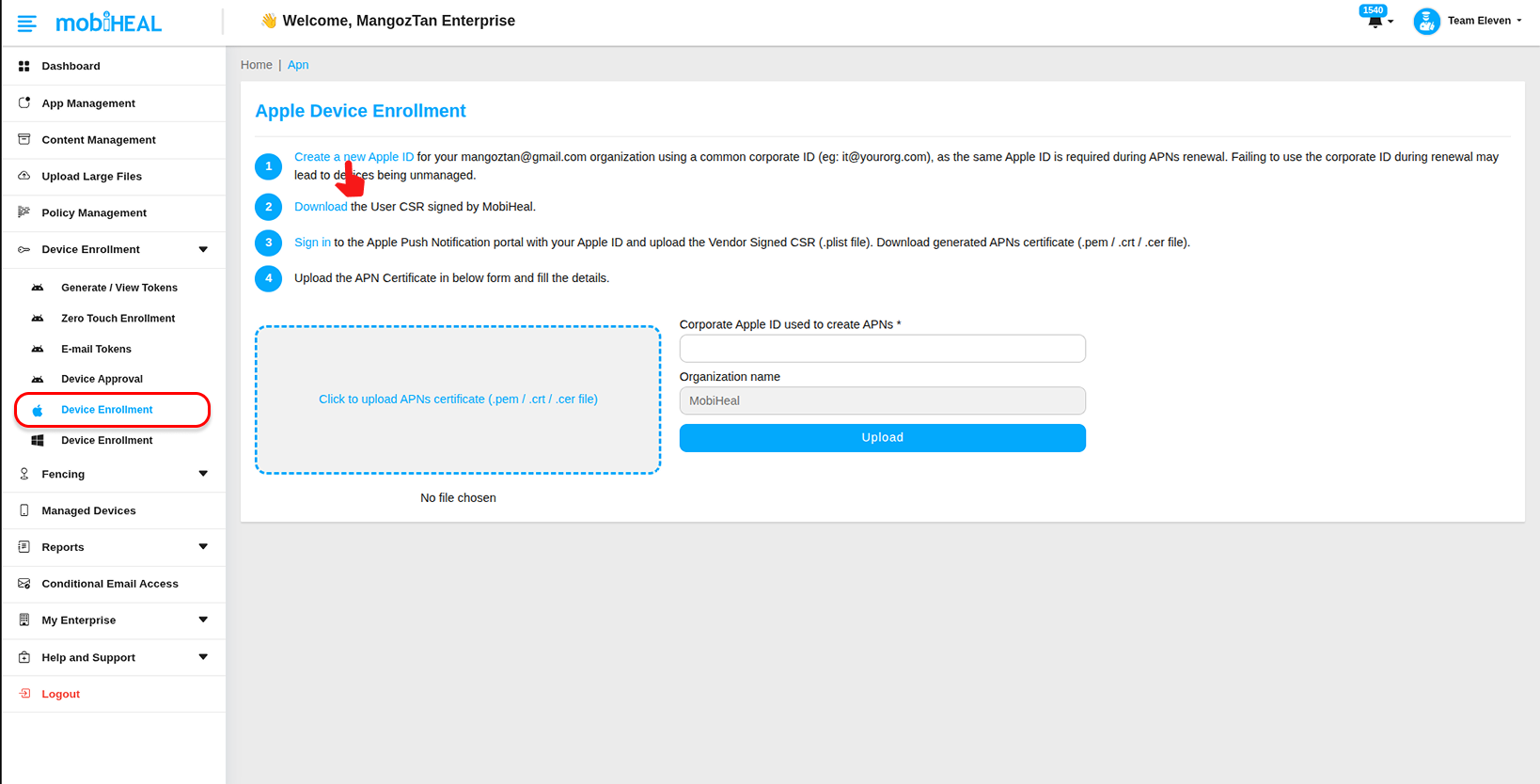
- Open Apple Device Enrollment in MobiHeal.
- Locate the APNs setup section.
- Click Create a new Apple ID.
- The Apple Account registration page opens in a new browser tab.
Entering Account Information
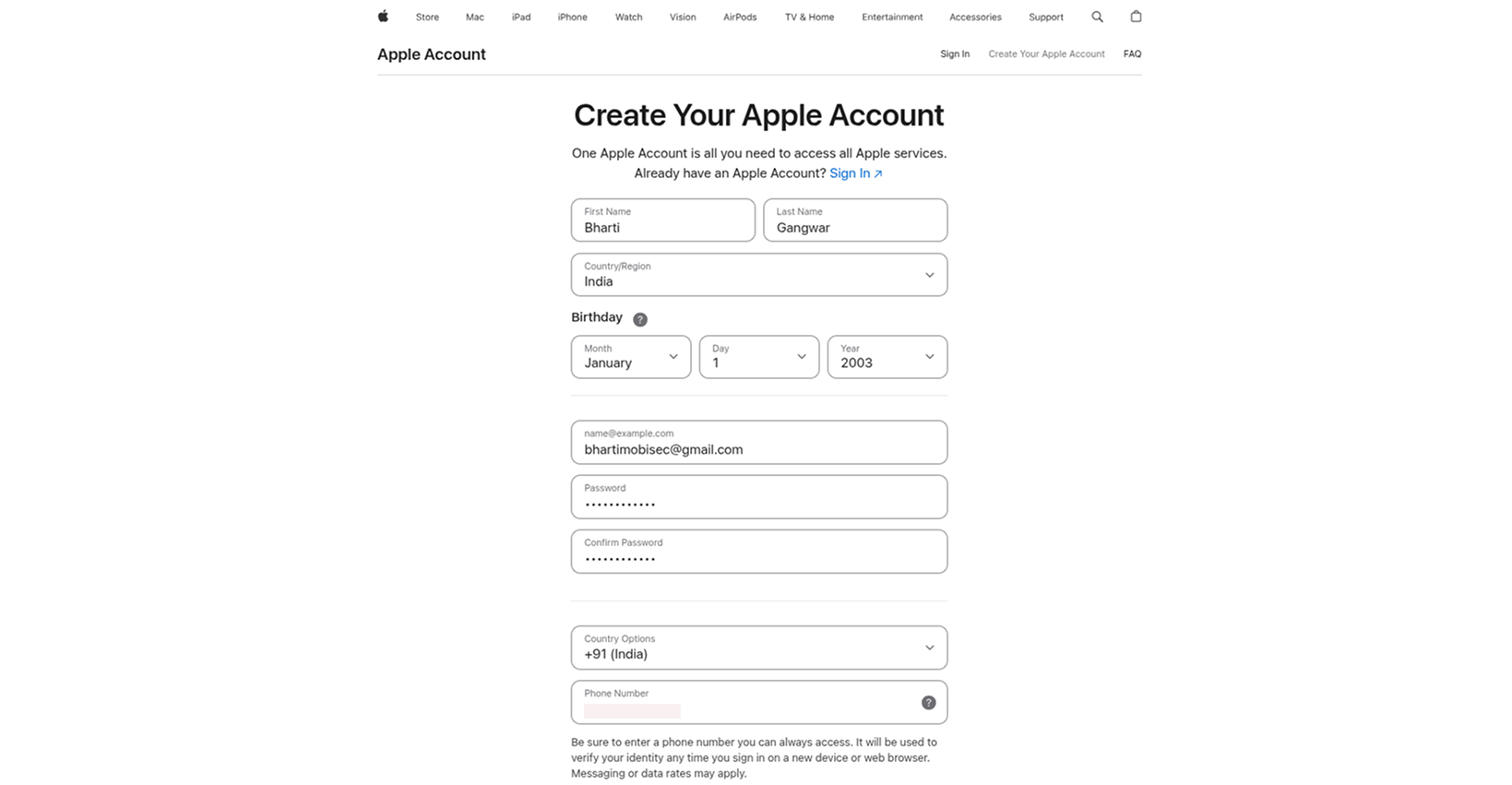
Complete the registration form by entering the required personal and account details. The email address entered during this step becomes the Apple ID that will be used for APNs certificate management.
- Enter First Name and Last Name.
- Select the Country or Region.
- Enter the Date of Birth.
- Provide the organizational Email Address.
- Create and confirm a secure Password.
- Review the entered information before continuing.
Verifying the Email Address and Mobile Number
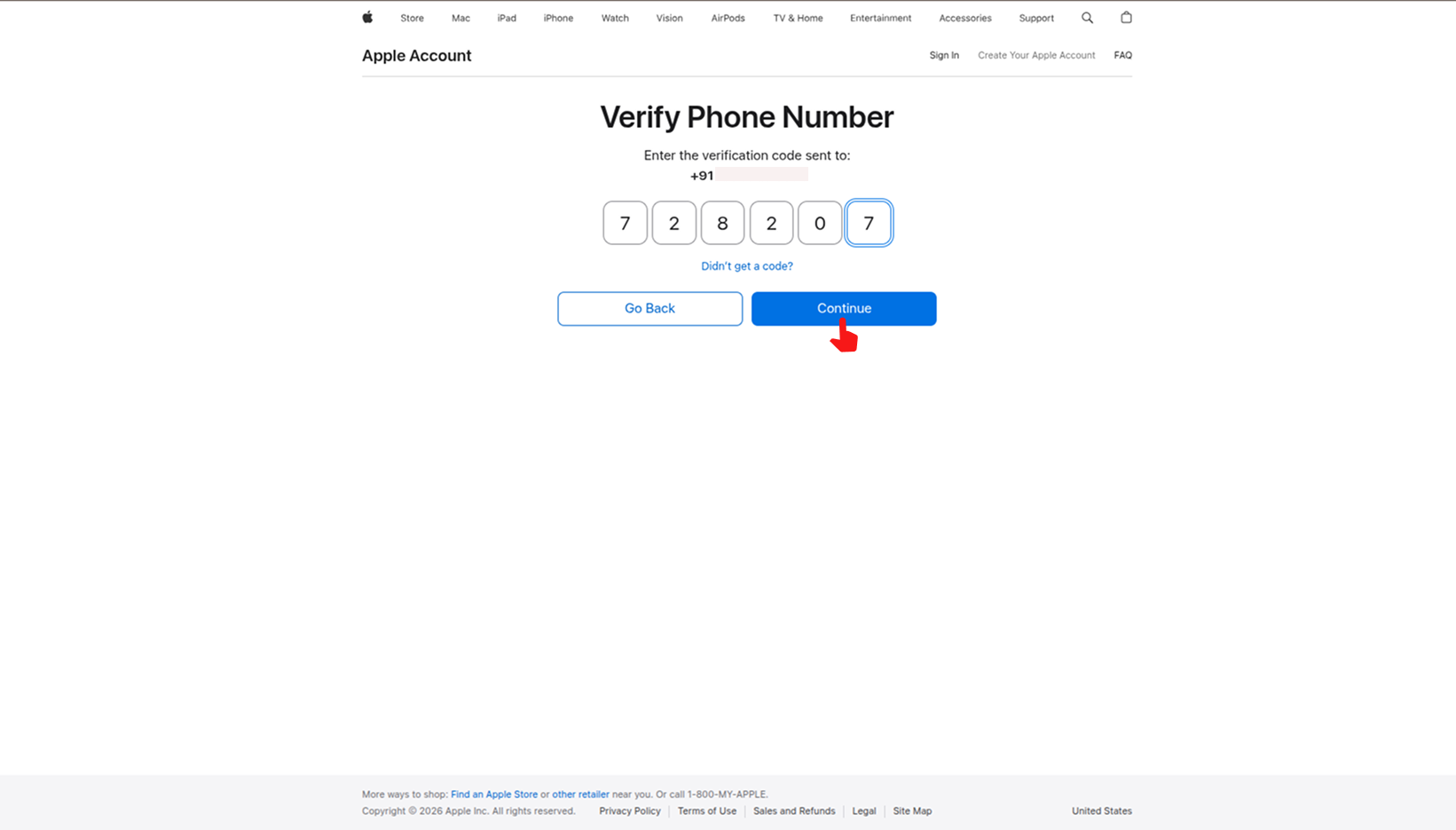
After submitting the registration form, Apple requires verification of both the email address and mobile phone number associated with the account. Verification must be completed before the Apple ID becomes active.
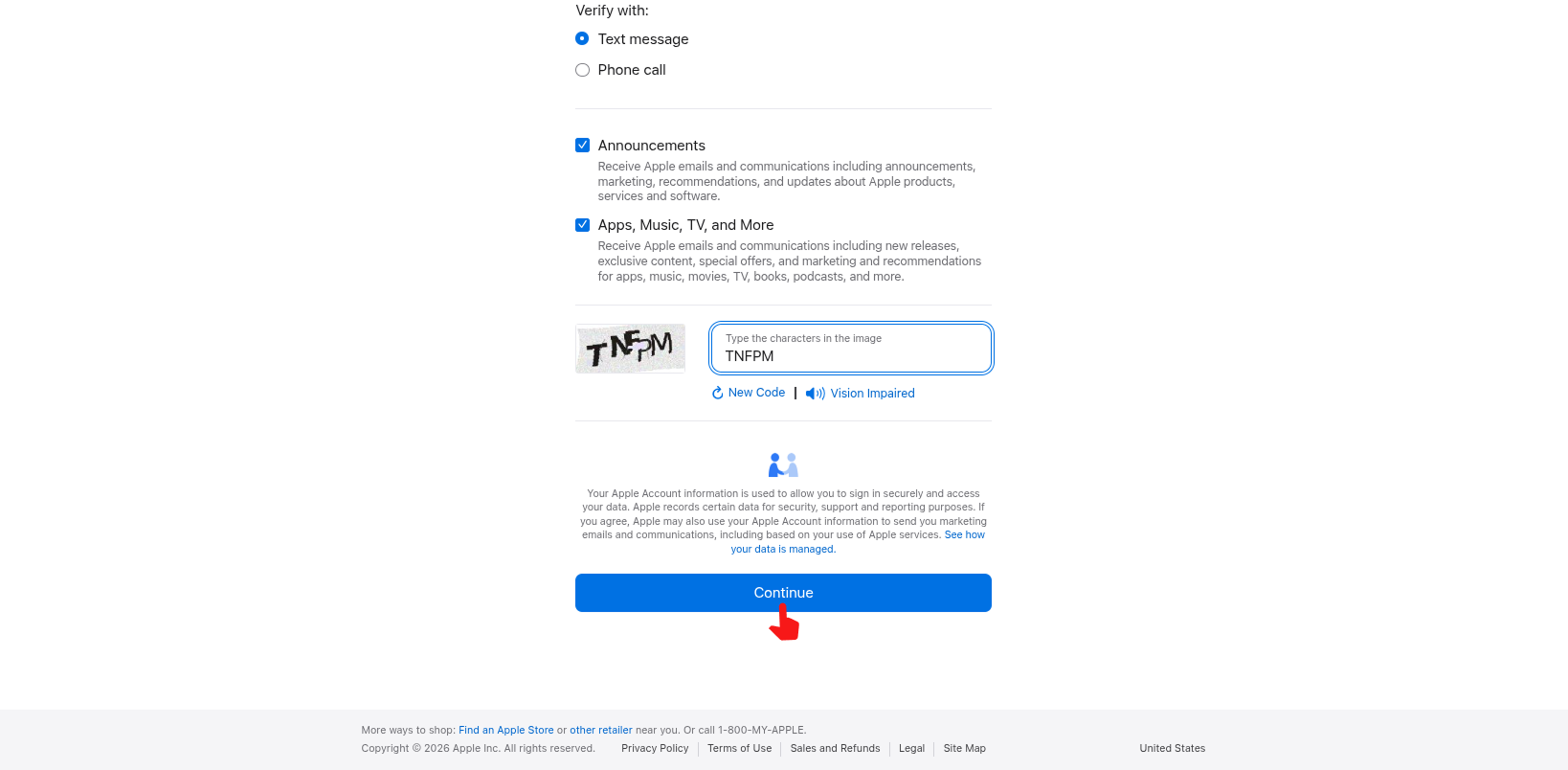
- Enter a valid mobile phone number.
- Choose Text Message or Phone Call verification.
- Complete the CAPTCHA verification.
- Click Continue.
- Enter the verification code received by email.
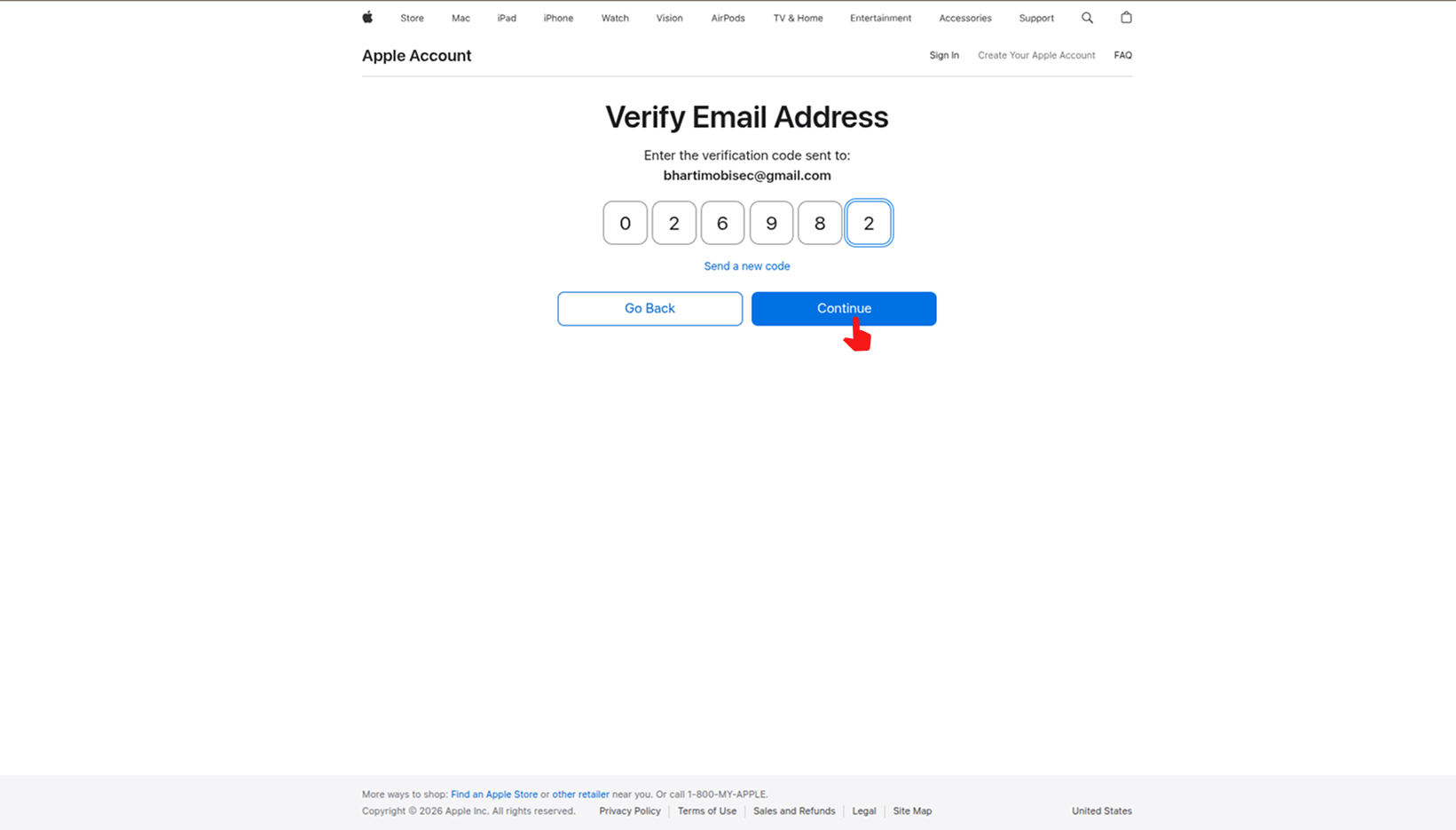
- Enter the verification code received on the mobile device.
- Complete the verification process.
Confirming Apple ID Creation
After both verification steps are successfully completed, the Apple ID becomes active and ready for use. This account can now be used during APNs certificate generation and future certificate renewals within MobiHeal.
- Sign in to the Apple Account portal to confirm access.
- Verify that the registered email address is accessible.
- Store the account credentials securely.
- Record the Apple ID details for future APNs certificate renewal activities.
The Apple ID is now ready for the next stage of Apple Device Enrollment, where it will be used to create and manage the APNs certificate required for Apple device management in MobiHeal.