iOS Policy — Kiosk Mode Configuration
iOS Kiosk Mode in MobiHeal locks a managed Apple device to a single specific application — turning an iPhone or iPad into a purpose-built terminal for a specific task or location. It is ideal for corporate deployments such as self-service kiosks, customer-facing display tablets, point-of-sale systems, or any iOS device with a dedicated and defined function.
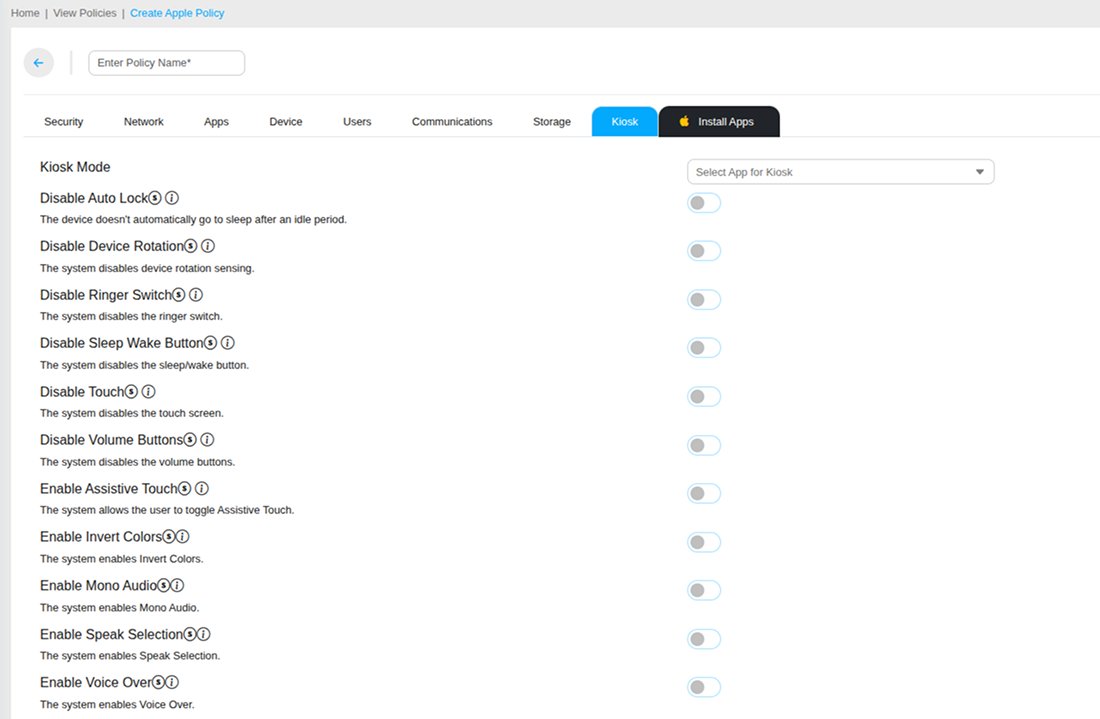
Step 1 — Select the Kiosk App
In the Kiosk tab, use the Select App dropdown to choose the application the iOS device will be locked to. The dropdown lists all apps currently available in your MobiHeal App Management catalog for iOS — for example, Chrome, Slack, WhatsApp, Spotify, YouTube Music, or any custom enterprise app you have added.
The app you select must be added to your iOS App Management catalog before it appears in the Kiosk app dropdown. Ensure the app is also set to be deployed in the Install Apps section of the policy.
Step 2 — Configure Kiosk Hardware Controls
Control the physical hardware behavior of the iOS device while it is running in Kiosk mode:
- Disable Auto Lock — Prevents the iOS device from automatically going to sleep after an idle period. Recommended for kiosk displays and digital signage that must remain active continuously.
- Disable Device Rotation — Disables the rotation sensor — the device will not rotate the screen orientation regardless of how it is physically positioned. Use this for fixed displays where a specific orientation must be maintained at all times.
- Disable Ringer Switch — Disables the physical ringer/silent switch on the side of the device, preventing users from muting or unmuting the kiosk device.
- Disable Sleep Wake Button — Disables the side button used to lock or wake the device, preventing users from turning off the screen on unmanned kiosk terminals.
- Disable Touch — Disables the touchscreen entirely on the managed iOS device. Use this for display-only kiosk deployments where user interaction with the screen is not required or permitted.
- Disable Volume Buttons — Disables the physical volume up and down buttons on the device, locking the audio level at its current setting.
Step 3 — Configure Kiosk Accessibility Settings
MobiHeal allows IT administrators to pre-enable specific iOS accessibility features on Kiosk devices — ensuring the kiosk experience is accessible to all users at the deployment location:
- Enable Assistive Touch — Enables the on-screen floating accessibility button that provides access to common device gestures and actions without using hardware buttons.
- Enable Invert Colors — Enables the inverted color display mode on the kiosk device — useful for accessibility or specific display environments.
- Enable Mono Audio — Combines stereo audio channels into a single mono signal, ensuring users with hearing differences in one ear receive the full audio experience.
- Enable Speak Selection — Enables the Speak Selection accessibility feature — allowing the device to read selected text aloud.
- Enable Voice Over — Enables VoiceOver, Apple's full screen reader, on the kiosk device for visually impaired users.
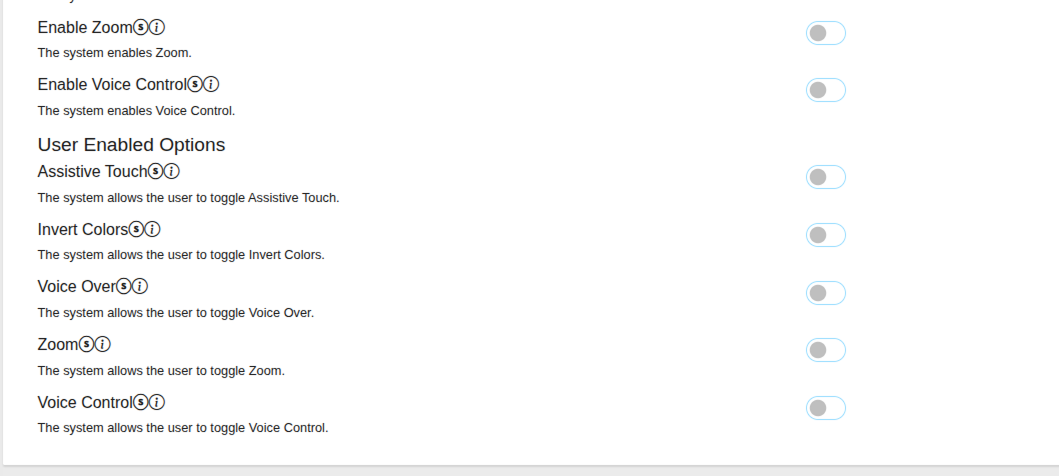
- Enable Zoom — Enables the Zoom accessibility feature allowing screen magnification on the kiosk device.
- Enable Voice Control — Enables full voice control of the device, allowing users to navigate and interact with the kiosk app entirely through spoken commands.
Step 4 — Configure User-Enabled Accessibility Options
In addition to administrator-enforced accessibility settings, you can also permit users to toggle specific accessibility features themselves while in Kiosk mode — giving users the ability to customize their accessibility experience within the defined kiosk environment:
- Assistive Touch — Allows the user to toggle Assistive Touch on or off themselves within the kiosk environment.
- Invert Colors — Allows the user to toggle color inversion on or off.
- Voice Over — Allows the user to toggle VoiceOver on or off.
- Zoom — Allows the user to toggle Zoom on or off.
- Voice Control — Allows the user to toggle Voice Control on or off.
Step 5 — Save and Apply
Once all Kiosk mode settings are configured, click Save Policy to save the iOS policy with the Kiosk configuration. Assign the policy to the target iOS devices — the Kiosk mode will activate on the device after the policy is applied and the device syncs with MobiHeal.