Adding iOS Applications and Deploying Apps to iOS Devices
Before you can deploy an application to your iPhone and iPad fleet, it must first be added to your MobiHeal app catalog. MobiHeal allows administrators to browse and add applications directly from the Apple App Store, making them available for deployment and management across enrolled iOS devices.
From the App Management screen, click the + Add Application button in the top-right corner. When the platform selection window appears, select Apple to proceed to the iOS application catalog.
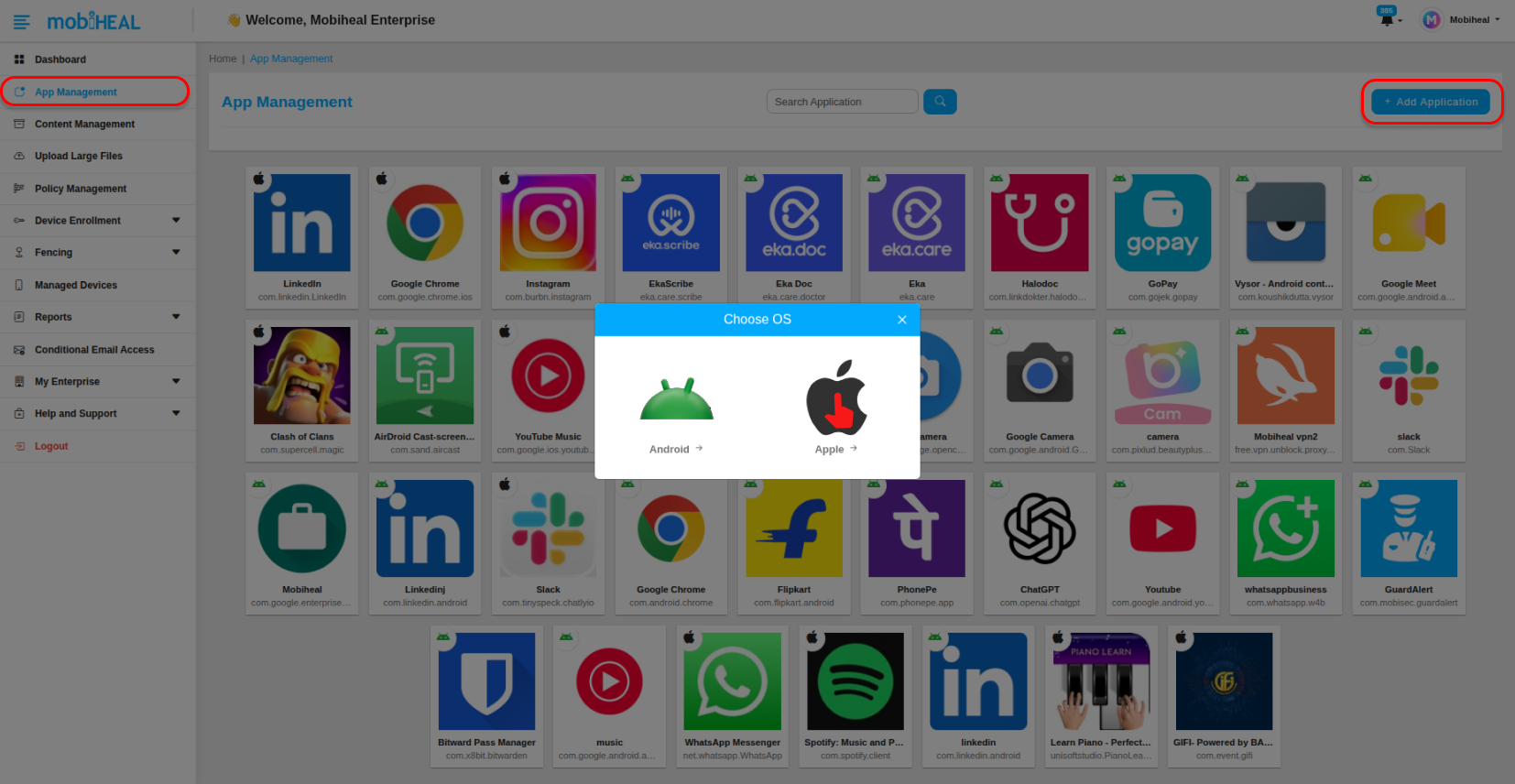
Adding Applications from the Apple App Store
After selecting Apple, MobiHeal displays a catalog of popular iOS applications that can be added and deployed to managed iPhone and iPad devices. Administrators can browse the catalog or use the search feature to quickly locate the required application. Upon selecting an application, a Confirm App Selection popup appears displaying the application's Package ID and App Name. Review the details and click Save to add the application to the MobiHeal app catalog.
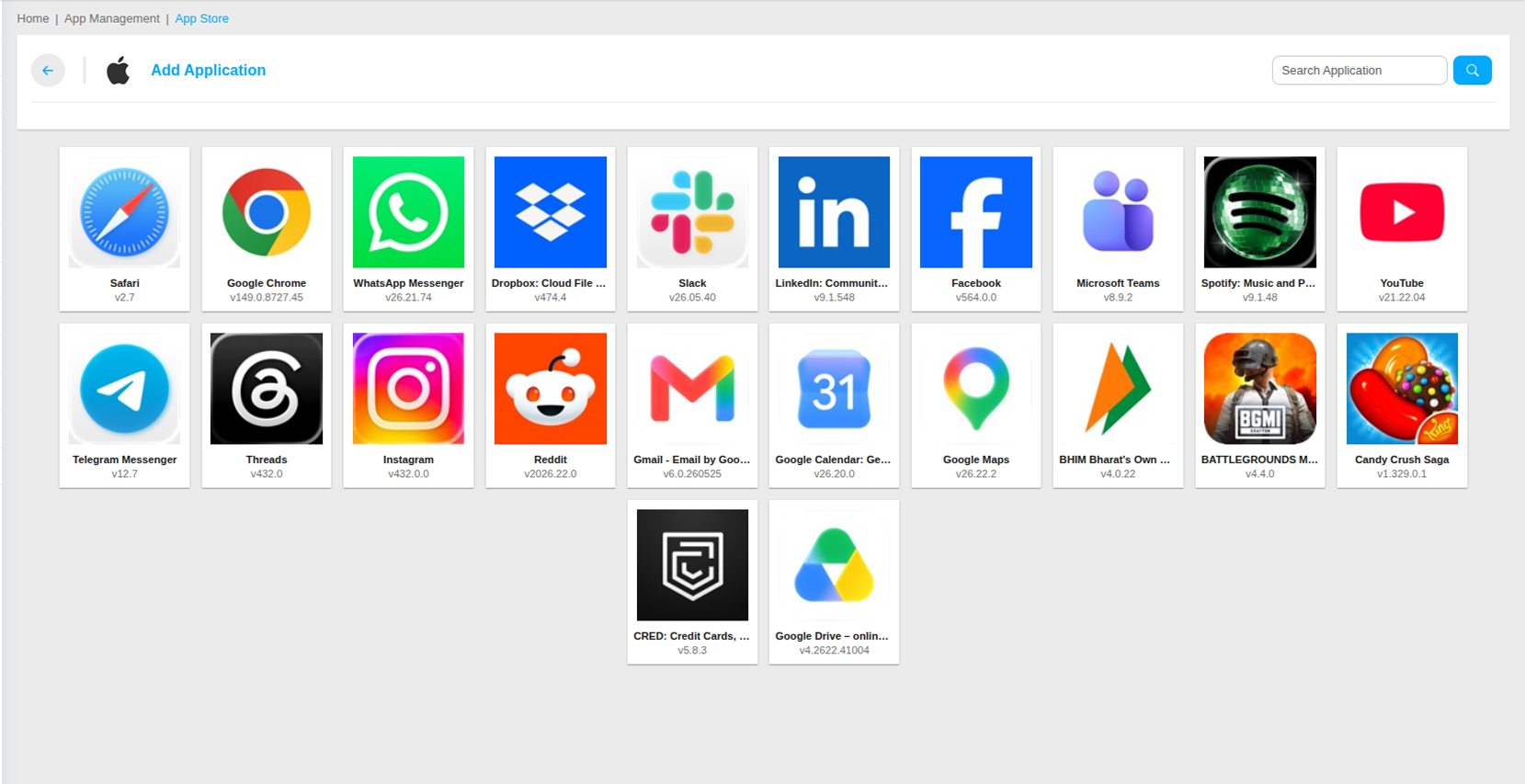
- Use the Search Application field to find a specific application.
- Browse the available iOS applications displayed in the catalog.
- Select the required application from the list.
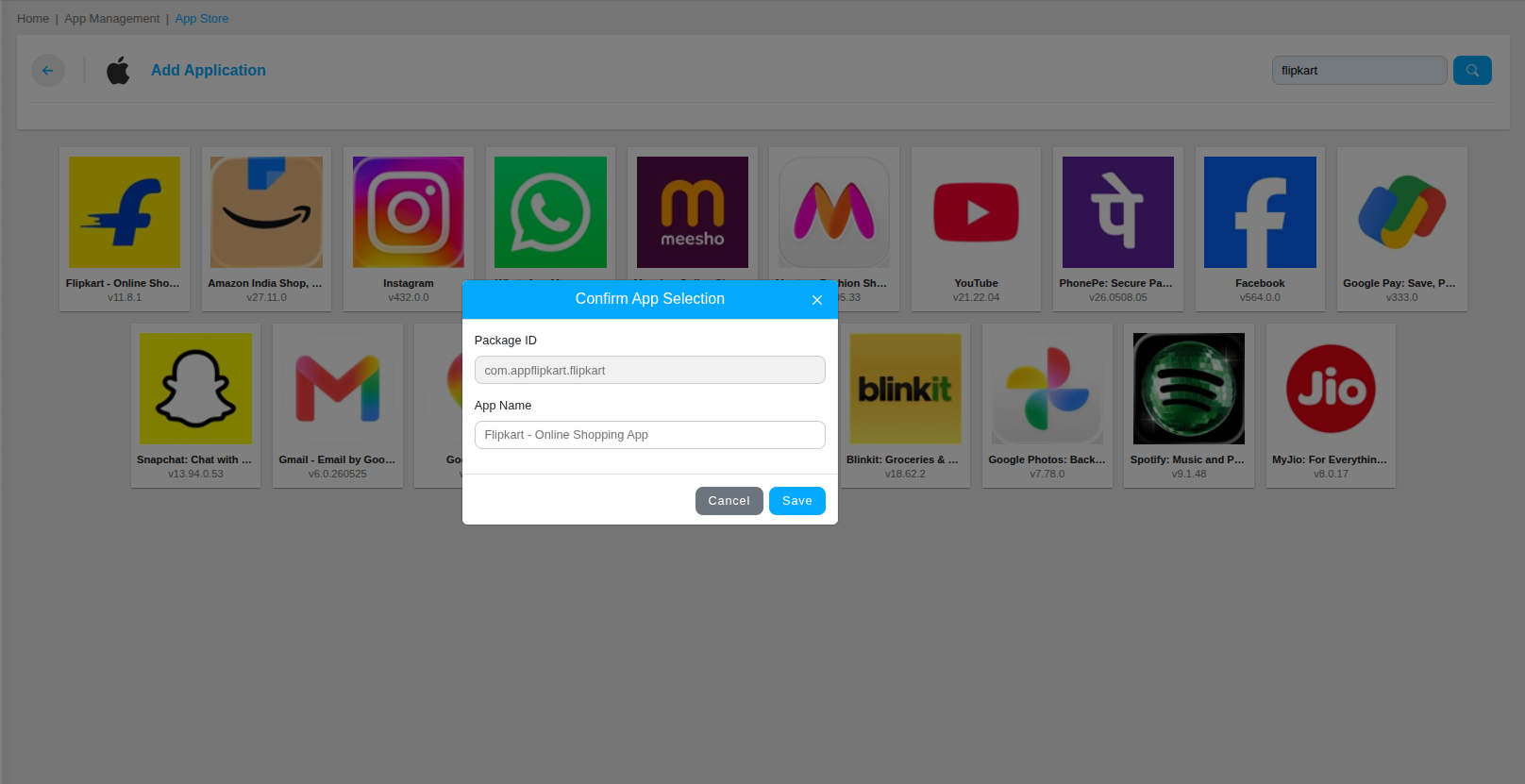
- Verify the Package ID and App Name displayed in the confirmation popup.
- Click Save to add the application to your MobiHeal app catalog.
- The application will now appear in your App Management list and is ready to be assigned through a policy.
Creating or Updating an iOS Policy
Once the application has been added to the catalog, the next step is to create an iOS policy that will be used to deploy the application to managed devices.
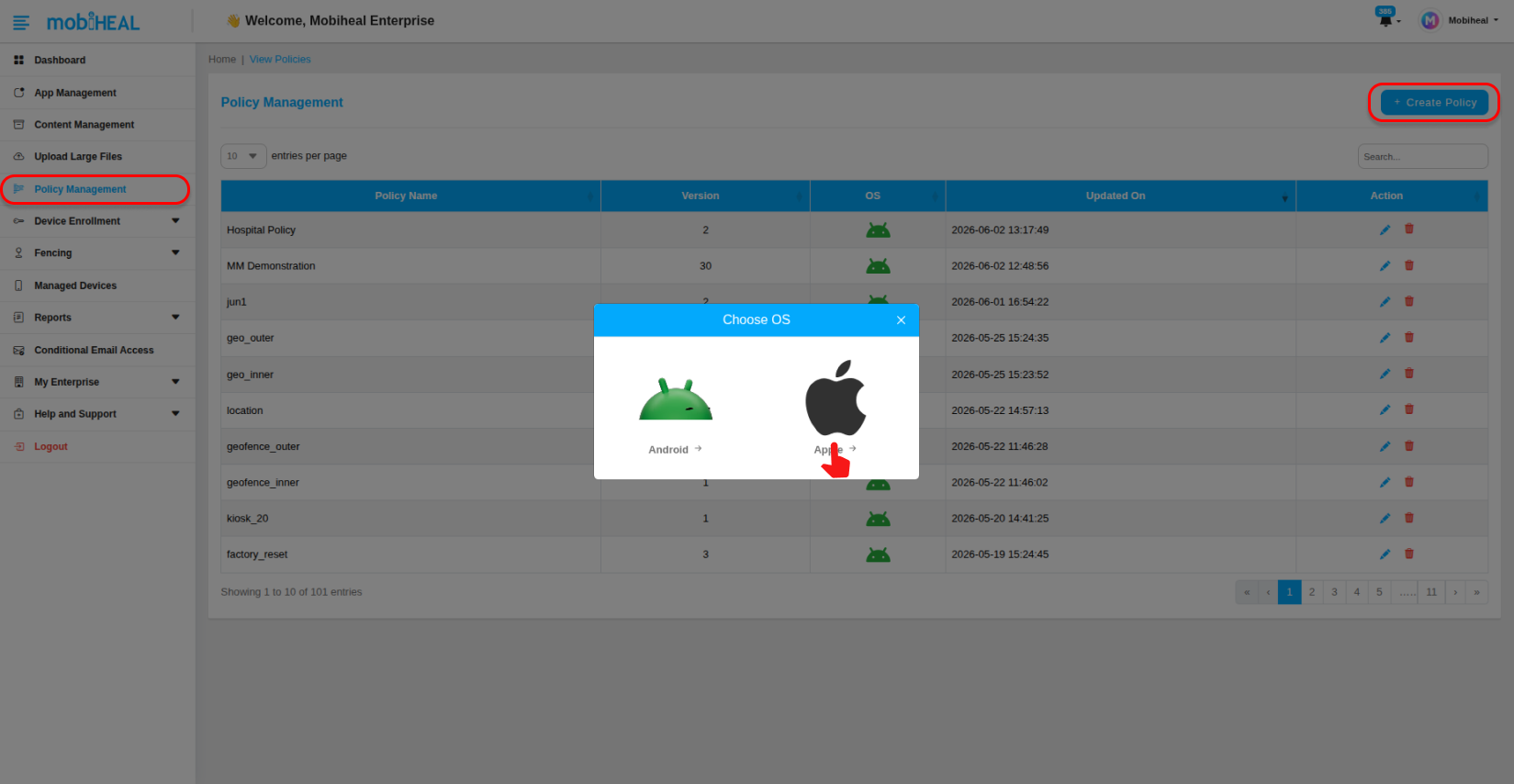
Navigate to Policy Management from the left navigation menu and click + Create Policy.
Create a New Apple Policy
After adding the application to the MobiHeal app catalog, create a new policy or update an existing one to deploy the application.
Navigate to Policy Management.
Create a Policy
- Click + Create Policy.
- Select Apple as the operating system.
- Enter a Policy Name.
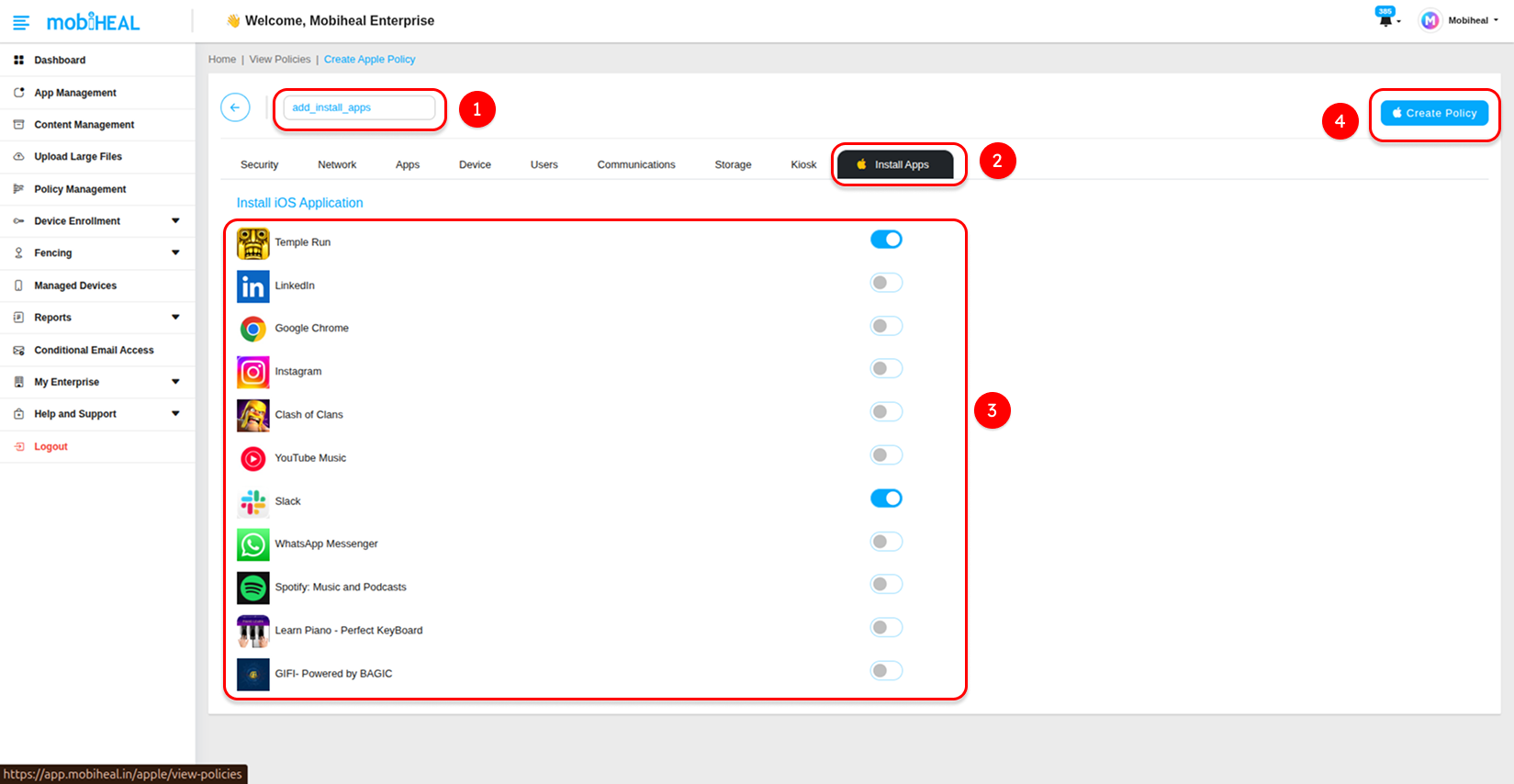
- Open the Install Apps tab.
- Enable the application(s) you want to deploy.
- Click Create Policy.
Update a Policy
- Open an existing Apple policy.
- Navigate to the Install Apps tab.
- Enable or disable applications as required.
- Click Update Policy to save the changes.
The policy is now ready to be assigned to managed iPhone and iPad devices.
Configure Application Installation
Open the Install Apps tab within the policy configuration screen. This tab displays all iOS applications that have been added to the MobiHeal application catalog.
- Navigate to the Install Apps tab.
- Review the list of available iOS applications.
- Enable the toggle beside each application that should be deployed.
- Select one or more applications as required.
- Click Create Policy to save the configuration.
- Once saved, the policy will contain the selected applications and will be available for assignment to devices.
Assigning the Policy to a Managed Device
After creating the policy, it must be assigned to the target device.
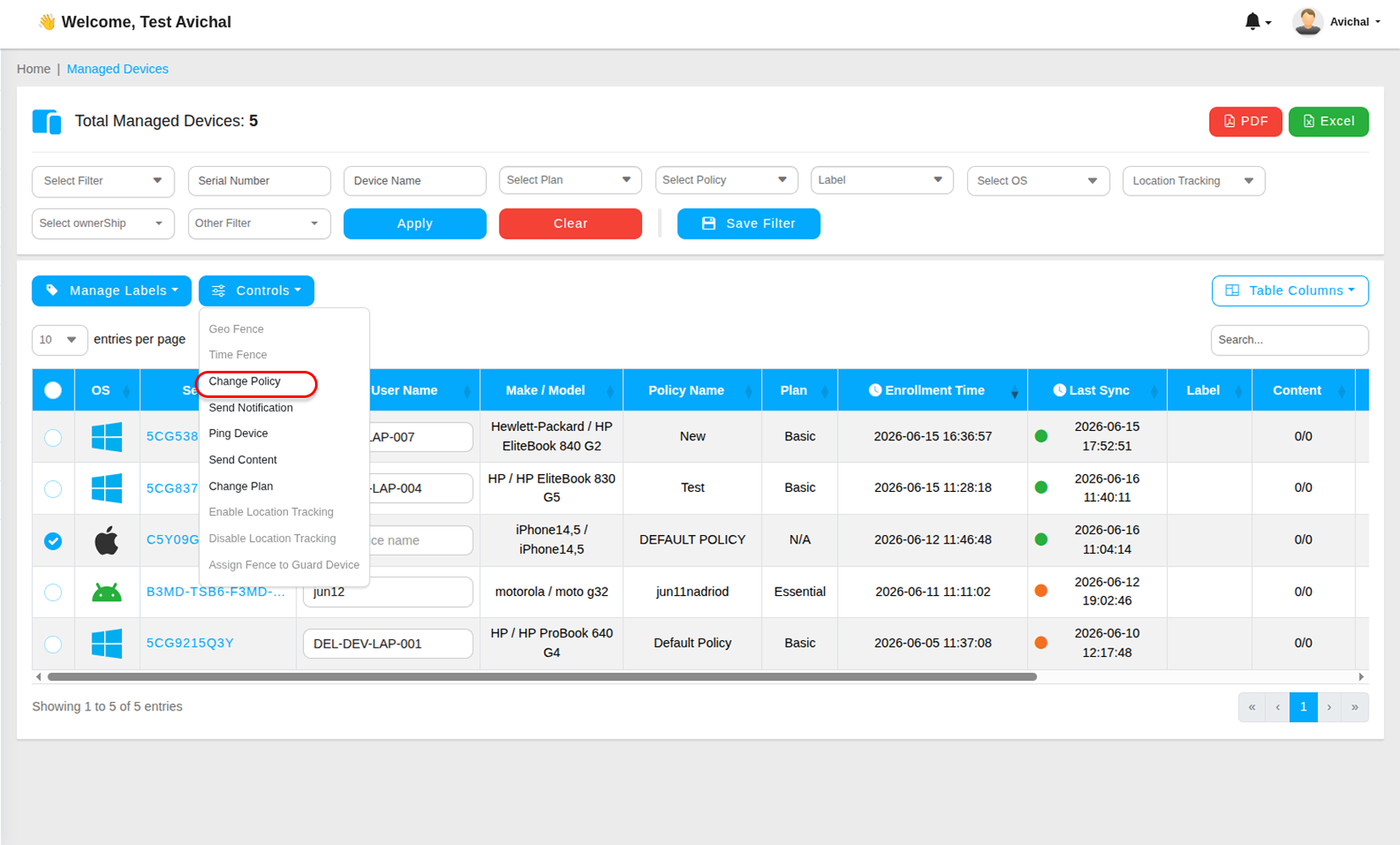
Navigate to Managed Devices from the left navigation menu. The Managed Devices page displays all enrolled devices available for management.
Apply the Policy
Select the target iPhone or iPad and assign the newly created policy.
- Locate the target device from the device inventory.
- Select the device using the checkbox.
- Click Controls.
- Select Change Policy from the dropdown menu.
- Choose the newly created iOS policy.
- Save the changes.
- The selected policy will now be applied to the device.
Verifying Application Deployment
After the policy is assigned, the device will synchronize with MobiHeal and begin processing the policy configuration.
- The device receives the updated policy during the next sync cycle.
- Applications configured under the Install Apps section are automatically pushed to the device.
- The selected applications are installed on the managed iPhone or iPad.
- Administrators can monitor deployment status from the Managed Devices section.
- Verification Steps
- Open the device details page.
- Confirm the assigned policy is displayed.
- Verify the device has completed synchronization.
- Check that the selected applications appear on the device.
- Confirm the application launches successfully.