iOS Policy — Password Policy Configuration
The Password Policy section within the iOS policy Security tab defines the complexity, strength, and lifecycle requirements for passcodes on managed Apple devices. Strong password policies are the first line of defense against unauthorized physical access — ensuring that even if a corporate iPhone or iPad is lost or stolen, its data remains protected.
Basic Password Controls
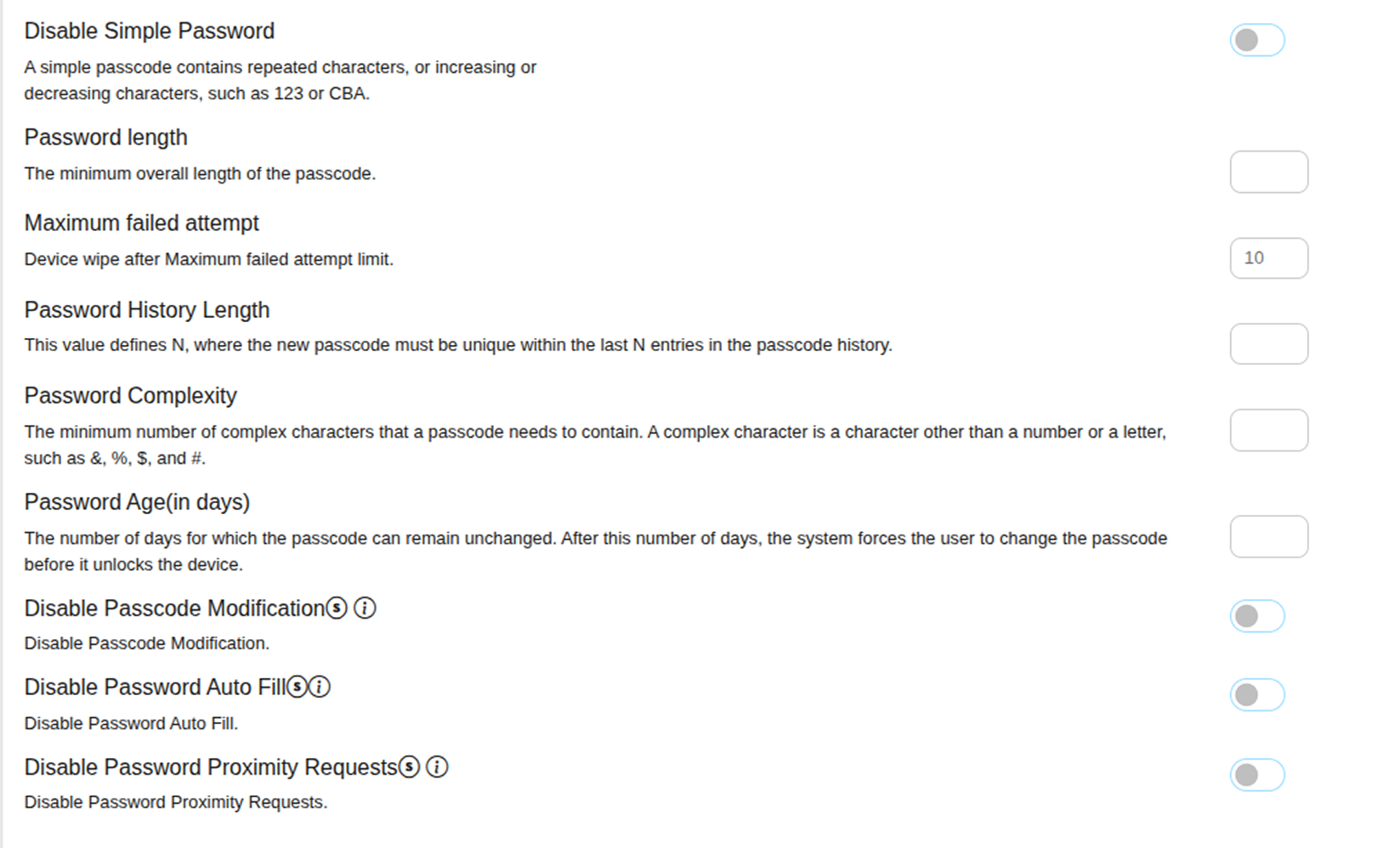
Disable Simple Password
Prevents users from setting a simple passcode — one that contains repeated characters, or increasing or decreasing character sequences such as 1111, 1234, or ABCD. When enabled, users must create a genuinely complex passcode that does not follow predictable patterns.
Disable Passcode Modification
Prevents users from changing the device passcode once it has been configured. Use this to lock in the IT-enforced passcode requirements without allowing users to weaken or bypass them.
Password Complexity Requirements
Password Length
Sets the minimum overall length of the iOS device passcode. For example, setting this to 6 requires users to create a passcode of at least 6 characters. A minimum of 8 characters is recommended for corporate iOS devices to ensure adequate security against brute-force attempts.
Password Complexity
Defines the minimum number of complex characters the passcode must contain. A complex character is any character that is not a letter or number — such as &, %, $, #, or @. For example, setting this to 1 means the passcode must include at least one special character.
Password Lifecycle Controls
Password Age (in days)
Defines the maximum number of days a passcode can remain unchanged before the user is forced to create a new one. For example, setting this to 90 means users must change their passcode every 90 days. After the defined period expires, the device will prompt the user to set a new passcode before they can unlock it.
Password History Length
Defines how many previous passcodes the device remembers and blocks from reuse. For example, setting this to 5 means users cannot reuse any of their last 5 passcodes when creating a new one — preventing employees from cycling through a small set of familiar passwords.
Failed Attempt Controls
Maximum Failed Attempts
Sets the maximum number of consecutive failed passcode attempts allowed before the iOS device automatically wipes all data and returns to factory settings. For example, setting this to 10 means that after 10 consecutive incorrect passcode entries, the device performs an immediate full wipe to protect corporate data from unauthorized access.
This setting triggers a full device wipe after the defined number of failed attempts. Set a value that balances security with user experience — setting it too low may result in accidental wipes from legitimate users entering an incorrect passcode.