iOS Policy Management Overview
The Policy Management module in MobiHeal allows IT administrators to define and enforce a comprehensive set of rules on managed Apple iOS devices. A policy controls everything from security and password requirements to app restrictions, device functionality, network controls, and kiosk configurations. Every managed iOS device in your fleet is assigned a policy, and that policy enforces your organization's standards automatically in the background.
Accessing Policy Management
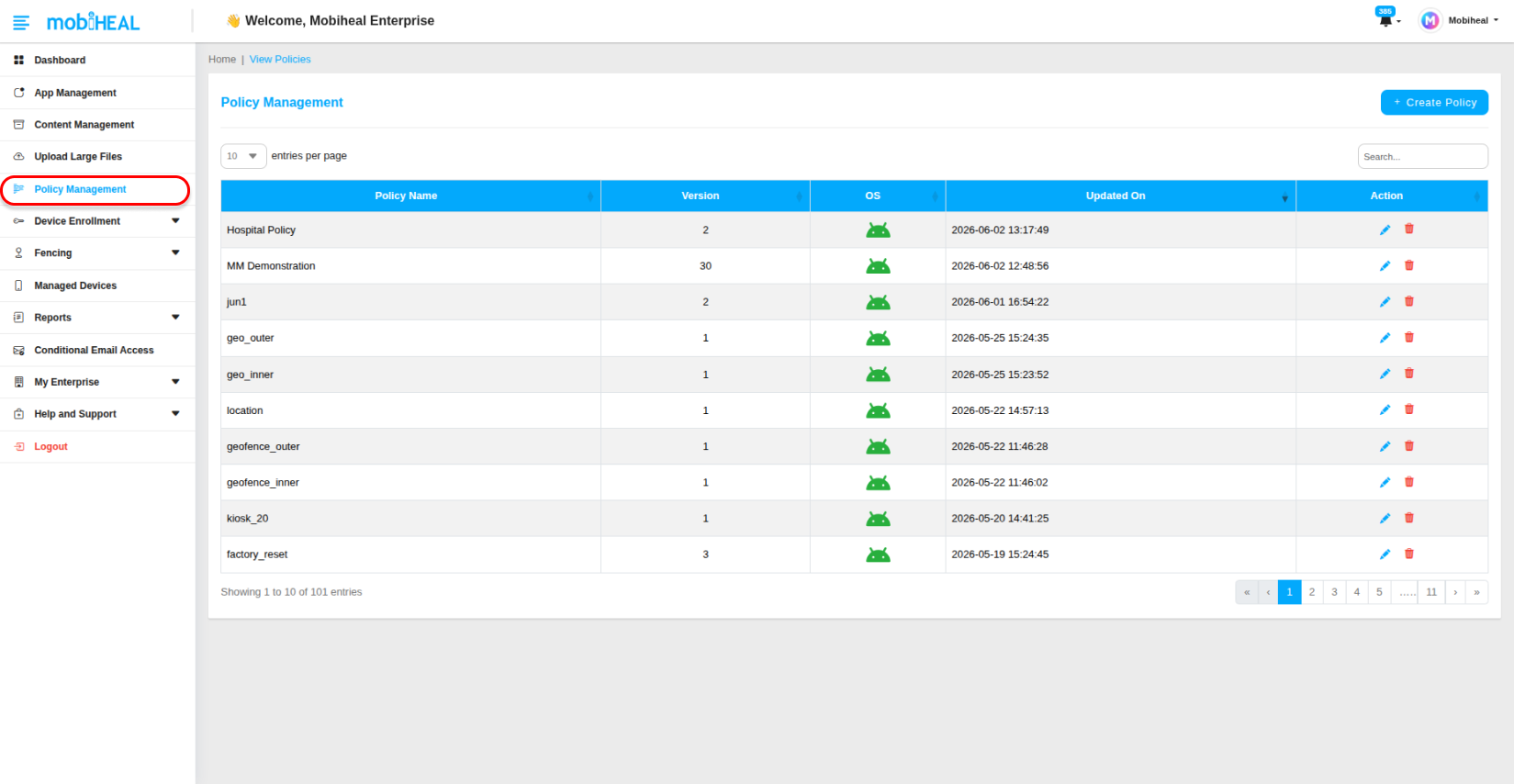
Go to Policy Management in the left sidebar. You will land on the policy list page showing all existing policies in your organization — both Android and iOS. From here you can view, edit, delete, or create policies.
Managing Existing iOS Policies
The policy list table shows all pre-configured policies in your organization. For each iOS policy in the list you can:
- Edit — Click on the policy name or the edit action to open and modify any configuration setting across all policy tabs. Click Update to save your changes.
- Delete — Use the delete action to permanently remove a policy from your organization. Before deleting ensure no iOS devices are currently assigned to that policy — reassign them first to avoid leaving devices without security enforcement.
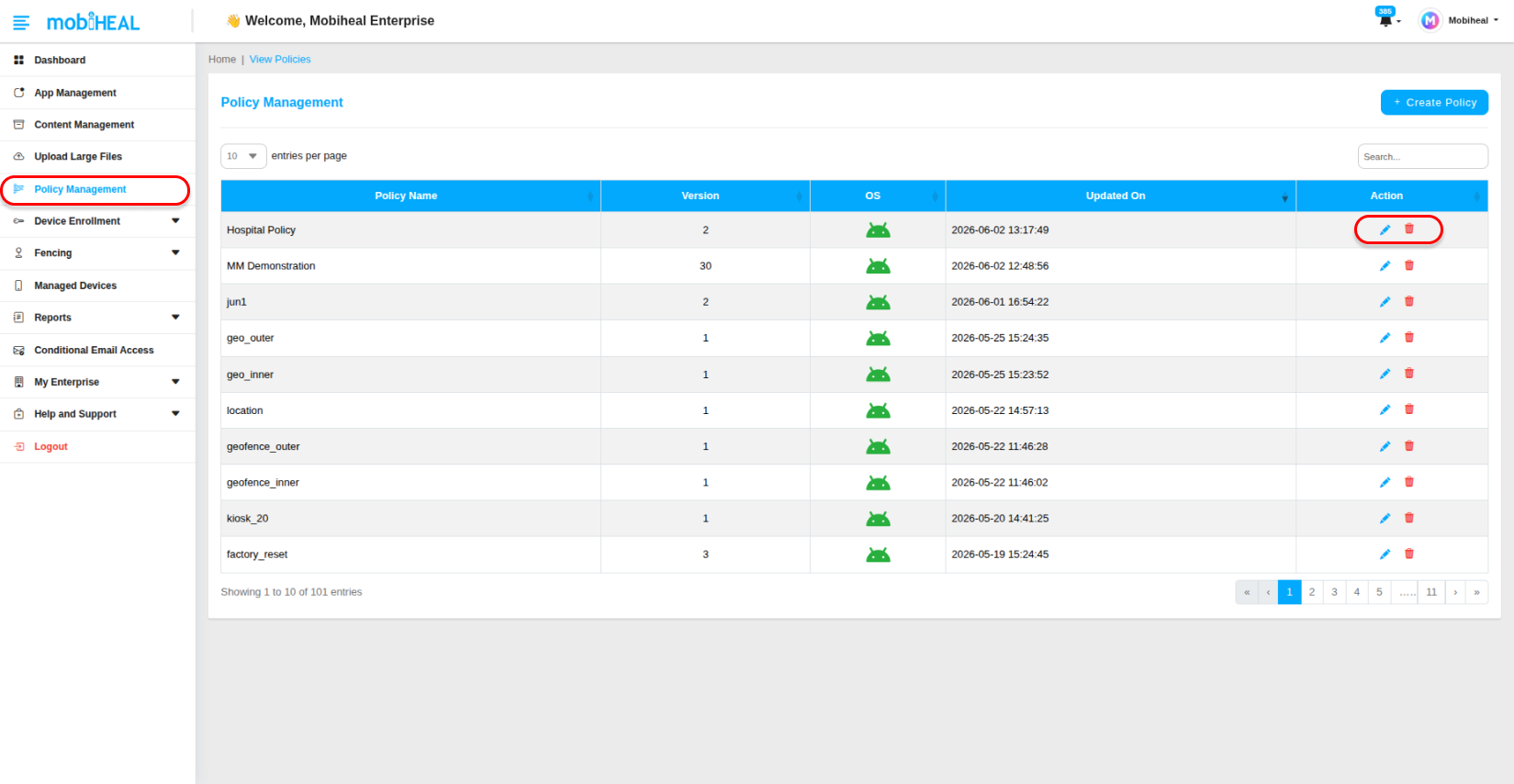
Deleting a policy that is actively assigned to iOS devices will leave those devices without policy enforcement until a new policy is applied. Always reassign devices before deleting a policy.
Creating a New iOS Policy
To create a new policy for Apple iOS devices follow these steps:
Step 1 — Click Create Policy
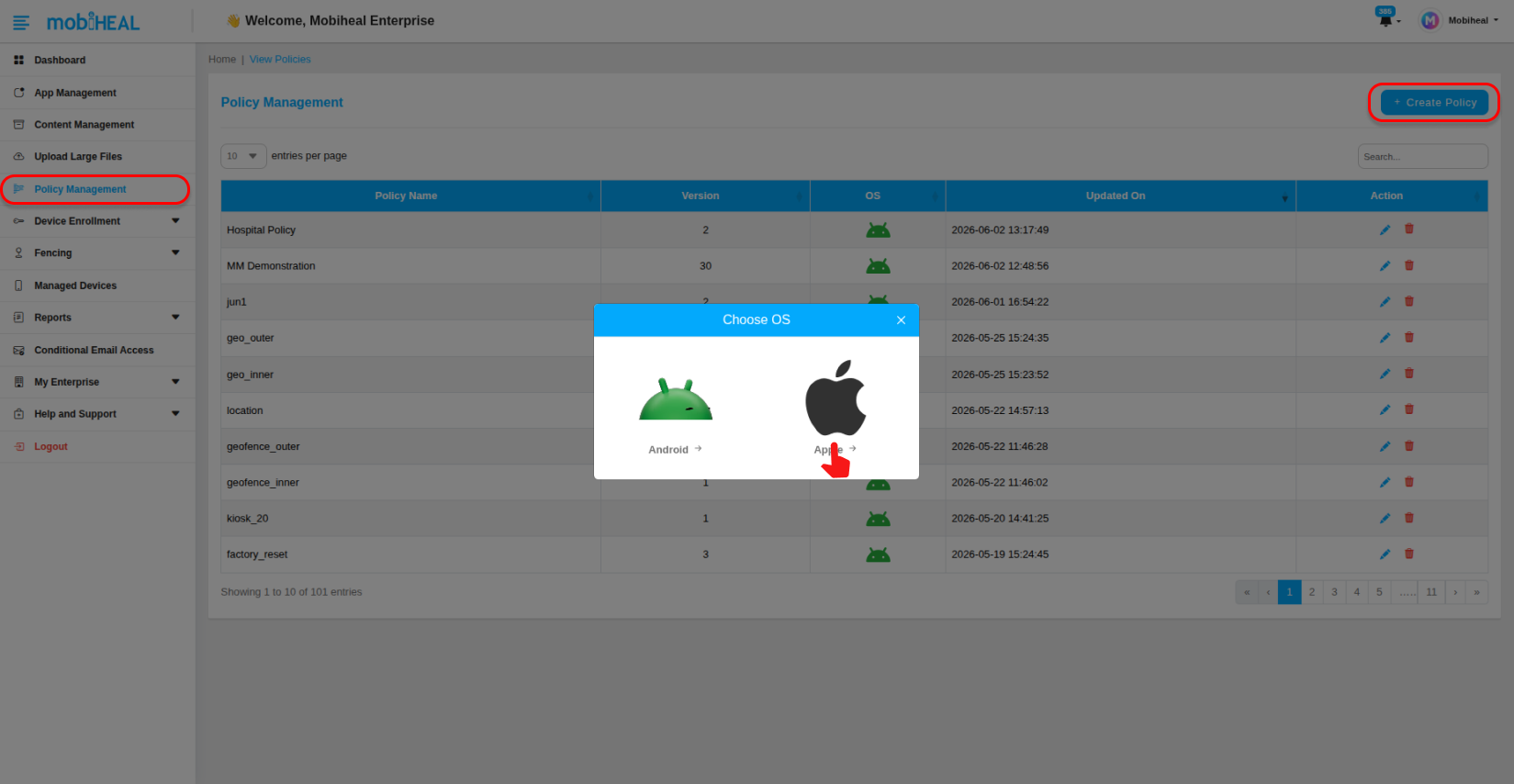
Click the + Create button in the top-right corner of the Policy Management screen. A platform selection modal will appear showing the available operating system options.
Step 2 — Select Apple / iOS
In the platform selection modal, click the Apple icon to select iOS as the target platform. You will be taken to the iOS policy configuration page.
Step 3 — Enter the Policy Name
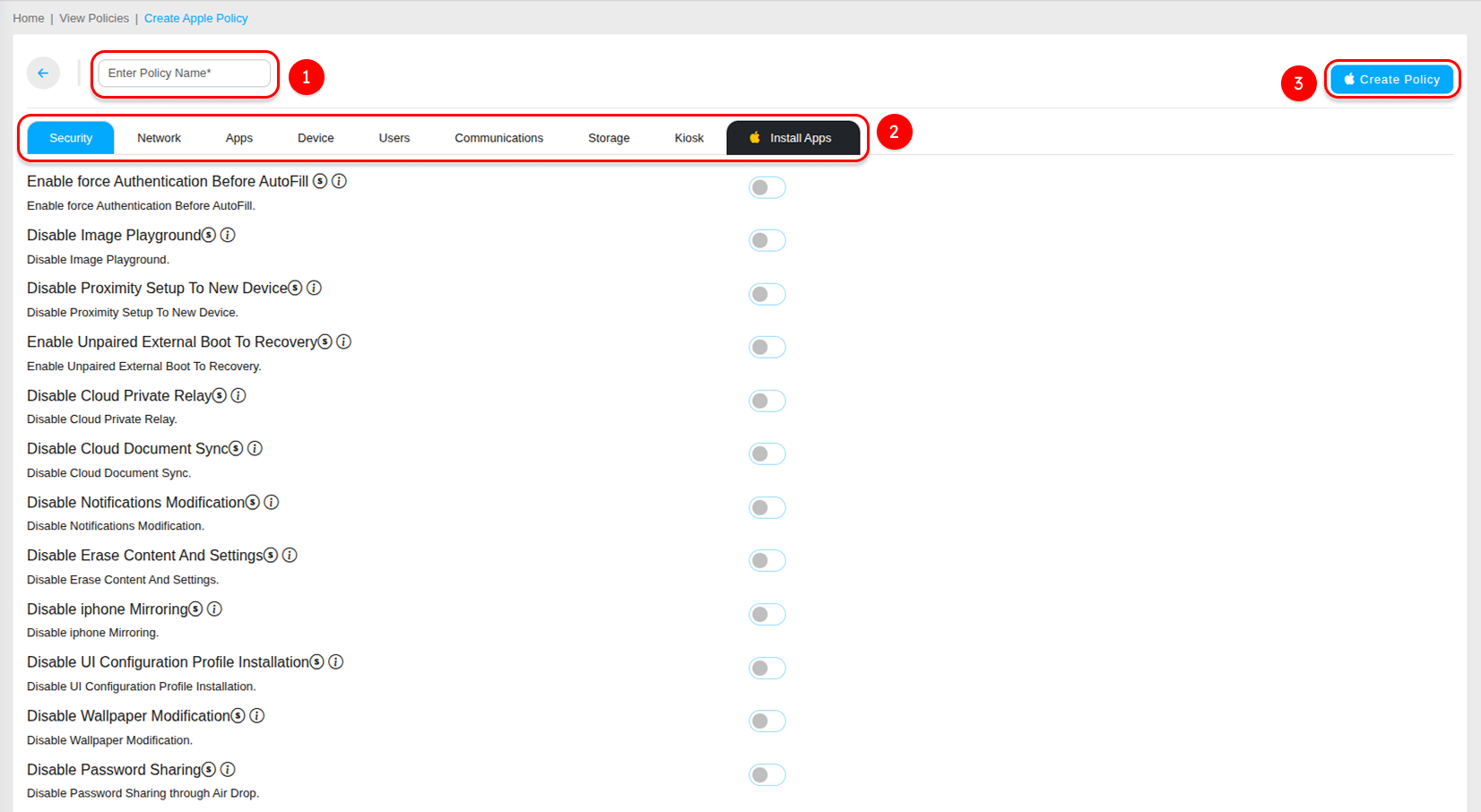
Enter a unique descriptive name for the iOS policy in the Enter Policy Name field — for example, iOS_Standard_Corporate, iOS_Executive_Devices, or iOS_Kiosk_Reception. Choose a name that clearly identifies the policy's purpose or the device group it is intended for.
Step 4 — Configure Policy Settings
Work through each configuration tab to build a complete iOS policy tailored to your organization's requirements. Each tab covers a specific area of iOS device management:
- Security — Password requirements, authentication controls, cloud sync restrictions, and device security settings.
- Network — Bluetooth, Wi-Fi, VPN, hotspot, and software update controls.
- Apps — App Store restrictions, system app controls, and specific Apple app management.
- Device — Hardware controls, keyboard settings, Siri, lock screen, and screen capture restrictions.
- Users — Account modification, device naming, and NFC controls.
- Communications — eSIM management and iMessage controls.
- Storage — USB drive access, network drive access, and USB restricted mode.
- Kiosk — Single app kiosk configuration with full accessibility customization options.
- Install Apps — Toggle-based app deployment to push iOS applications to managed devices.
Step 5 — Save the iOS Policy
Once you have configured all required settings across the relevant tabs, click the Save Policy button to create the policy. A confirmation message will appear and the new iOS policy will appear in the Policy Management list — ready to be assigned to managed Apple devices.
iOS Policy Configuration Sections
Security & Restrictions Configuration →ios-policy-security-restrictions
Password Policy Configuration → ios-policy-password
Network Configuration → ios-policy-network
Application Restrictions →ios-policy-app-restrictions
Device Functionality Controls → ios-policy-device-controls
Users, Communications & Storage →ios-policy-users-communications-storage
Kiosk Mode Configuration →ios-policy-kiosk
Installing Apps on iOS Devices → ios-policy-install-apps