iOS Policy — Security & Restrictions Configuration
Updated on Jun 5, 2026 3 Minutes to read
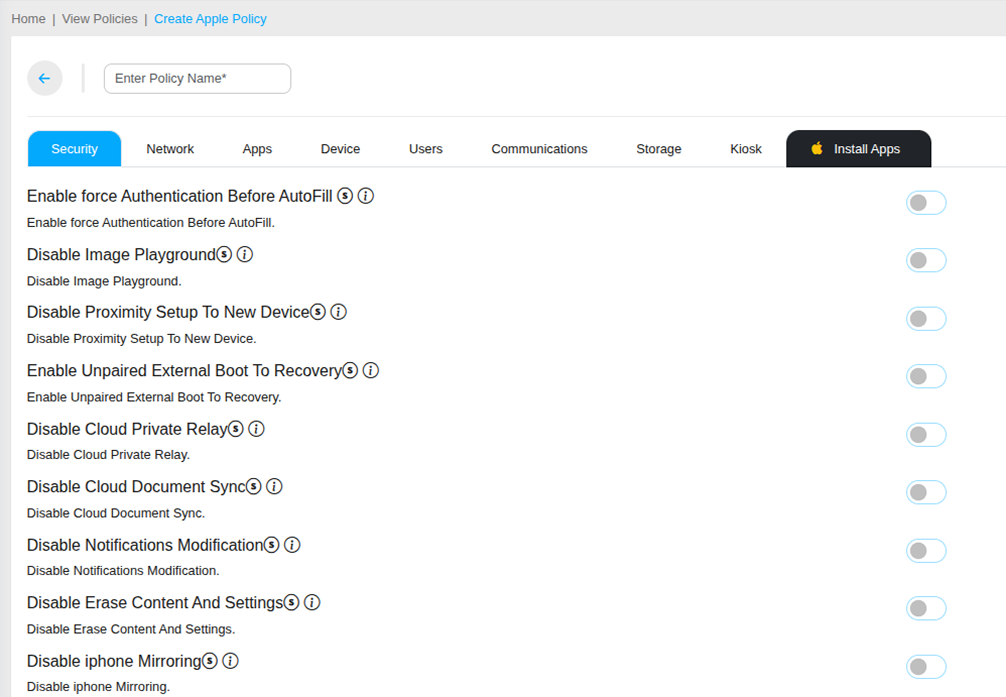
The Security tab in an iOS policy controls the fundamental security behaviors and system-level restrictions on managed Apple devices. These settings protect corporate data, prevent unauthorized device modifications, and enforce organizational security standards across all managed iPhones and iPads.
Authentication & Access Controls
- Enable Force Authentication Before AutoFill — Requires the user to authenticate using Touch ID, Face ID, or passcode before AutoFill can populate passwords or sensitive data in apps and Safari. Prevents unauthorized access to saved credentials on a momentarily unattended device.
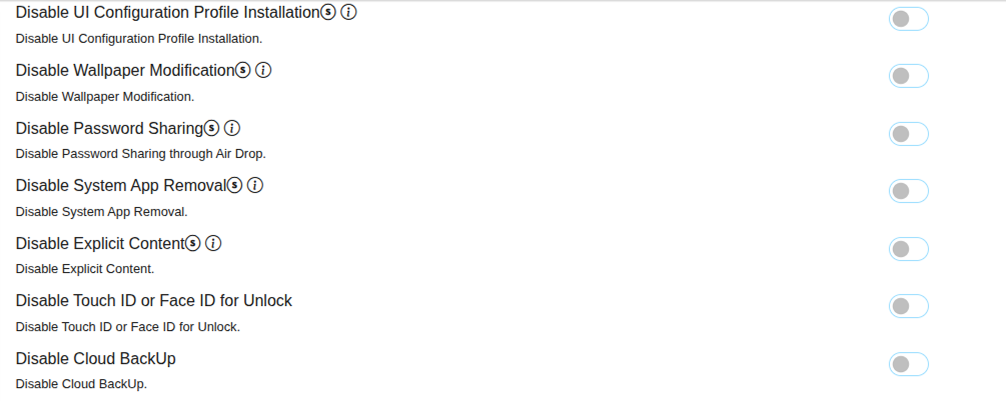
- Disable Touch ID or Face ID for Unlock — Disables biometric authentication entirely, forcing users to unlock the device using their passcode only. Recommended for high-security environments where biometric authentication is not permitted.
- Disable Passcode Modification — Prevents users from changing the device passcode once it has been set. Ensures the IT-configured passcode requirements remain in force without user interference.
- Disable Password Auto Fill — Prevents AutoFill from populating passwords in apps and browsers, requiring users to manually enter credentials each time. Recommended for environments where password manager integration poses a security risk.
- Disable Password Proximity Requests — Prevents the device from requesting or sharing passwords from nearby Apple devices via Bluetooth proximity.
- Disable Password Sharing — Prevents passwords from being shared with other users via AirDrop or other sharing mechanisms.
Device Integrity & Privacy Controls
- Disable Erase Content and Settings — Prevents users from performing a factory reset through the device Settings menu — protecting corporate devices from unauthorized wipes that would remove MobiHeal management.
- Disable UI Configuration Profile Installation — Prevents users from manually installing additional MDM configuration profiles on the device, ensuring only MobiHeal manages the device configuration.
- Disable Wallpaper Modification — Prevents users from changing the home screen or lock screen wallpaper, maintaining a consistent branded appearance across corporate iOS devices.
- Disable Screen Capture — Blocks screenshots and screen recordings on the device, protecting sensitive on-screen corporate data from being captured and shared.
- Disable Notifications Modification — Prevents users from modifying notification settings for managed apps, ensuring corporate alerts and communications remain visible and consistent.
Apple Services & Cloud Controls
Click to zoom
Click to zoom
- Disable Cloud Backup — Prevents the iOS device from backing up corporate app data and device content to iCloud. Ensures corporate data remains on-device and within managed storage only.
- Disable Cloud Document Sync — Prevents documents and data from syncing to iCloud Drive, keeping corporate files off personal cloud storage.
- Disable Cloud Private Relay — Disables Apple's iCloud Private Relay feature which routes internet traffic through Apple's servers. Disabling this ensures all device traffic is visible and controllable through your corporate network and VPN.
- Disable iPhone Mirroring — Prevents the device from being mirrored to a Mac using Apple's iPhone Mirroring feature, preventing corporate screen content from appearing on personal computers.
- Disable System App Removal — Prevents users from deleting Apple's built-in system applications from the device.
- Disable Explicit Content — Blocks access to explicit or adult content across Apple's media services on the device.
Advanced Security Settings
- Disable Image Playground — Disables Apple's AI-powered Image Playground feature, preventing users from generating images using the system AI tools on managed corporate devices.
- Disable Proximity Setup to New Device — Prevents the iOS device from being used to set up a new Apple device using the Quick Start proximity feature, reducing the risk of data transfer to an unmanaged device.
- Enable Unpaired External Boot to Recovery — Allows the device to boot into recovery mode without being paired, enabling specific enterprise recovery workflows.