Remote Device Actions
From any individual device's detail view, MobiHeal gives you a set of powerful remote intervention tools available directly from the action buttons in the top-right corner. These actions let you troubleshoot, secure, or reconfigure a device instantly — without needing physical access to the hardware.
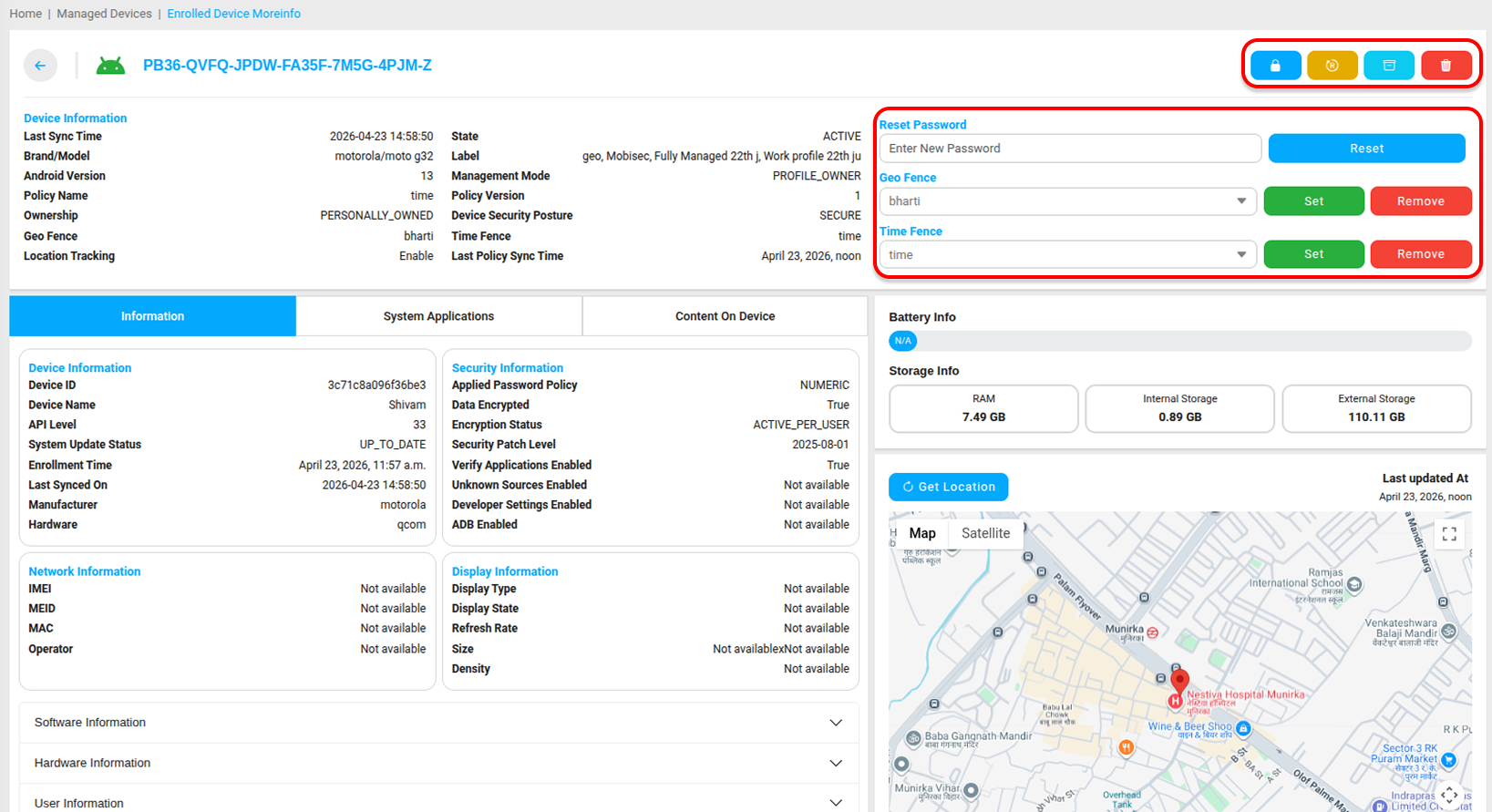
Available Remote Actions
Lock Device
Instantly locks the device screen, requiring the user to re-enter their passcode to regain access. Use this when a device is reported unattended in an unsecured location or when you need to immediately secure a device remotely.
Reboot Device
Forces the device to restart remotely. This is useful for clearing temporary software glitches, applying pending system updates that require a restart, or recovering a device that has become unresponsive without needing physical access.
Factory Reset
Warning: Factory Reset permanently wipes ALL data from the device and returns it to its original out-of-box state. This action cannot be undone. Only use this for confirmed lost or stolen devices, or when decommissioning a device from your fleet.
When triggered, MobiHeal will send a remote wipe command to the device. Once executed, all corporate data, apps, accounts, and settings are erased permanently. The device will need to be re-enrolled from scratch if it is recovered.
Refresh Policy
Forces the device to immediately sync with the MobiHeal server and pull down the latest version of its assigned policy. Use this after making changes to a policy to ensure the device reflects the update without waiting for the next scheduled sync.
Reset Password
Remotely resets the device passcode. This is useful when an employee is locked out of their device, when a device needs to be handed to a new user, or when enforcing a mandatory password change across specific devices.
Assigning Geo and Time Fences from Device View
In addition to the remote action buttons, you can also assign a previously created geofence or time fence directly from the device detail view. Select the desired fence from the available options and save — the device will begin responding to the location or time-based policy rules immediately.
Learn how to create geofences → /help-center/geofencing
Learn how to create time fences → /help-center/time-fencing
Best Practices
- Always use Lock Device first before escalating to Factory Reset — locking buys time to locate the device before permanently wiping it.
- Use Refresh Policy immediately after making any policy changes to ensure the device is updated without delay.
- Use Reset Password only on fully managed devices unless your policy permits passcode reset on work profile devices.
- Document every Factory Reset action — log the serial number, reason, and timestamp for your records before executing the wipe.