Managed Devices Overview
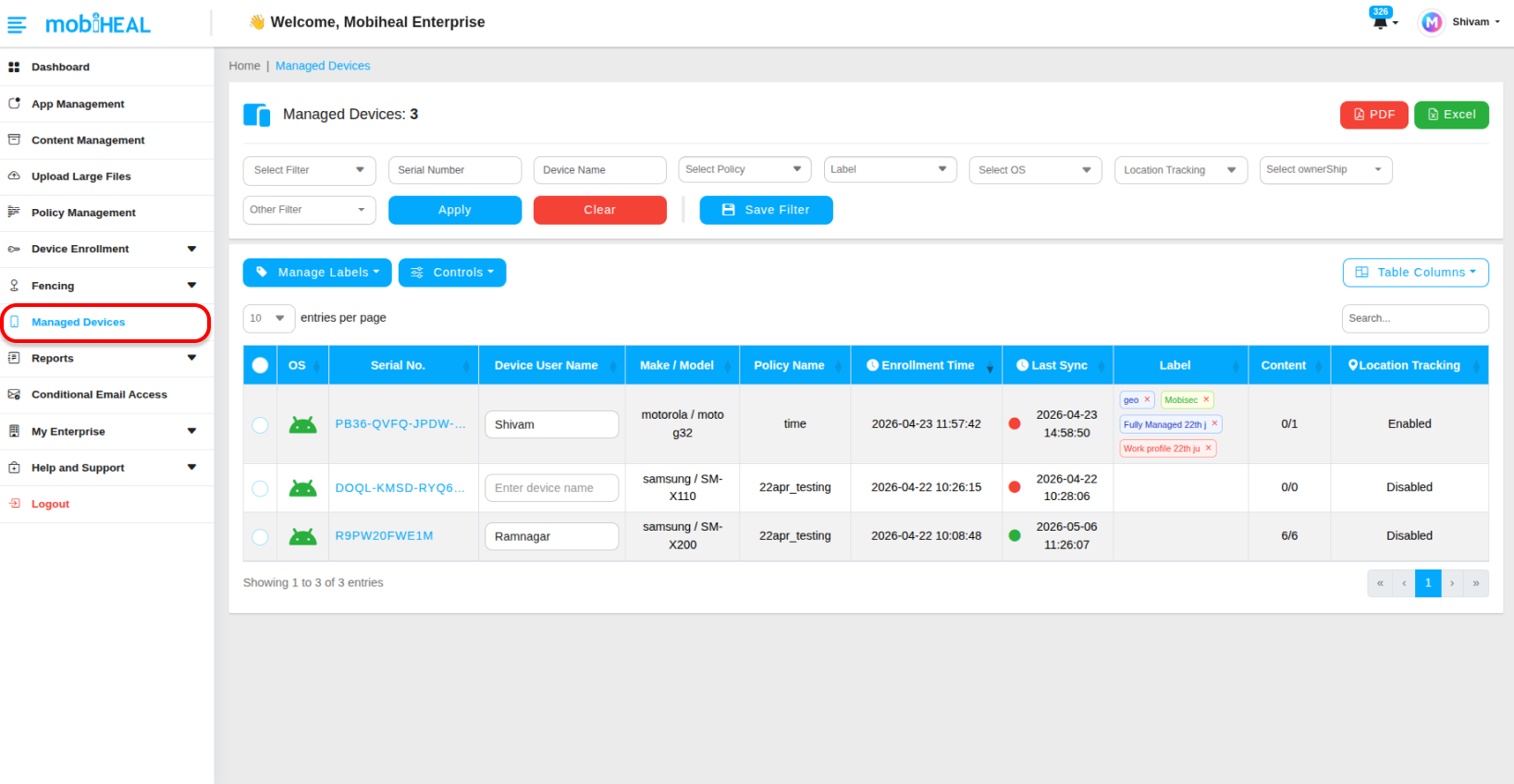
The Managed Devices module is the operational heart of MobiHeal. It gives administrators a complete, real-time inventory of every enrolled device in the fleet — with powerful tools to filter, organize, act on, and troubleshoot devices individually or in bulk. Whether you need to push a policy change to hundreds of devices at once or remotely wipe a single lost phone, everything starts here.
What You Can Do in Managed Devices
- Filter and search your fleet by serial number, policy, label, OS, location, ownership, battery, hardware, manufacturer, model, IMEI, brand, geofence, and time fence.
- Customize which columns are visible in the device table to match your workflow.
- Create and assign color-coded labels to organize devices into meaningful groups.
- Perform bulk operations on multiple devices simultaneously — change policies, send notifications, push content, export reports, and more.
- Drill into individual device dashboards for deep hardware, software, network, and security diagnostics.
- Execute remote actions — lock, reboot, factory reset, refresh policy, reset password, and assign geo or time fences — directly from the device detail view.
Key Sections at a Glance
Device Inventory & Filtering
A comprehensive, filterable table of your entire fleet with real-time status columns for every enrolled device.
Learn how to filter and manage your device inventory → /help-center/device-inventory-filtering
Label Management
Create color-coded labels and assign them to devices for visual organization — for example, tagging devices as VIP, Repair, or Warehouse.
Learn how to create and assign device labels → /help-center/device-label-management
Bulk Operations
Select multiple devices and perform simultaneous actions — policy changes, notifications, content pushes, exports, and more.
Learn how to perform bulk device operations → /help-center/bulk-device-operations
Device Details & Diagnostics
Click any device to open its full diagnostic dashboard — hardware stats, network info, security status, installed apps, storage, and pushed content.
Learn how to view device details and diagnostics → /help-center/device-details-diagnostics
Remote Troubleshooting Actions
Execute critical remote interventions — lock, reboot, factory reset, policy refresh, and password reset — directly from the device detail view.
Learn how to perform remote device actions → /help-center/remote-device-actions