Policy Management Overview
The Policy Management module is the core of MobiHeal's security infrastructure. A policy is a collection of rules that governs how a managed Android device behaves — from password requirements and network access to app restrictions and kiosk configurations. Every device in your fleet is assigned a policy, and that policy enforces your organization's security standards automatically in the background without any user action.
The Policy List
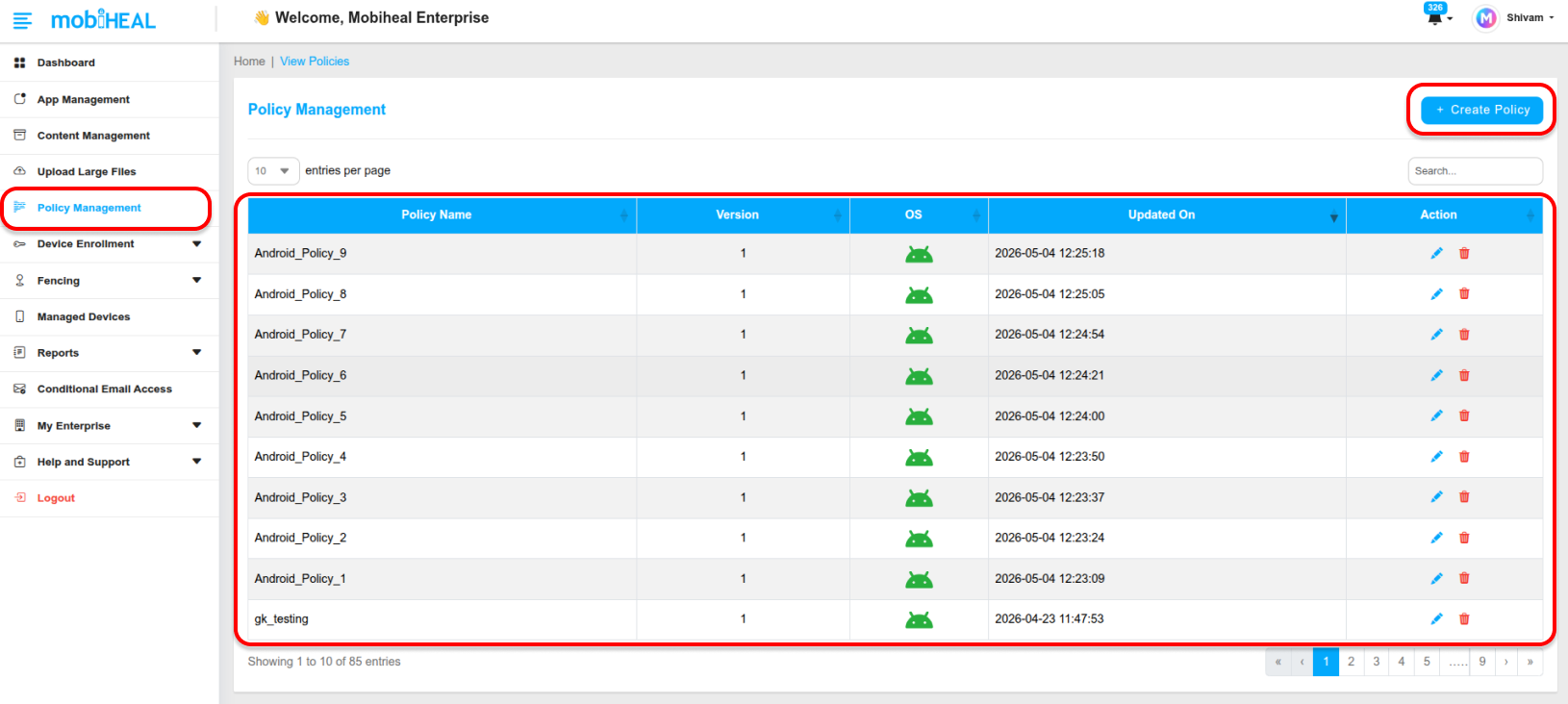
When you open Policy Management from the left sidebar, you are presented with a table listing all existing policies in your organization. The table shows key information for each policy at a glance — including the policy name, version, updated on, and available actions.
From this table you can create a new policy, open an existing one to edit it, or delete a policy that is no longer needed.
Creating a New Policy
To begin enforcing rules on your Android devices, you must first create a policy container.
- Navigate — Go to Policy Management in the left sidebar.
- Create — Click the + Create button in the top-right corner.
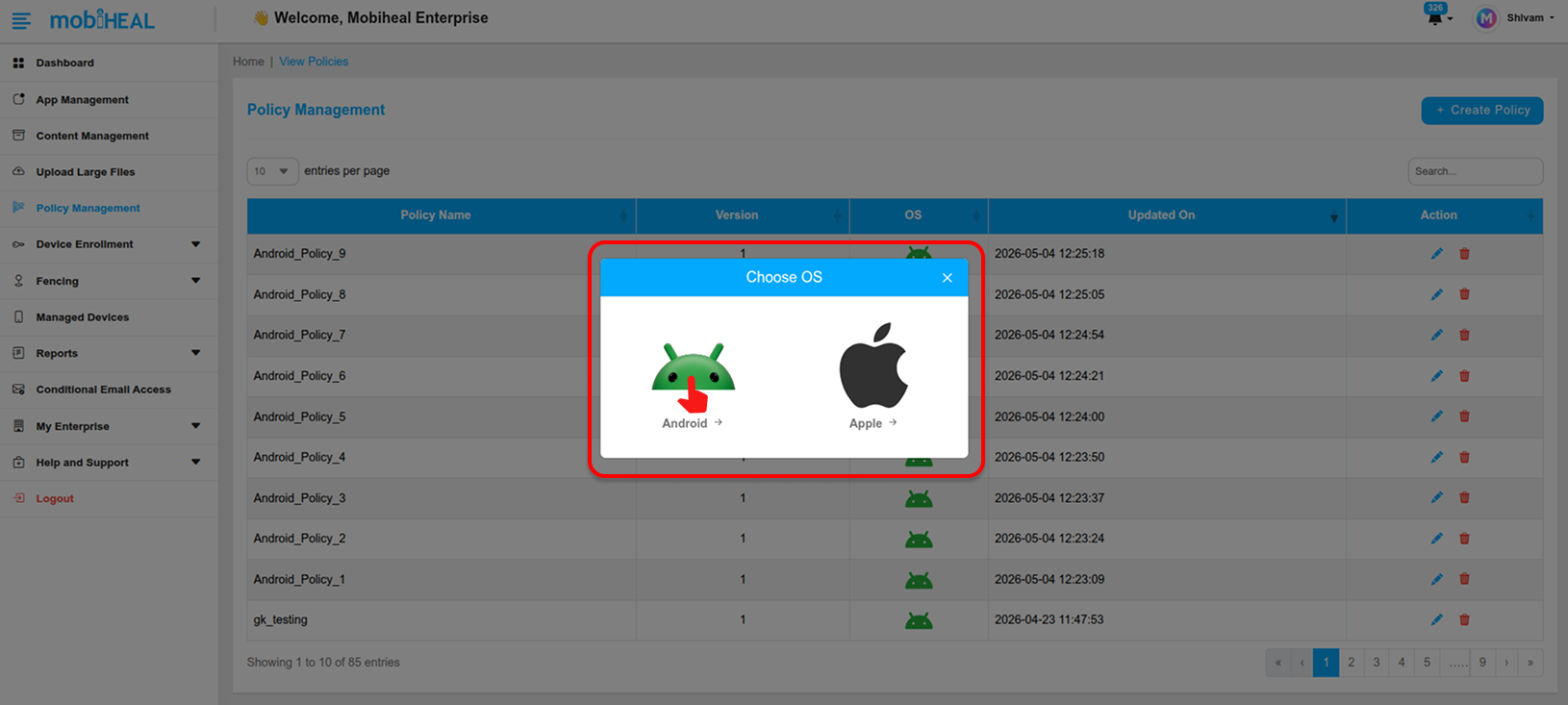
- Select Platform — A modal will appear asking you to choose the operating system. Select Android to proceed.
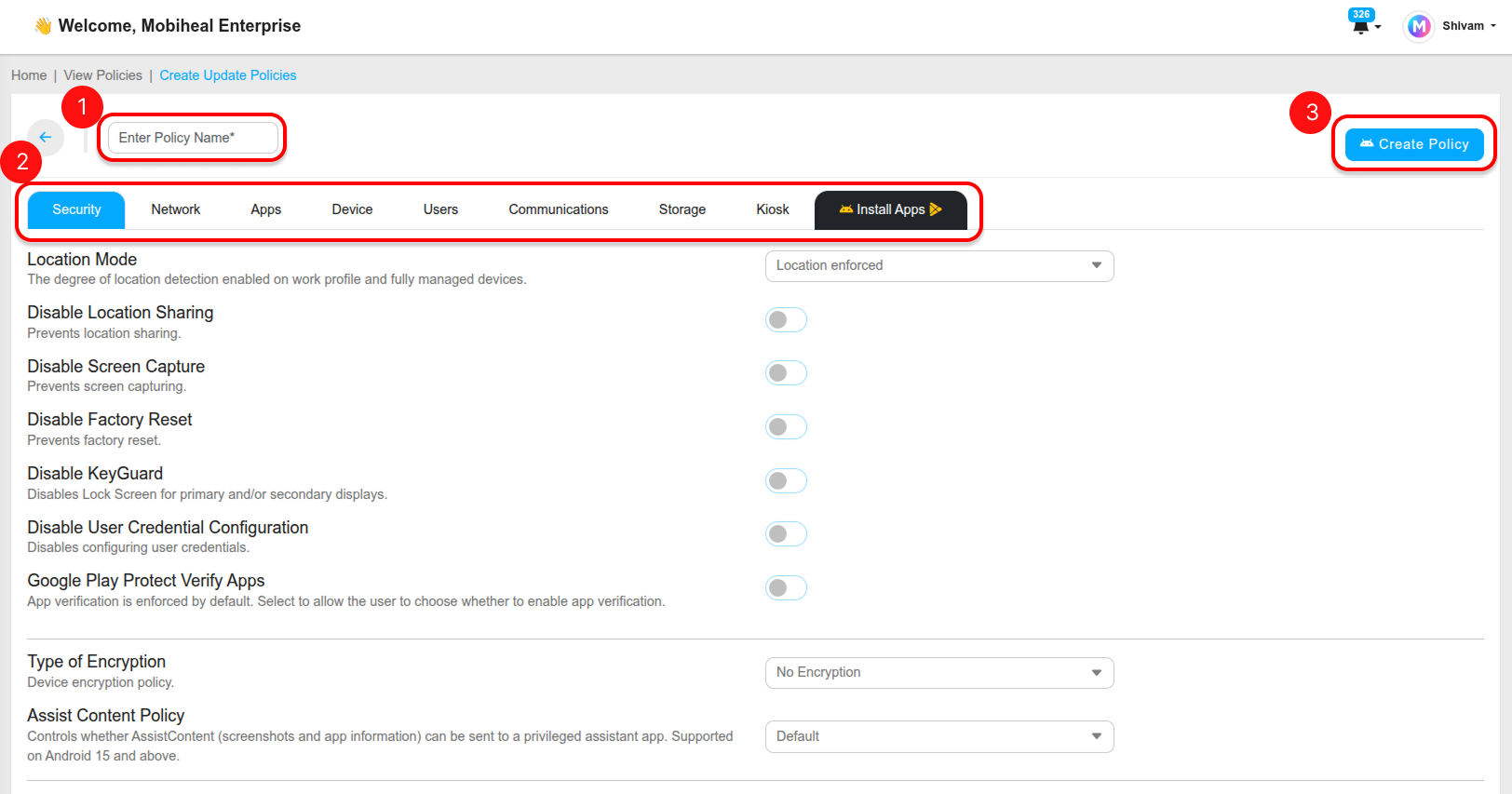
- Name the Policy — Enter a unique, descriptive name for your policy — for example, Office_Standard or Field_Team_Strict. This name will appear in the policy list and on device records.
- Configure — You will be taken into the full policy configuration interface where you can set rules across multiple tabs. Work through each tab to build your complete policy.
- Save — Click the Create button in the top-right corner when you are done. A confirmation message will appear and the new policy will appear in the policy list table.
Editing a Policy
To modify an existing policy, click on the policy name in the policy list table to open it. Make your changes across any of the configuration tabs, then click the Update button in the top-right corner to save. Updated rules are pushed to all assigned devices the next time they sync — or immediately using the Refresh Policy remote action from the device detail view.
Deleting a Policy
To delete a policy, locate it in the policy list and use the delete action in the Actions column. Before deleting, ensure no devices are currently assigned to that policy — if the policy is currently assigned to any devices, it cannot be deleted. You must first reassign those devices to another policy.
Warning: A policy assigned to devices cannot be removed. Always ensure all devices are reassigned to a different policy before attempting to delete it.
Saving a Policy
After completing your configuration across all tabs, click Create when building a new policy or Update when modifying an existing one. Both buttons are located in the top-right corner of the policy configuration screen. A success confirmation message will appear — Policy Created Successfully or Policy Updated Successfully — confirming your changes have been saved and will be distributed to all assigned devices.
Policy Configuration Tabs
Once inside a policy, the configuration is organized into dedicated tabs — each covering a specific area of device management. Work through each tab to build a complete policy tailored to your organization's requirements.
Security & Restrictions
Configure password complexity and encryption, prevent factory resets, enforce Play Protect, set up BYOD cross-profile boundaries, and apply advanced security overrides including blocking developer options and untrusted app installs.
Security & Restrictions Overview → /help-center/policy-security-overview
Network Configuration
Control Bluetooth and Wi-Fi settings, pre-configure corporate Wi-Fi profiles so devices connect automatically, enforce Always-On VPN, and manage advanced radio state controls.
Network Configuration — Main Restrictions → /help-center/policy-network-restrictions
Network Configuration — Wi-Fi, VPN & Advanced → /help-center/policy-wifi-vpn-advanced
Apps & Device Settings
Control app installation and uninstallation permissions, set the global permission policy, manage hardware features like camera and microphone, configure system update timing, and define status reporting preferences.
Apps & Device Settings Overview → /help-center/policy-apps-device-overview
Users, Storage & Kiosk Mode
Restrict user account management, control USB and storage behavior, disable calling and SMS, and configure Single or Multi-App Kiosk mode for dedicated Android devices.
Users, Storage & Kiosk Mode Overview → /help-center/policy-users-storage-kiosk-overview
App Deployment & Update Rules
Define exactly which apps are force-installed, blocked, or available on devices, and set per-app update priorities to control how and when app updates reach your fleet.
App Deployment & Update Rules Overview → /help-center/policy-app-deployment-overview