Deploying Android Applications to Devices
After adding Android applications to the MobiHeal application catalog, administrators can deploy them to managed devices through Android policies. Application deployment policies allow organizations to automatically install required business applications on enrolled devices, ensuring users have access to approved applications without manual intervention.
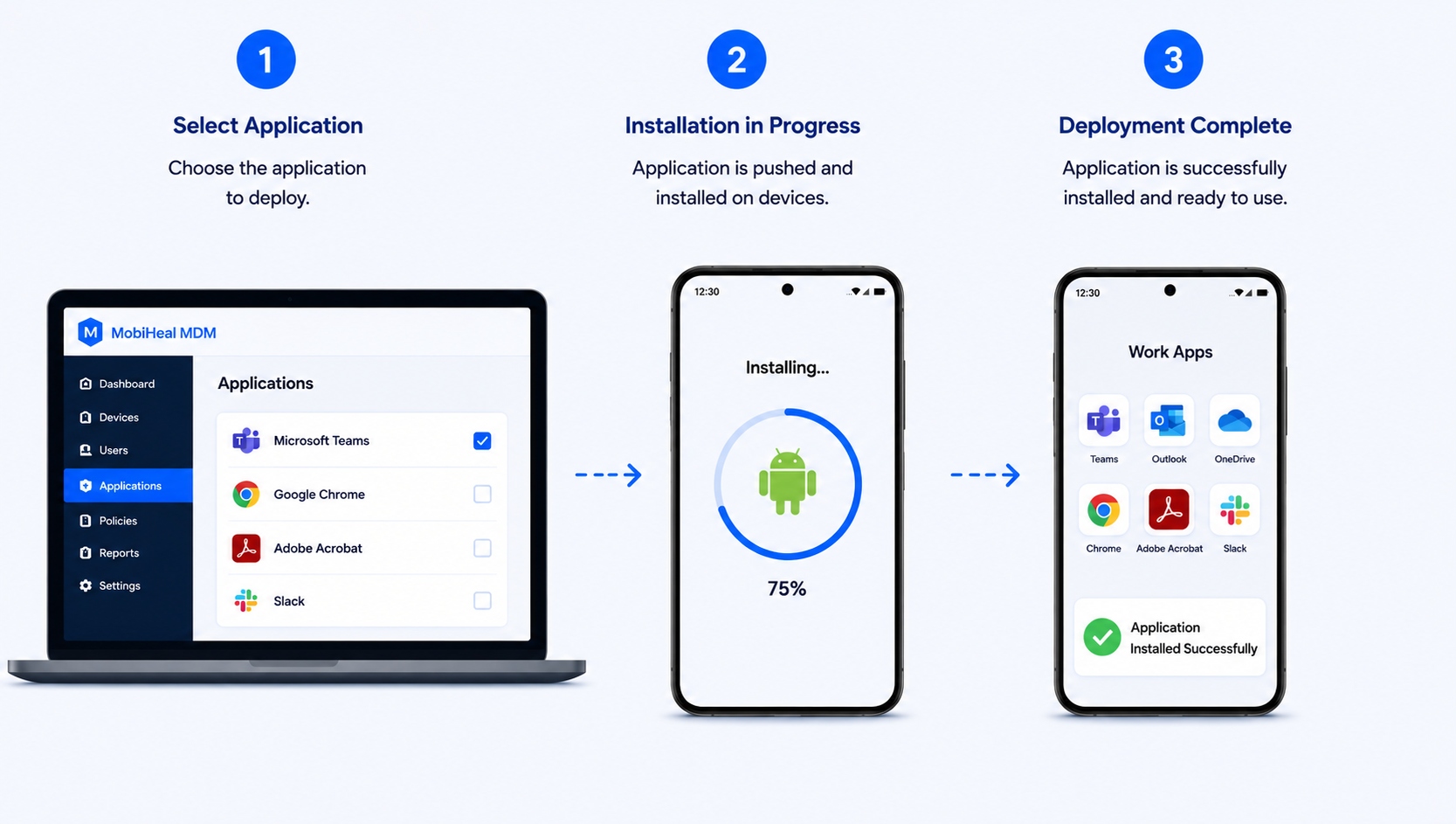
Creating or Updating an Android Application Deployment Policy
Before applications can be installed on managed devices, an Android policy must be created or updated. The policy determines which applications are deployed to managed devices.
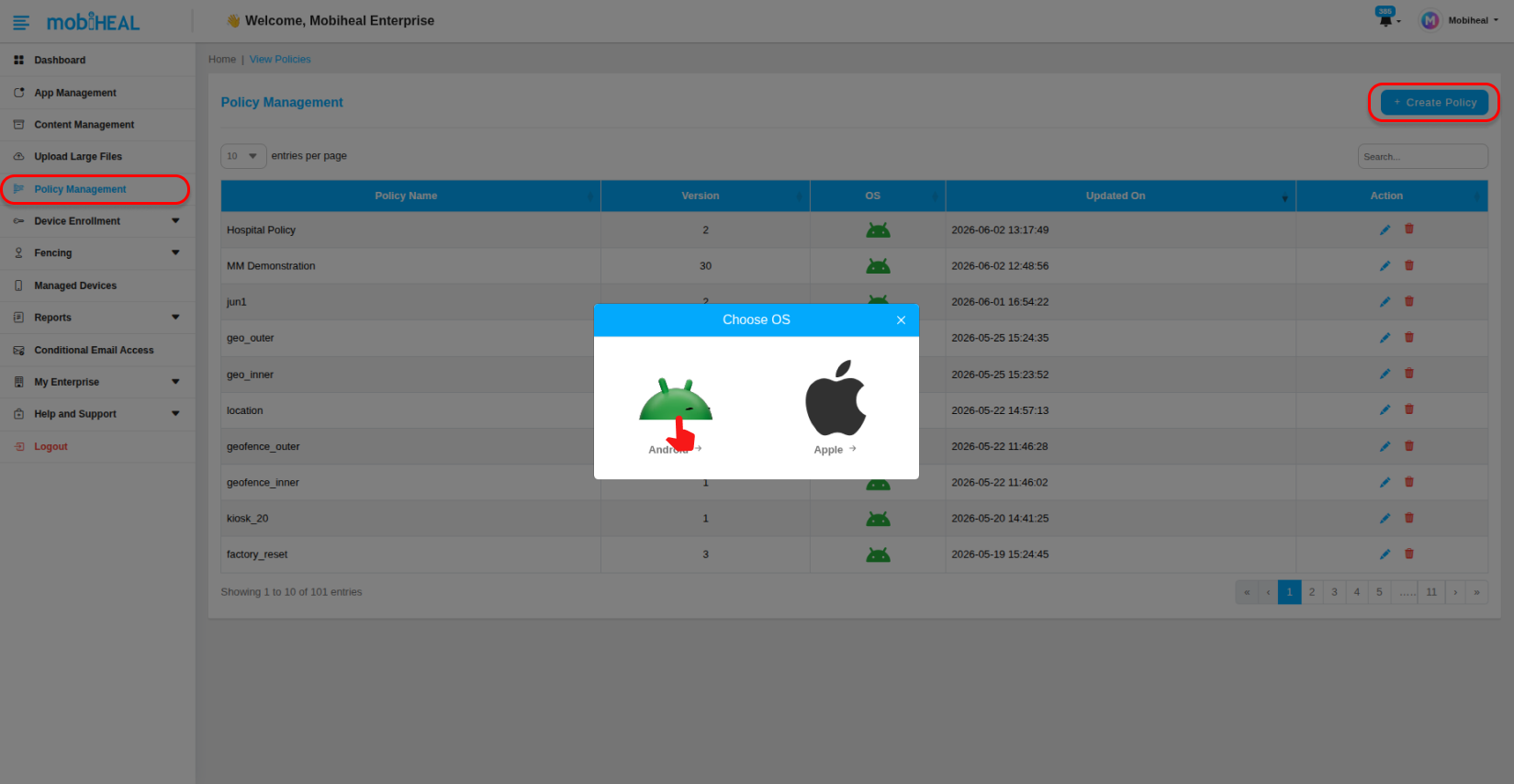
- Navigate to Policy Management.
- Click + Create Policy to create a new policy, or open an existing policy to modify it.
- Select Android as the operating system (for new policies).
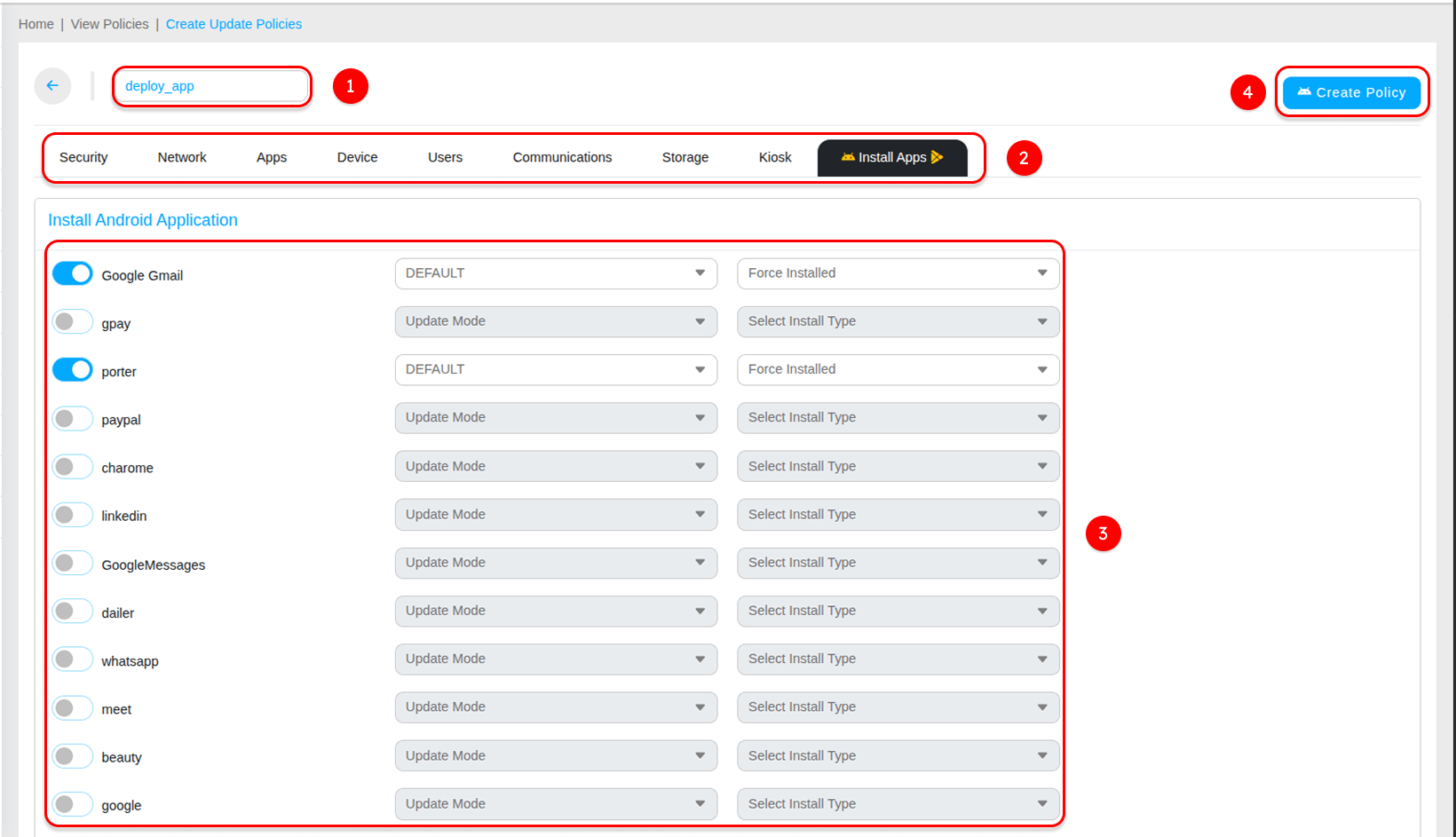
- Enter or update the Policy Name as required.
- Open the Install Apps tab.
- Select or update the Android applications that should be deployed.
- Click Create Policy or Update Policy to save the changes.
Android Application Management Overview → android-app-management-overview
Configuring Application Installation
The Install Apps tab displays all Android applications that have been added to the MobiHeal application catalog. Administrators can select one or more applications and include them in the deployment policy.
- Review the list of available Android applications.
- Enable the toggle beside each application that should be installed.
- Select one or more applications based on organizational requirements.
- Save the policy after completing the application selection.
- The selected applications become part of the Android deployment policy and will be installed on devices assigned to that policy.
Assigning the Policy to Managed Devices
After creating the Android application deployment policy, it must be assigned to one or more managed devices. Once assigned, MobiHeal automatically delivers the policy configuration to the selected devices.
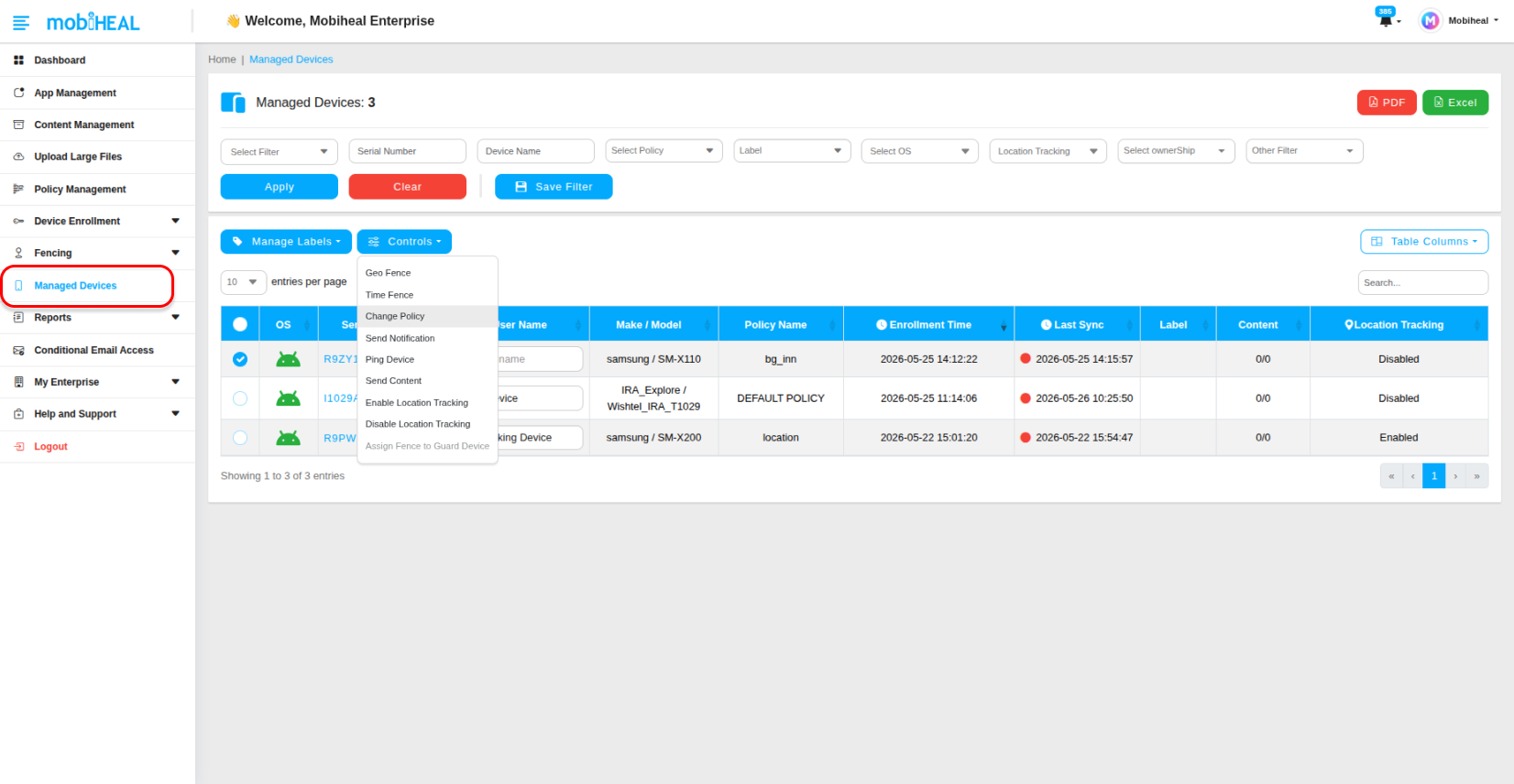
- Navigate to Managed Devices.
- Locate the target Android device.
- Select the device using the checkbox.
- Click Controls.
- Select Change Policy.
- Choose the Android application deployment policy.
- Save the changes.
- The selected policy is immediately associated with the device and will be applied during the next synchronization cycle.
Managed Android Devices Overview → managed-android-devices-overview
After the policy is assigned, the device synchronizes with MobiHeal and processes the policy configuration.
- The device receives the updated policy during the next synchronization cycle.
- Applications configured under the Install Apps section are automatically pushed to the device.
- The selected applications are installed on the managed Android device.