Configuring Android App Permissions & Managed Configurations
MobiHeal leverages Android Enterprise capabilities to let IT administrators pre-configure application settings and permissions before apps are deployed to end users. This means devices arrive in employees' hands already configured — no manual app setup or permission prompts required from the user.
Opening the App Configuration Panel
From the App Management screen, locate the Android app you want to configure. Click the Configure icon — the gear symbol — on the app tile, or click directly on the app tile itself to open the configuration panel. You will see two tabs — Permissions and Configurations.
1. Permission Management
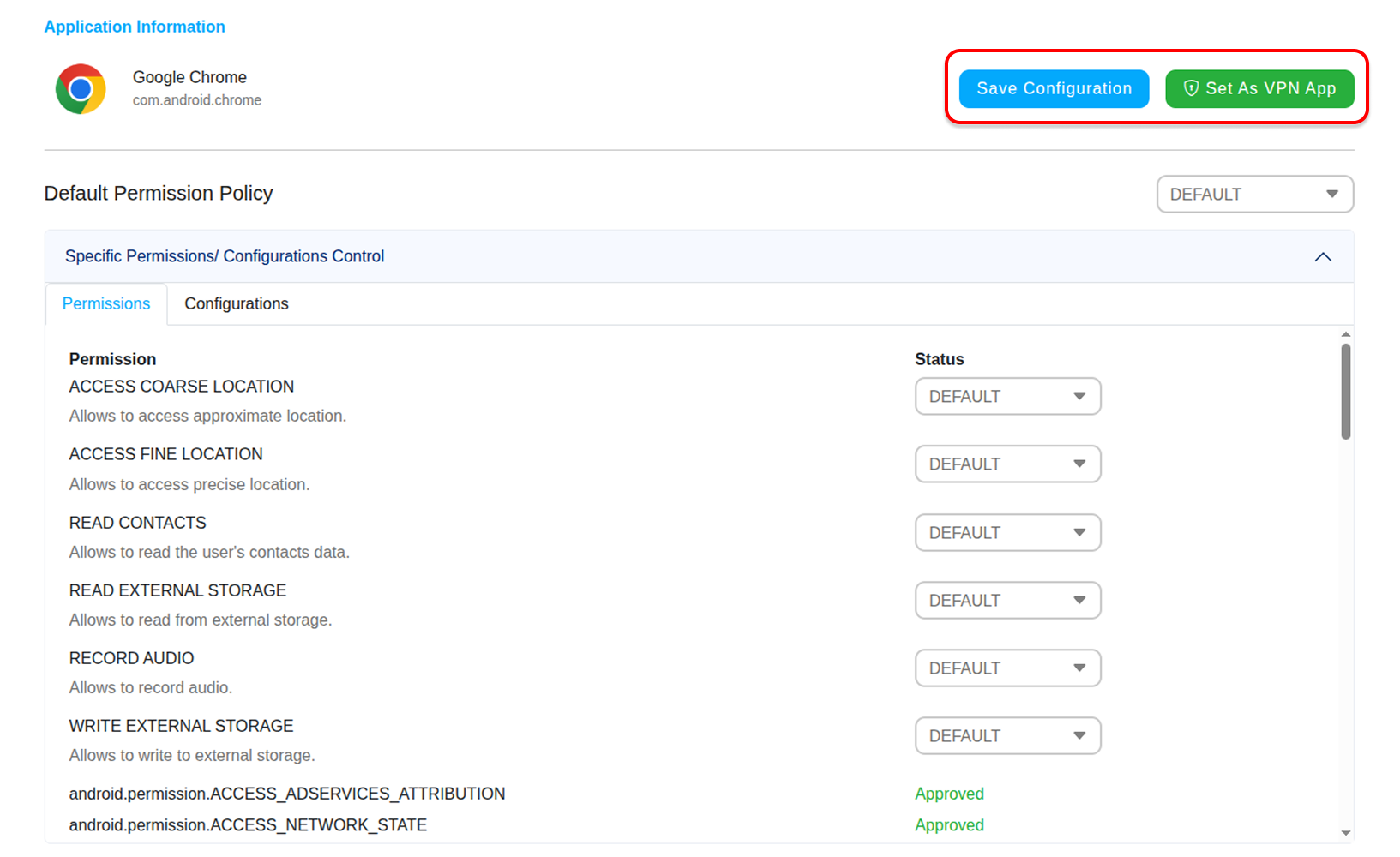
The Permissions tab gives you control over how an Android app interacts with sensitive device resources — such as the camera, microphone, location, contacts, and storage. Instead of leaving permission decisions to the end user, you enforce a consistent behavior across all devices.
Permission Options
- Default — The user is prompted to grant or deny the permission when the app first requests it. This is the standard Android behavior.
- Grant — The permission is automatically granted without any user interaction. Recommended for kiosk or fully managed devices where permission prompts would disrupt workflows.
- Deny — The permission is permanently blocked. The user cannot grant it even if they try. Use this to prevent apps from accessing hardware or data your organization does not want exposed.
2. Managed Configurations
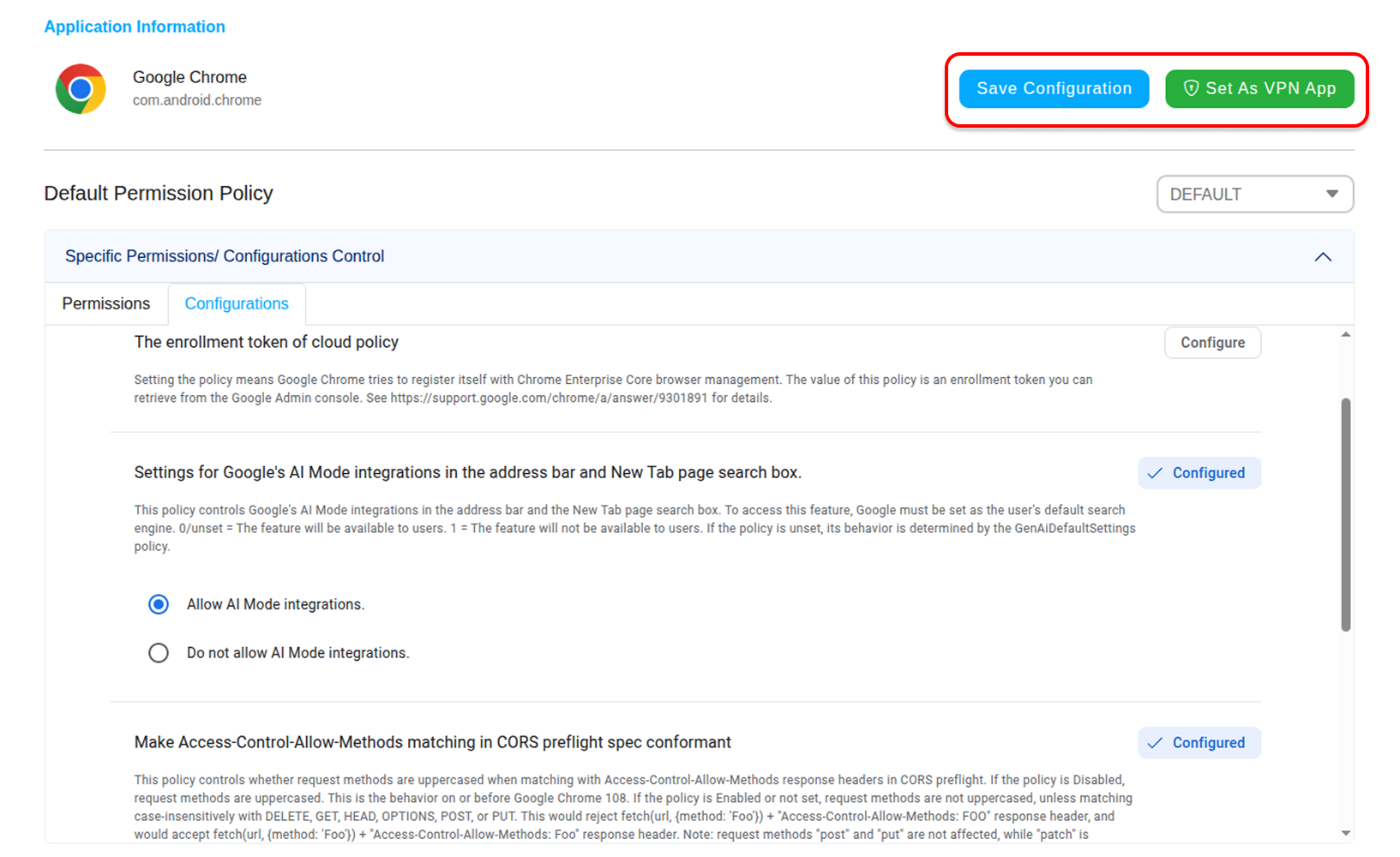
The Configurations tab is available for Android apps that support the AppConfig standard — an industry-wide framework that lets IT administrators remotely pre-set app-specific settings. This eliminates the need for users to manually configure apps after installation.
Feature Flags
Toggle specific in-app features on or off at the organization level. Common examples include:
- Enable Allow Printing from App — lets users print documents directly from within the app.
- Disable Allow Copy from App — prevents users from copying sensitive content out of the app into personal apps or the clipboard.
Cloud Integrations
Control which cloud storage services the Android app is permitted to connect to. You can pre-approve or block access to services such as Dropbox, Google Drive, and Microsoft OneDrive — ensuring users can only sync or save data to organization-approved platforms.
3. Finalizing Settings
Save Configuration
Click Save Configuration to apply all selected permissions and managed configuration settings. These settings will be enforced on all Android devices where this app is deployed through a policy.
Set As VPN App
Click Set As VPN App to designate this Android application as the Always-On VPN provider for the device. When enabled, all network traffic on the device routes through this app's VPN tunnel automatically — and if the VPN disconnects, network access is blocked until it reconnects.