Adding Android Applications
Before you can deploy an application to your Android fleet, it must first be added to your MobiHeal app catalog. MobiHeal supports three methods for sourcing Android apps — public apps from the Google Play Store, private in-house APKs, and web app shortcuts. All three are managed from the same unified interface powered by Android Enterprise.
Getting Started
From the App Management screen, click the + Add Application button in the top-right corner. When the modal appears, select Android to proceed to the app sourcing options.
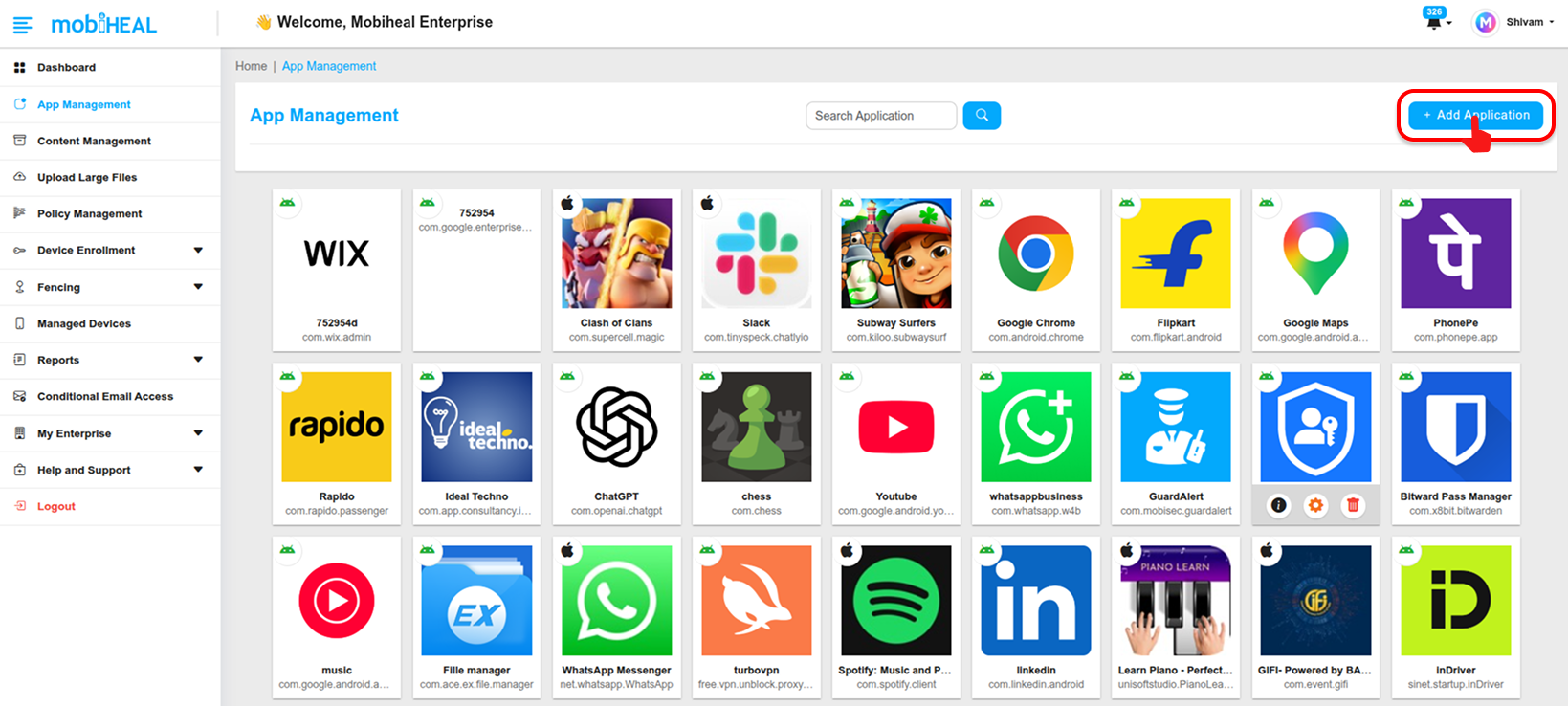
Option 1 — Public Apps (Managed Google Play Store)
This is the most common method for deploying standard business applications to Android devices. MobiHeal embeds the Managed Google Play interface directly, allowing you to browse and approve apps without leaving the console.
- Browse or search the Managed Google Play interface for the app you need — for example, Microsoft Teams, Slack, or WhatsApp Business.
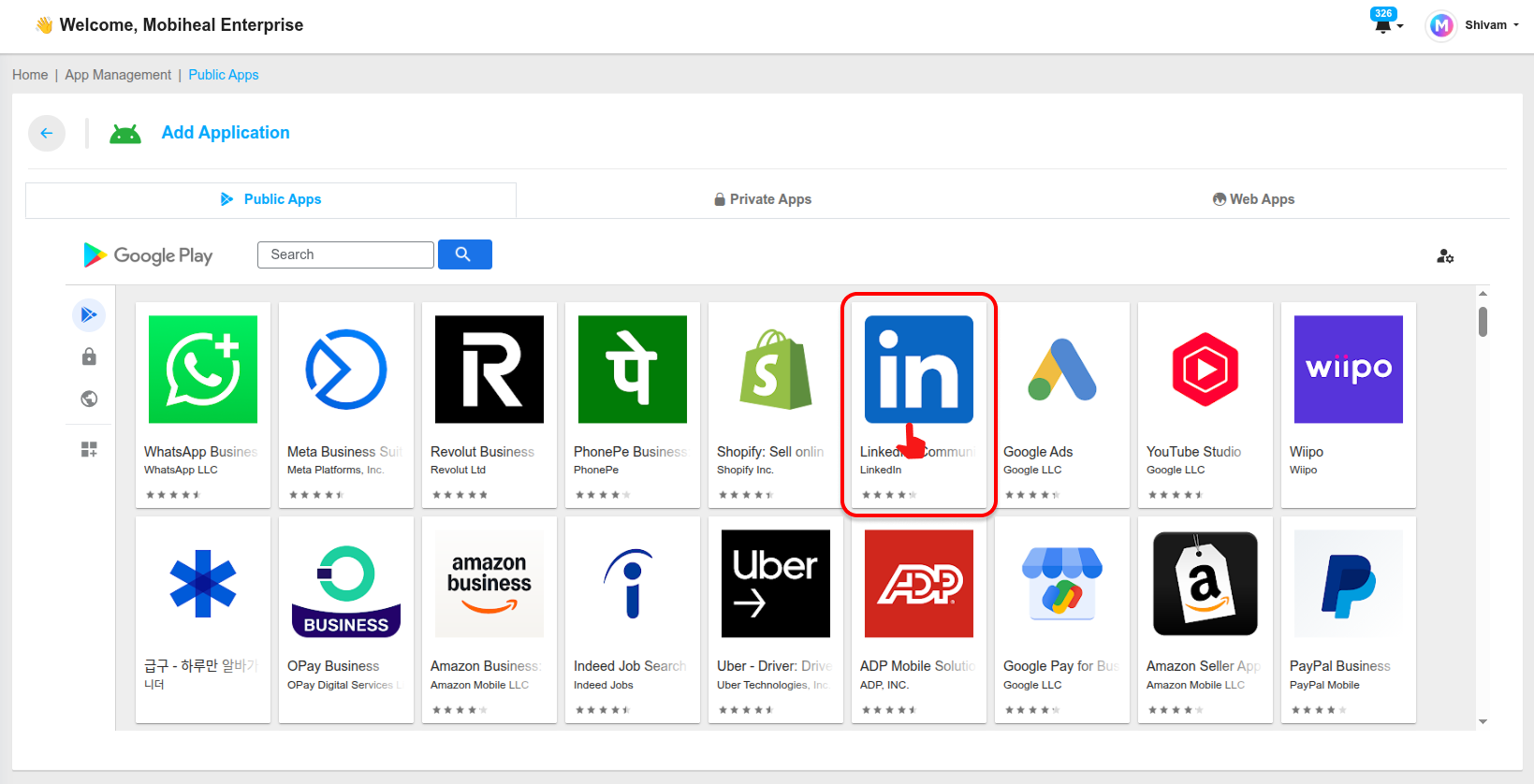
- Select the desired app from the search results.
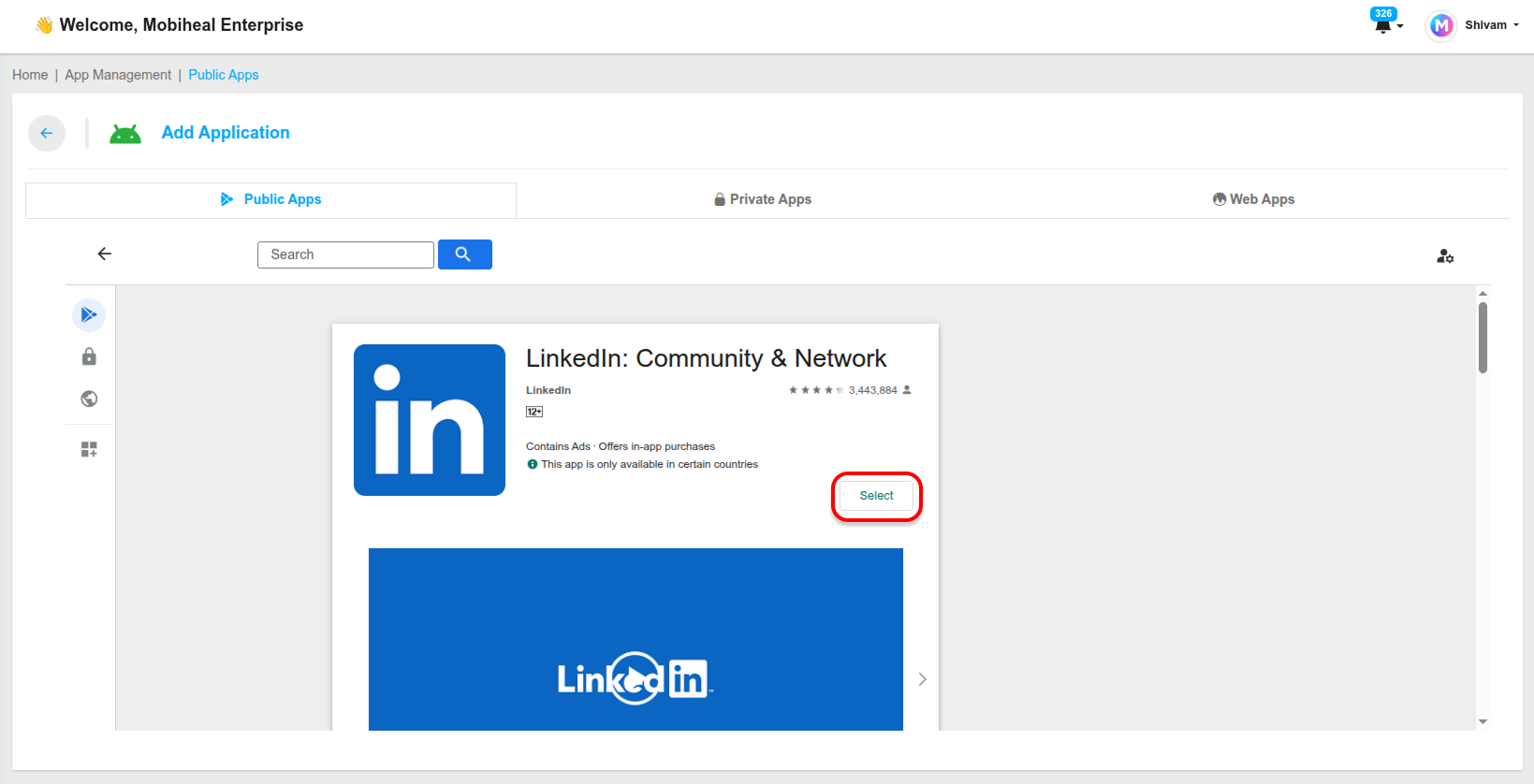
- A new screen will appear where you can review and add the app details. The package name will be auto-filled, and you will need to enter an app name (this is the name that will appear in your MobiHeal app catalog).

- After entering the required details, click Submit App Info.
The app will now appear in your App Management list and is ready to be assigned to devices through a policy.
Option 2 — Private Apps (In-House APKs)
Use this option for custom applications built by your organization that are not available on the public Play Store — internal tools, proprietary software, or beta versions of business applications.
- Click the Private Apps tab and then click + icon to Upload App.
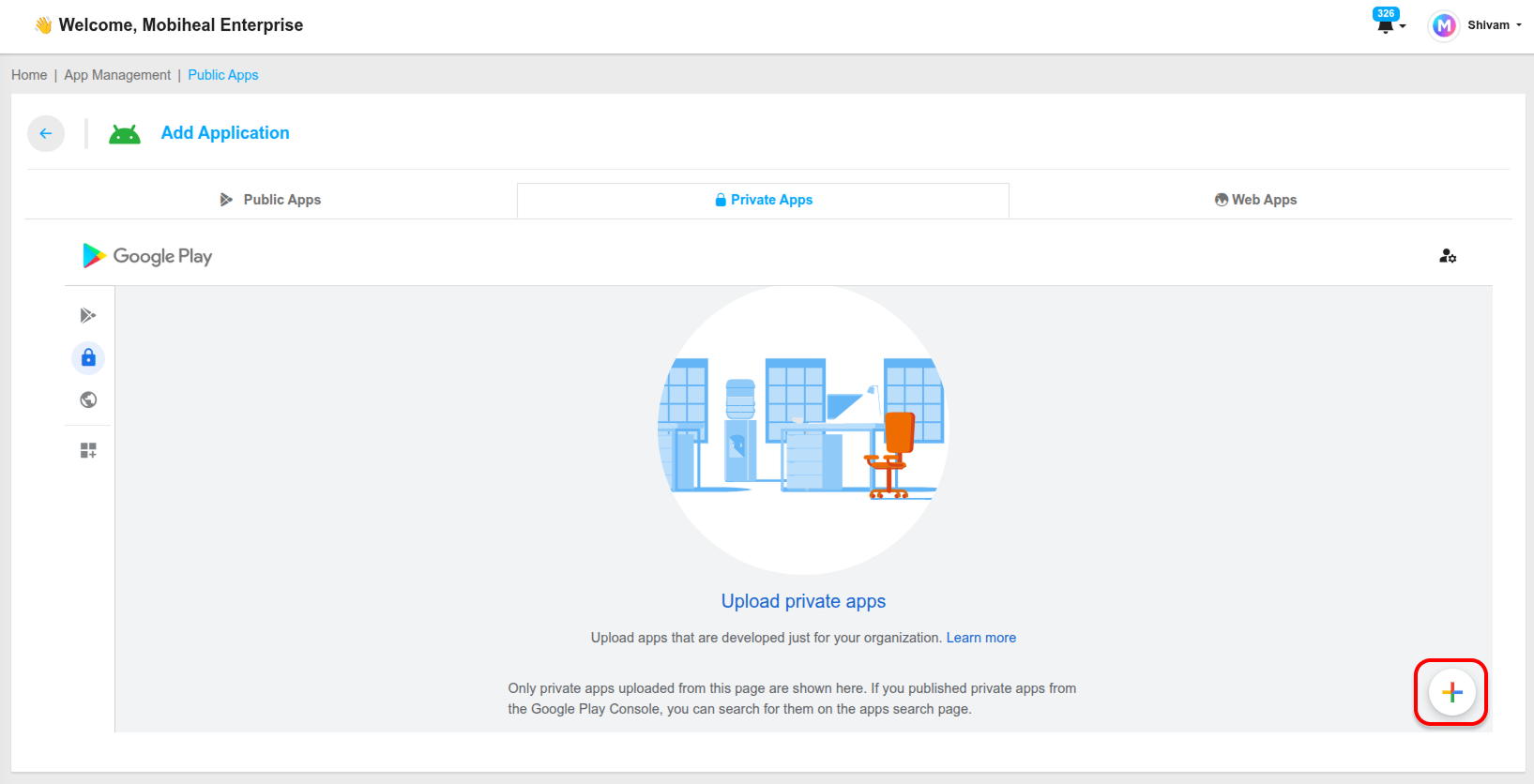
- Enter a display name in the Title field — maximum 30 characters.
- Click the App File upload area and select your .apk package from your computer.
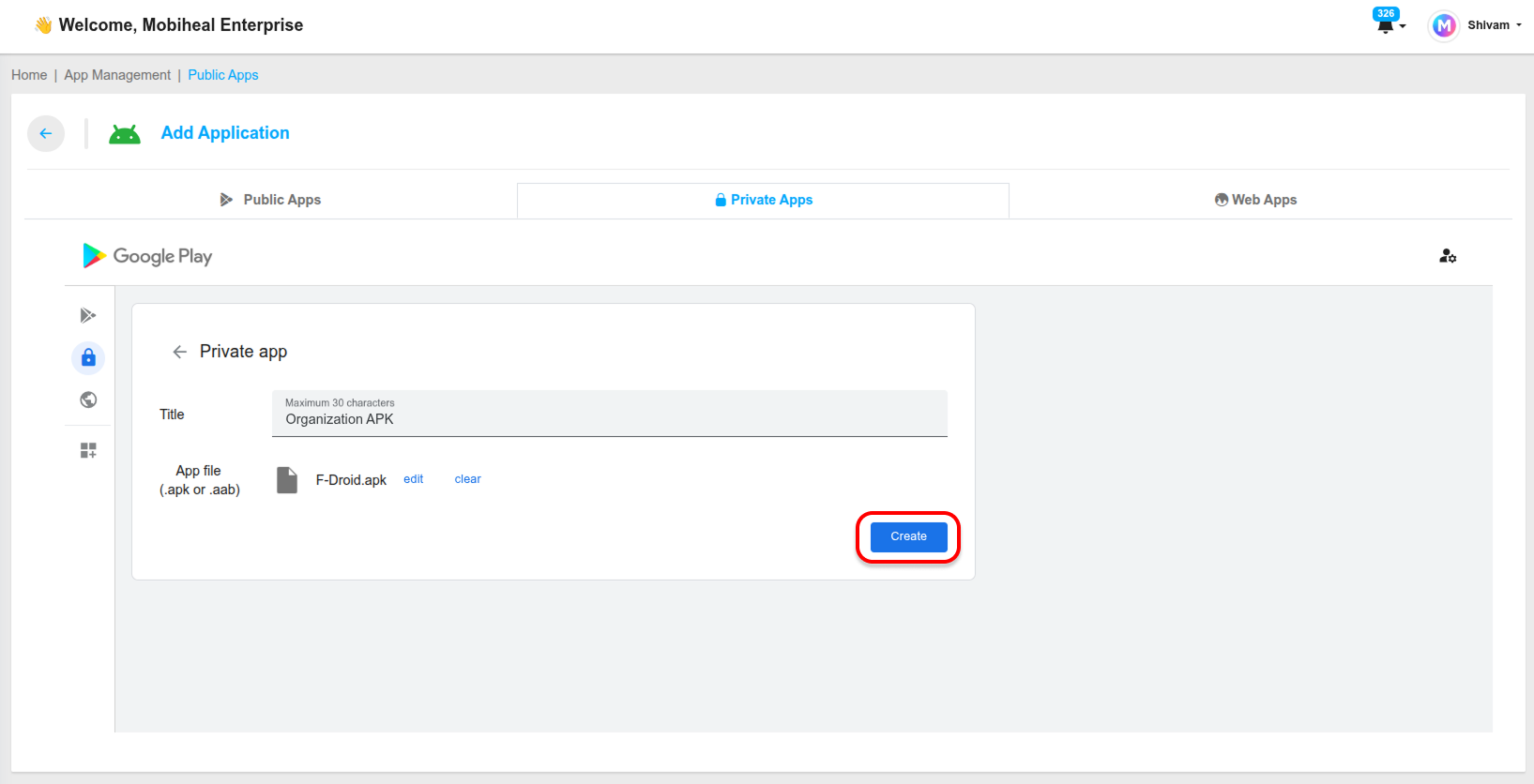
- Click Create to add the private app to your catalog.
Option 3 — Web Apps
Web Apps create shortcuts to specific URLs that appear and behave like native applications on the Android device home screen. Useful for deploying internal web portals, dashboards, or web-based tools without requiring a full native app.
- Click the Web Apps tab and then click the + (Add) icon.
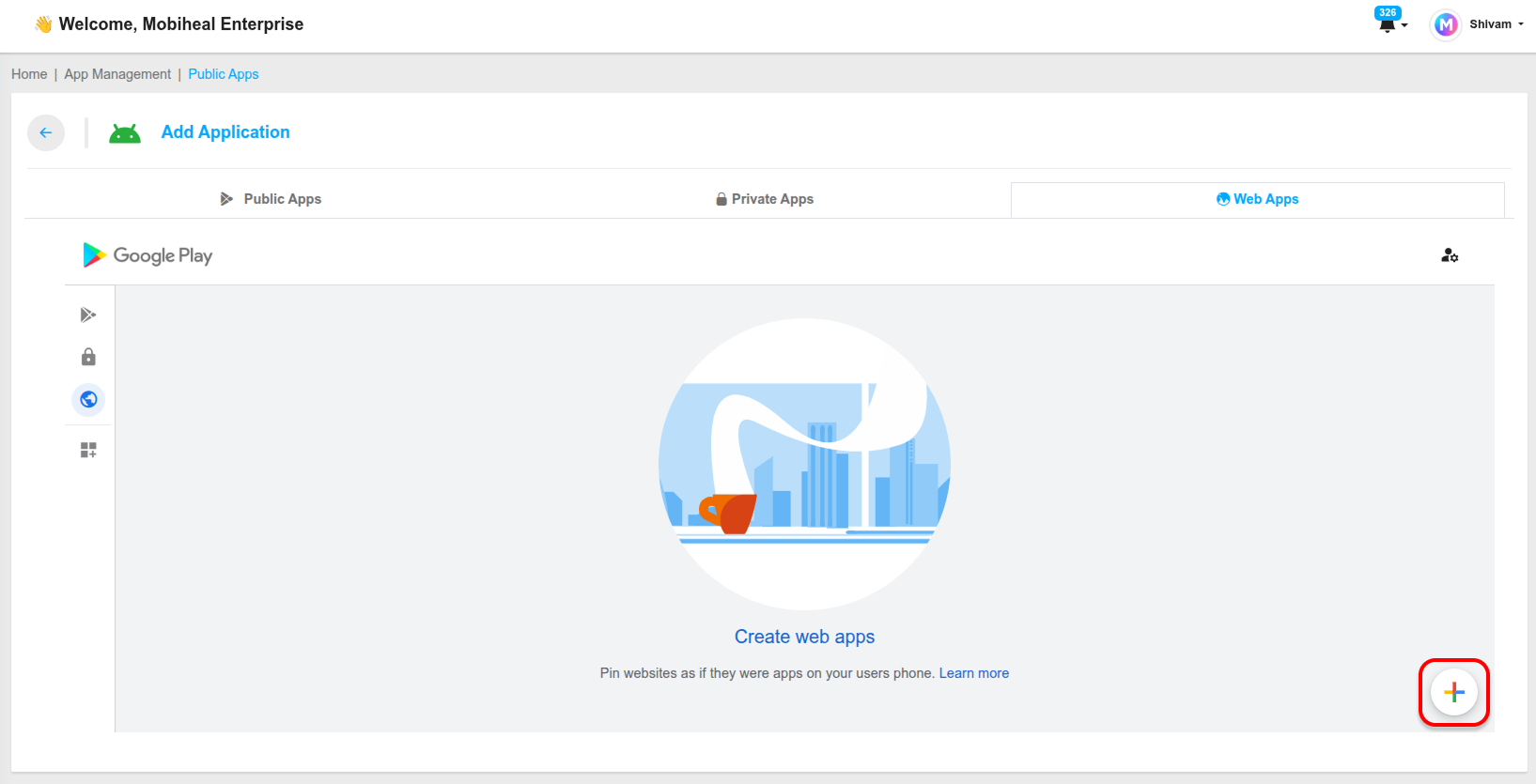
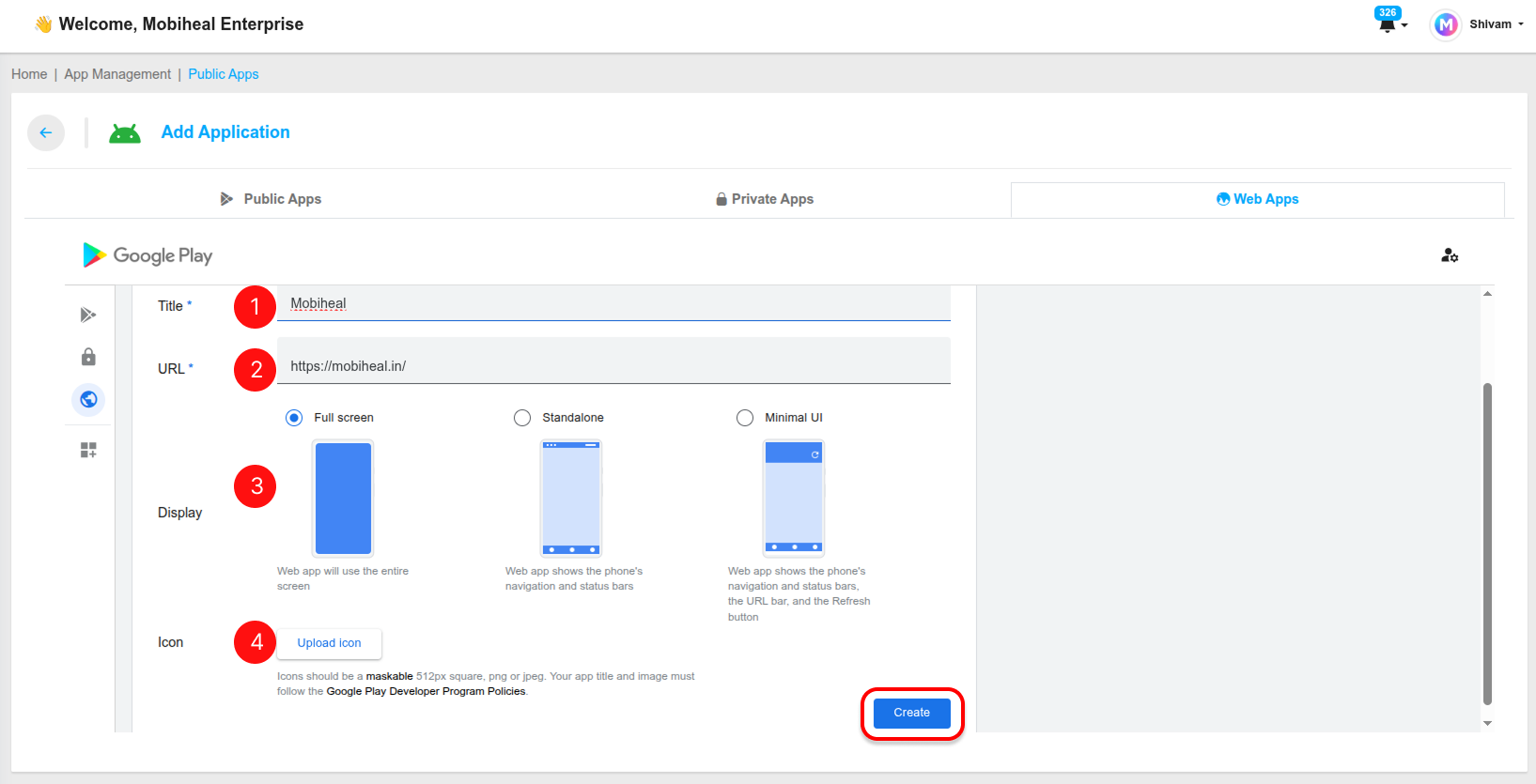
- Enter the URL of the web application you want to deploy.
- Provide a display name and upload/select an icon that will appear on the device home screen.
- Click the Create button to add the web app.
- The web app will now appear under the Web Apps tab.
- From this tab, you can select , edit, or delete app.
Once selected, the web app shortcut will be available in your catalog and can be pushed to Android devices through a policy.