Location Tracking
The Location Tracking module gives administrators a historical view of where any managed Android device has been over a defined time period. Rather than live tracking, this tool is designed for auditing — helping you verify delivery routes, investigate incidents, review field team activity, or confirm that Android devices are being used in authorized locations during approved hours.
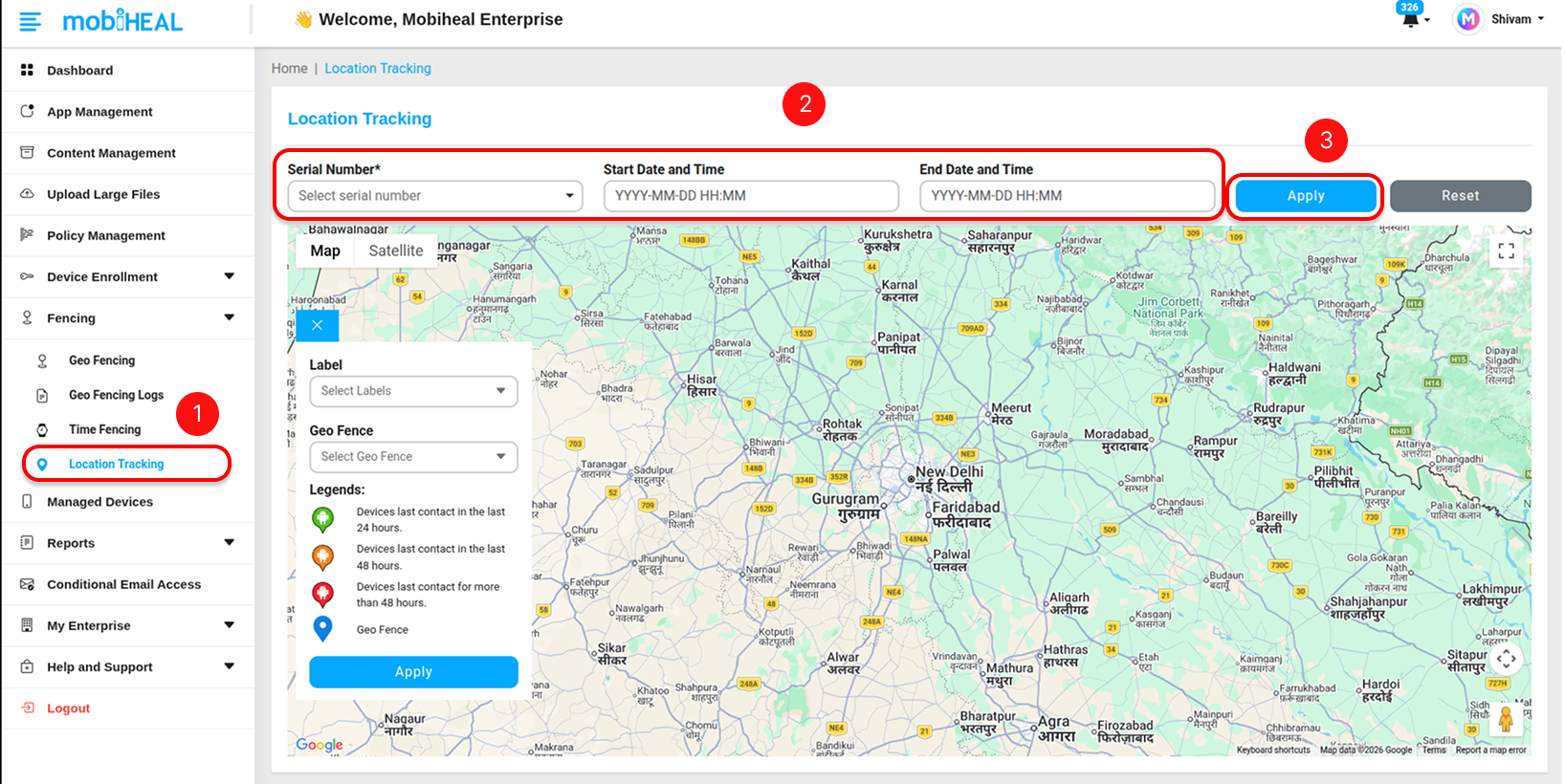
Step 1 — Navigate to Location Tracking
Go to Location Tracking in the left sidebar to open the location tracking module.
Step 2 — Select a Device
Use the Serial Number dropdown to select the specific Android device you want to audit. The dropdown lists all enrolled devices in your fleet by their serial number. Select the device whose movement history you want to review.
Step 3 — Define the Time Range
Use the calendar pickers to set your audit window:
- Start Date and Time — The beginning of the period you want to review. Select the date and time from the calendar pop-up.
- End Date and Time — The end of the period you want to review. Select the date and time from the calendar pop-up.
Tip: For best results keep your time range to 24 to 48 hours at a time. Very large date ranges may result in slower map rendering depending on how frequently the Android device reported its location during that period.
Step 4 — Apply and View the Path
Click the Apply button. MobiHeal will render the Android device's movement path directly on the map — showing the complete route the device took during the selected time window, with markers at key location points recorded along the journey.
Filter Devices Using Labels and Geofences
In addition to tracking a device using its Serial Number, MobiHeal also allows administrators to track devices based on Labels and Geofences applied across the device fleet. This helps in monitoring multiple devices grouped by purpose or location without selecting each device individually.
Using Labels
Labels are used to group Android devices logically (for example: Work Profile, Fully Managed, Production Devices, etc.). If a label is applied to devices, you can identify and track those devices based on the assigned label during auditing.
Using Geofences
Geofences define specific geographic areas such as office locations, client sites, or restricted zones. If a geofence (for example: Bharti) is applied to devices, you can track the movement of those devices in relation to that defined boundary.
How It Works
- Devices that have a Label or Geofence assigned can be tracked based on those configurations.
- You can identify or filter devices using Labels or Geofences and then view their movement path on the map.
- This allows administrators to monitor groups of devices instead of tracking each device individually.
Tip: Use Labels for grouping devices by teams or configurations, and Geofences for location-based monitoring and compliance.
What the Map Shows
- Route Line — A connected path showing the sequence of locations the Android device reported during the selected period, giving you a clear picture of the device's journey.
- Location Markers — Individual points along the route where the device reported its GPS position. Click any marker to see the exact timestamp and coordinates for that location point.
- Start and End Points — Clearly marked on the map to show where the Android device began and ended its journey during the selected time window.
Common Use Cases
- Verifying that a field technician visited the correct client sites during their shift.
- Auditing delivery driver routes to confirm they followed the planned path and made all required stops.
- Investigating a lost or stolen Android device by reviewing its last known GPS locations before going offline.
- Confirming that corporate Android devices are not being used outside of authorized areas or after approved working hours.
Related Modules
To automate Android policies based on location → android-geofencing
To automate Android policies based on time →android-time-fencing