Kiosk Mode Configuration
Kiosk Mode locks a managed Android device into a controlled environment, limiting users to one specific application or a curated set of approved applications. It is the ideal configuration for point-of-sale terminals, self-service kiosks, digital signage displays, shared field devices, or any Android device with a dedicated and defined purpose where unrestricted device access is not appropriate.

Kiosk Types
Single App Kiosk
Locks the Android device to one specific application immediately upon boot. The user cannot exit the app, access the home screen, open any other software, or navigate away from the kiosk app under any circumstances. Select the target application from the dropdown — for example, Chrome for a web-based kiosk, YouTube for a display screen, or a custom business application for a dedicated workflow tool.
Multi-App Kiosk
Creates a custom Android launcher that displays only a defined list of approved applications. Users can switch between the approved apps freely but cannot access the standard Android home screen, system settings, or any application outside the approved list. This is useful when employees need access to a small set of tools — for example, a barcode scanner app, a communication app, and a company portal — without unrestricted device access.
Kiosk Customization Options
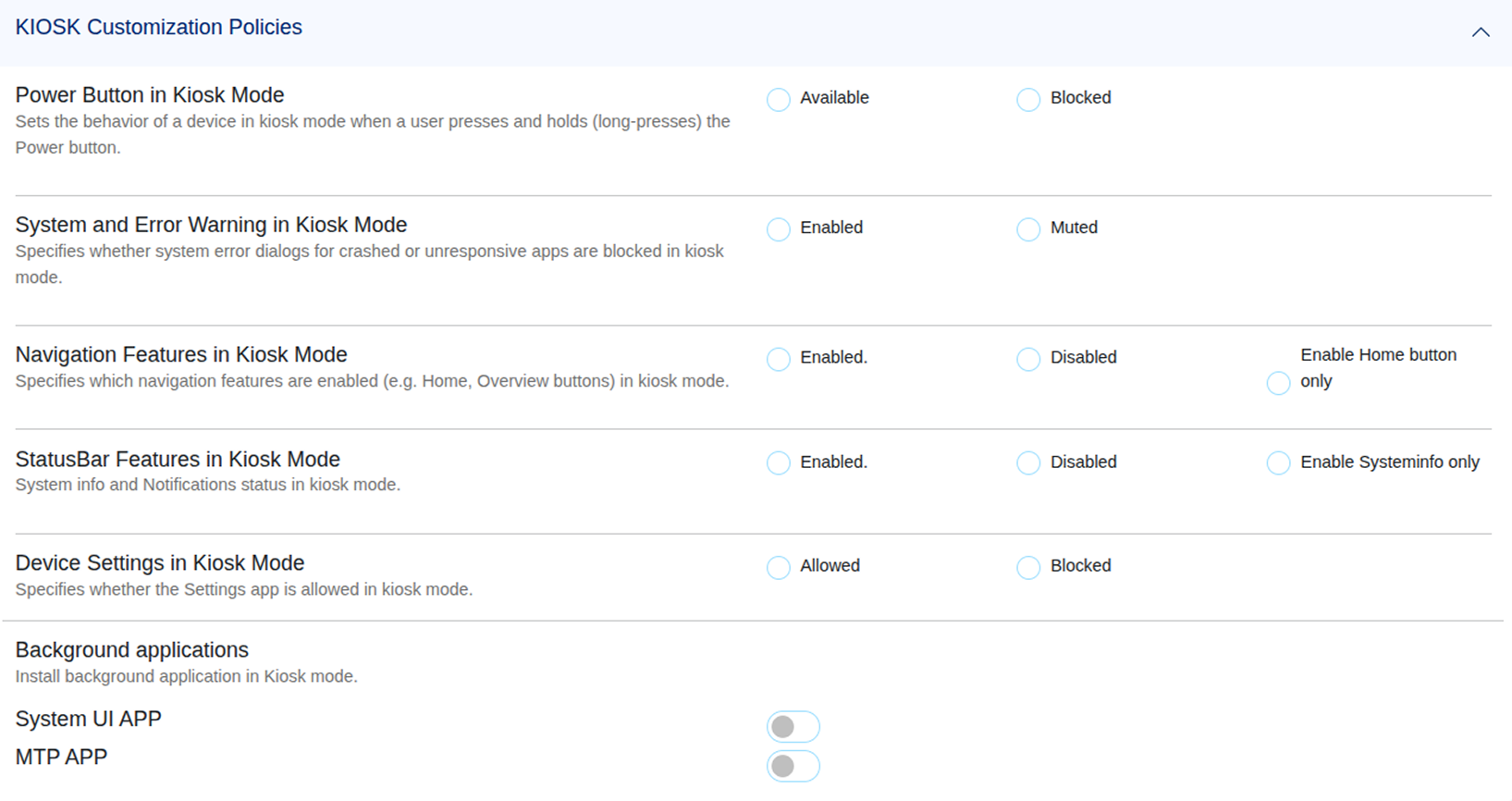
When Kiosk mode is active on the Android device, you can fine-tune the user experience to match the device's specific purpose and physical environment.
Power Button
- Blocked — The power button is completely disabled on the Android device. It cannot be turned off or restarted by the user. Ideal for always-on digital signage displays or unmanned kiosk stations connected to a permanent power source.
- Available — The user can use the power button to turn the screen off or initiate a device restart. Use this when the Android kiosk device occasionally needs to be power-cycled by staff.
System Warnings
- Muted — Suppresses all system crash dialogs and error messages on the Android device. When a background process fails, users will not see confusing technical error pop-ups that interrupt or confuse the kiosk experience.
Navigation Controls
- Disabled — Hides all Android navigation buttons including Back, Home, and Recents. The user is fully locked into the kiosk application with no navigation escape route. Recommended for unmanned or public-facing Android kiosks.
- Enable Home Button Only — Allows users to press the Home button to return to the kiosk launcher home screen, but prevents access to the app switcher or recent apps list. Useful for multi-app kiosks where returning to the launcher is an intentional and expected user action.
Status Bar
- Disabled — Hides the top status bar entirely on the Android device, removing the time, battery percentage, signal strength, and notification indicators from view. Recommended for clean display screens or public kiosks where this information is irrelevant to the user.
- Enable System Info Only — Shows system indicator icons in the status bar — such as battery and Wi-Fi signal — but prevents the notification shade from being pulled down. Useful for staff-operated kiosks where monitoring connectivity at a glance is occasionally needed.
Device Settings Access
- Allowed — The user can access a limited system settings menu while Kiosk mode is active on the Android device. Useful for staff-operated kiosks where adjusting Wi-Fi or brightness is occasionally required.
- Blocked — No access to device settings is permitted while Kiosk mode is active. Recommended for public-facing or fully automated kiosk deployments where no user access to settings should be possible.
Background Applications
Background applications allow certain system-level apps to run while the device is in Kiosk mode. These apps work silently in the background to support essential functions such as USB connectivity and file transfers without giving users access to the full system interface.
System UI App
Enables the system interface required to detect and access external storage devices such as USB drives or pen drives. When enabled, the device can read data from connected external media even while running in Kiosk mode.
MTP App
Allows file transfer between the Android device and a computer using MTP (Media Transfer Protocol) over a USB connection. When enabled, administrators or authorized users can transfer files to or from the device without exiting Kiosk mode.
Best Practices
- Always test Kiosk mode on a single Android device before rolling it out to the fleet — confirm the target app launches correctly on boot and all customization settings behave as expected.
- For public-facing kiosks, disable navigation controls, the status bar, and device settings access to prevent any possibility of the user escaping the kiosk environment.
- Use Blocked power button only for always-powered displays connected to a reliable power source — never on battery-powered Android devices that may need to be shut down.
- Combine Kiosk mode with Muted system warnings to ensure a smooth, uninterrupted experience for end users even when background processes fail.