Advanced Device Configuration
The advanced configuration sections within the Device tab provide extended device management capabilities beyond standard restrictions. These settings allow administrators to control device activity logging, display behavior, personal usage on company-owned devices, lock screen security options, system update policies, and device status reporting. These configurations help organizations maintain security, monitor device behavior, and ensure consistent device management across the entire fleet.
Usage Log
The Usage Log settings control which types of device activity logs are collected from managed Android devices and reported to the MobiHeal console. These logs help administrators monitor device behavior, track security-related events, and analyze network activity on managed devices. Administrators can enable specific types of logs and configure whether they can be uploaded using mobile data or only when the device is connected to Wi-Fi.
- Security Logs — Records security-related device events such as incorrect password attempts, security configuration changes, or removable storage being mounted. These logs help administrators identify potential security threats or unauthorized activity on the device.
- Network Activity Logs — Captures network-related activity such as DNS lookups and TCP connections made by the device. These logs help administrators monitor device communication and detect unusual network behavior.
- Upload Logs over Cellular Data — Allows selected logs to be uploaded using mobile data. If disabled, logs are stored locally and automatically uploaded when the device connects to a Wi-Fi network.

Display Settings
Display settings allow administrators to control certain screen-related behaviors on managed Android devices. These settings help maintain consistent visual configurations and ensure that display behavior aligns with organizational policies. Depending on device compatibility and Android version support, administrators can configure how the device display behaves to maintain a stable and controlled user experience.

Manage Personal Usage on Company-Owned Devices
These settings apply to Company-Owned Personally-Enabled (COPE) Android devices. In this deployment model, the organization owns the device but allows users to maintain a personal profile alongside the managed work profile. Administrators can apply restrictions specifically to the personal profile without affecting the managed work environment, helping protect enterprise data while allowing limited personal usage.
- Disable Camera on Personal Profile — Prevents the camera from being used within the personal profile while still allowing camera access within the work profile if permitted.
- Disable Screen Capture on Personal Profile — Prevents screenshots from being taken within the personal profile, reducing the risk of sensitive information being captured.

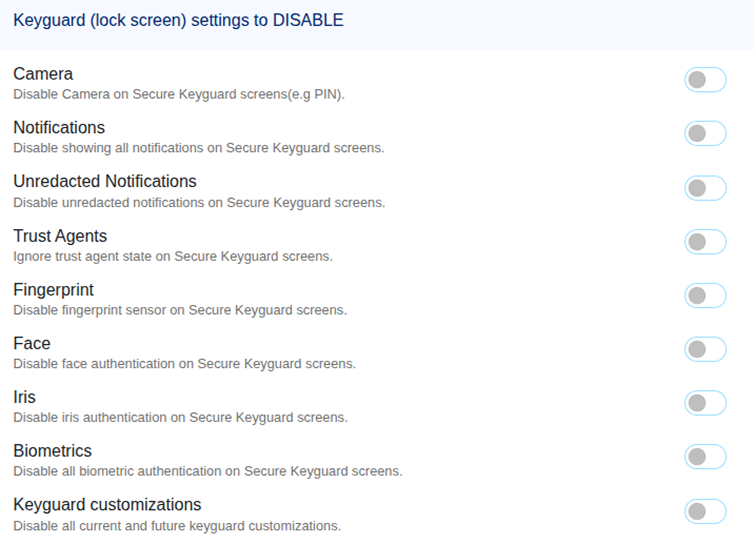
Keyguard (Lock Screen) Settings to Disable
These settings disable specific features on secure Android lock screens to improve device security. When a device is locked using a secure authentication method such as a PIN, password, or pattern, these controls determine which lock screen features are available.
- Camera — Disables the camera shortcut on secure lock screens, preventing the camera from being launched without unlocking the device.
- Notifications — Disables displaying notifications on secure lock screens so that sensitive information is not visible.
- Unredacted Notifications — Prevents full notification content from appearing on the secure lock screen.
- Trust Agents — Ignores trust agent state on secure lock screens, preventing trusted devices or trusted environments from bypassing lock screen security.
- Fingerprint — Disables fingerprint authentication on secure lock screens.
- Face — Disables face authentication as a device unlock method.
- Iris — Disables iris authentication on supported devices.
- Biometrics — Disables all biometric authentication methods on secure lock screens.
- Keyguard Customizations — Disables all current and future keyguard customizations to maintain a controlled lock screen experience.
System Update Related Policies
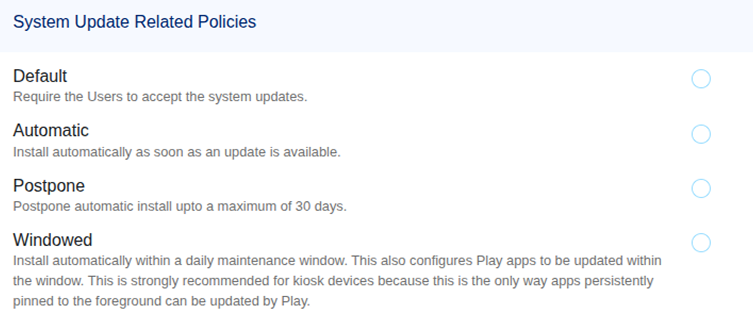
These policies define how Android operating system updates are installed on managed devices. Administrators can control when updates are installed to prevent interruptions during business operations while ensuring devices remain secure and up to date.
Default
Uses the standard Android update behavior where the user is prompted to install updates when they become available.
Automatic
Updates are installed automatically once they are released, ensuring devices remain updated with the latest Android version and security patches.
Postpone
Delays the installation of Android updates for a limited period, giving administrators time to test new versions before deploying them across the organization.
Windowed
Restricts update installation to a specific daily time window. This ensures updates occur during non-working hours and do not interrupt active device usage.
Status Reporting Settings
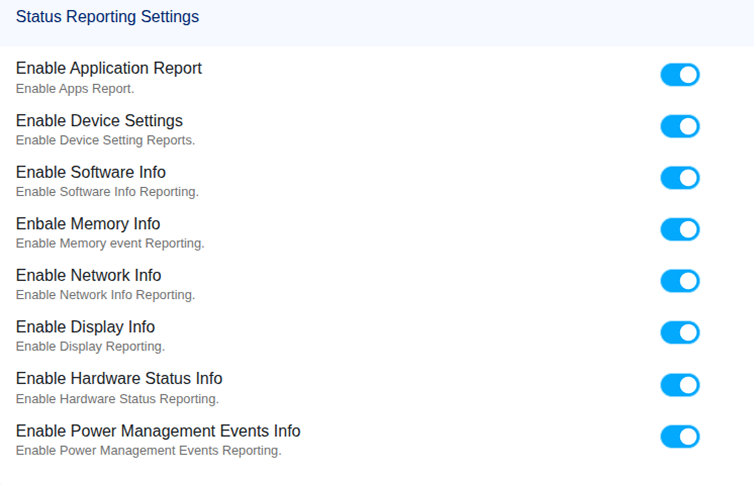
Status reporting settings determine what device information is periodically sent from the device to the MobiHeal management console. These reports help administrators monitor device health, configuration status, and system performance.
- Enable Application Report — Reports information about installed applications and their versions on the device.
- Enable Device Settings — Reports the device’s configuration settings and current policy state.
- Enable Software Info — Reports software information such as operating system details and software versions.
- Enable Memory Info — Reports memory-related events and device RAM usage information.
- Enable Network Info — Reports network connectivity details and network activity information.
- Enable Display Info — Reports device display configuration and display-related information.
- Enable Hardware Status Info — Reports hardware status information from the device.
- Enable Power Management Events Info — Reports power-related events such as battery and power management activities.