iOS BYOD Device Enrollment
Go to Device Enrollment in the left sidebar and select Apple Device Enrollment to open the APNs configuration page.
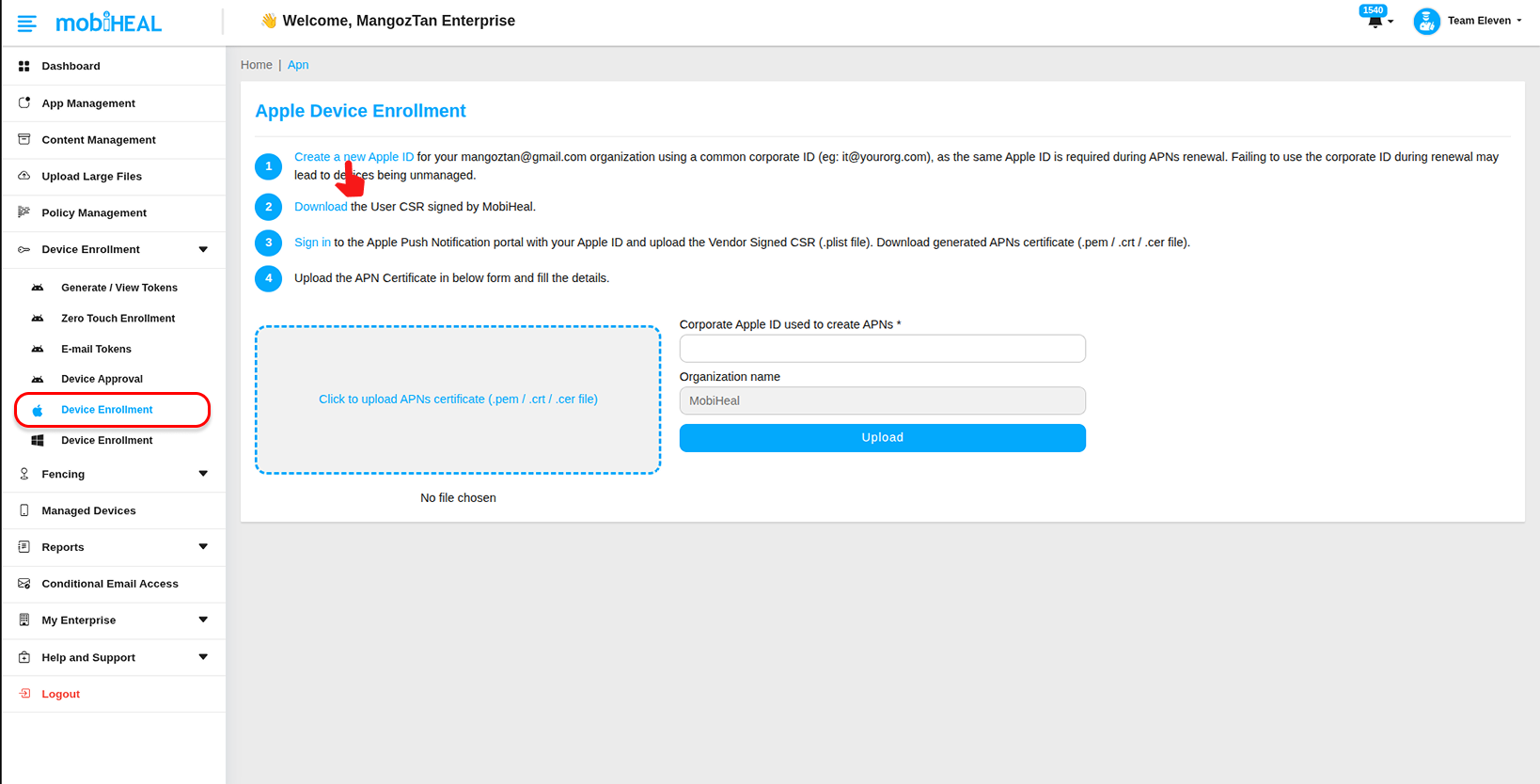
Before personal iPhones and iPads can be managed through MobiHeal, Apple Push Notification Service (APNs) must be configured successfully. This process includes creating an Apple ID, generating an APNs certificate, uploading the certificate to MobiHeal, generating the enrollment QR code, and finally enrolling the device. Follow the steps below to complete the enrollment process.
Prerequisite — Create an Apple ID
Before starting APNs configuration, create a dedicated Apple ID that will be used to generate and renew the APNs certificate. It is recommended to use an organizational email address because the same Apple ID must be used whenever the APNs certificate is renewed.
Create an Apple ID→ creating-apple-id-for-apns-configuration
Downloading the APNs Certificate Request (CSR)
After creating and verifying the Apple ID, return to the Apple Device Enrollment page in MobiHeal. The next step is to download the Certificate Signing Request (CSR) file generated by MobiHeal. This CSR file is required by Apple to generate the APNs certificate used for device management.
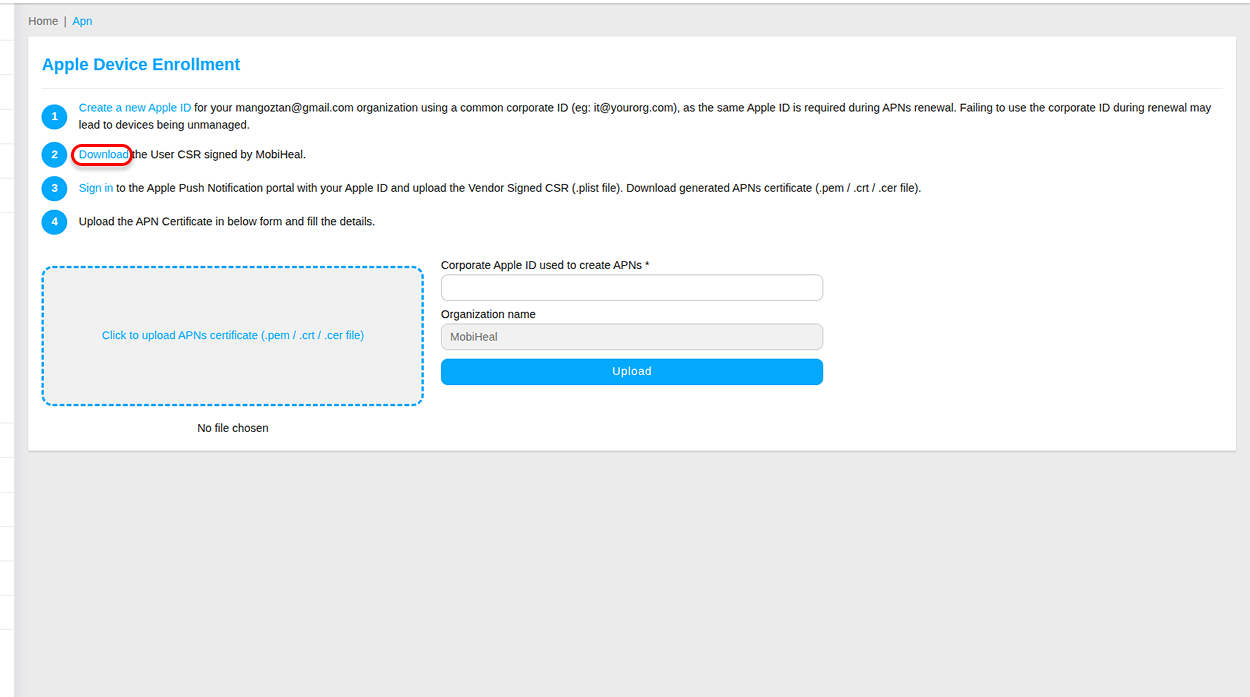
- Return to the Apple Device Enrollment page in MobiHeal.
- Locate Step 2: Download the User CSR signed by MobiHeal.
- Click Download to save the CSR file.
- Keep the downloaded CSR file accessible for the next step.
Signing In to the Apple Push Certificates Portal
After downloading the CSR file, proceed to Step 3 on the Apple Device Enrollment page. Click the Sign in link to open the Apple Push Certificates Portal. Sign in using the Apple ID that was created specifically for APNs management. Using the same Apple ID for future certificate renewals is important. If a different Apple ID is used during renewal, enrolled devices may lose management connectivity.
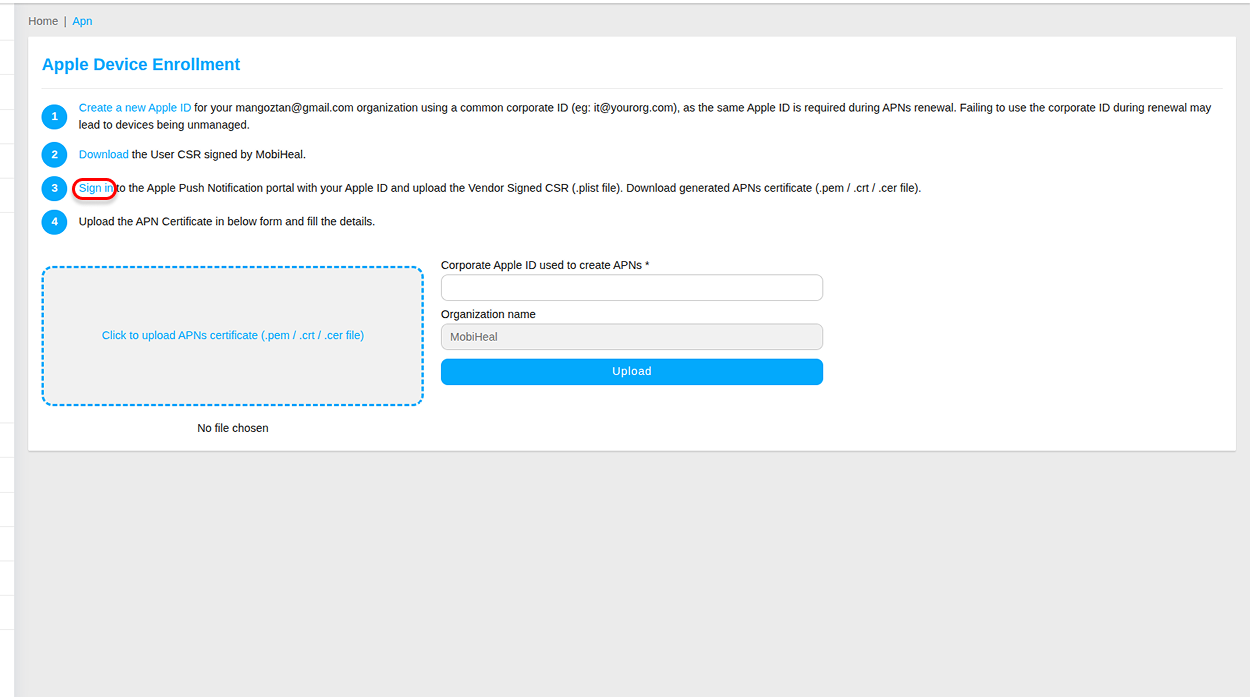
- Click Sign in under Step 3.
- Open the Apple Push Certificates Portal.
- Enter the Apple ID created during the previous steps.
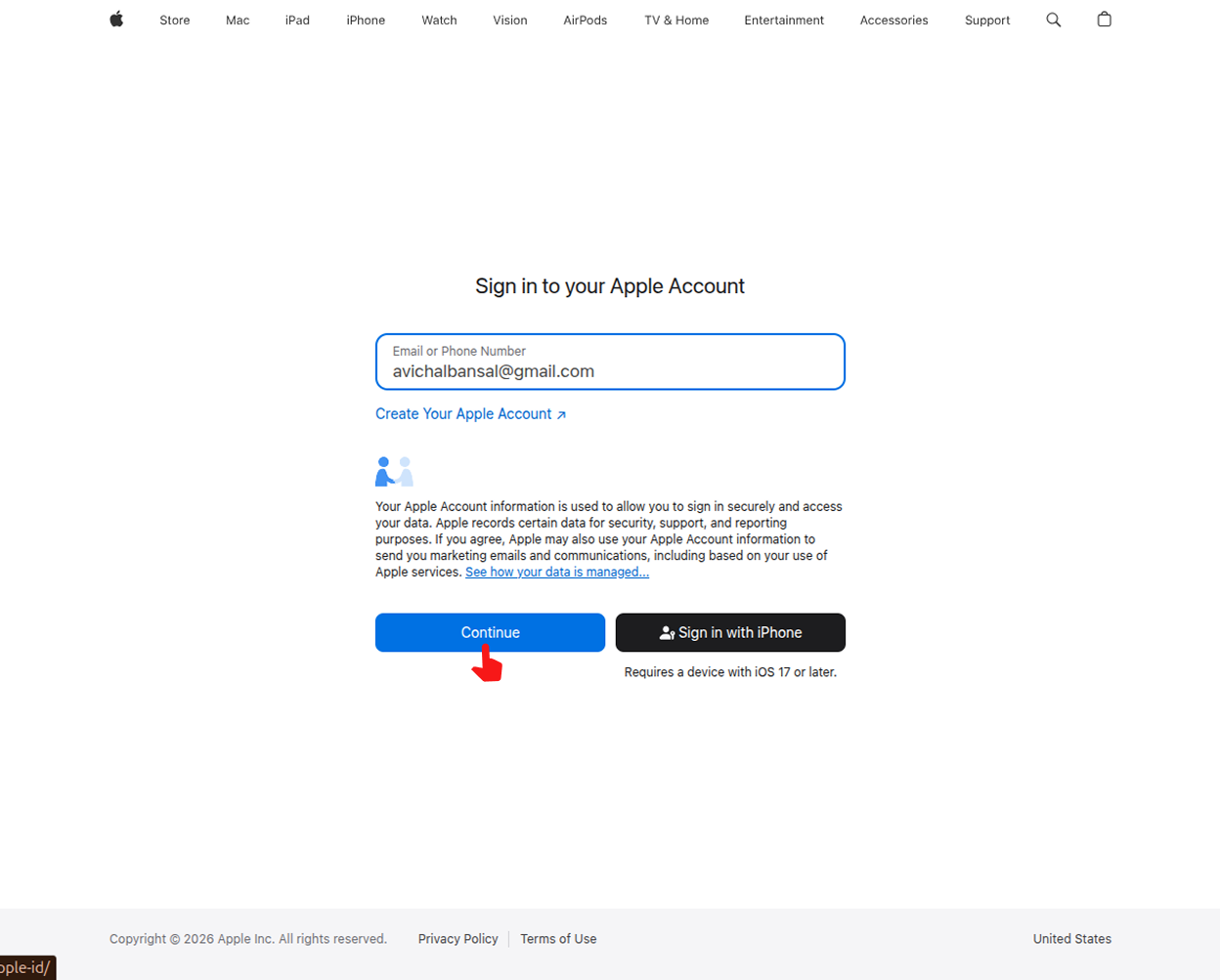
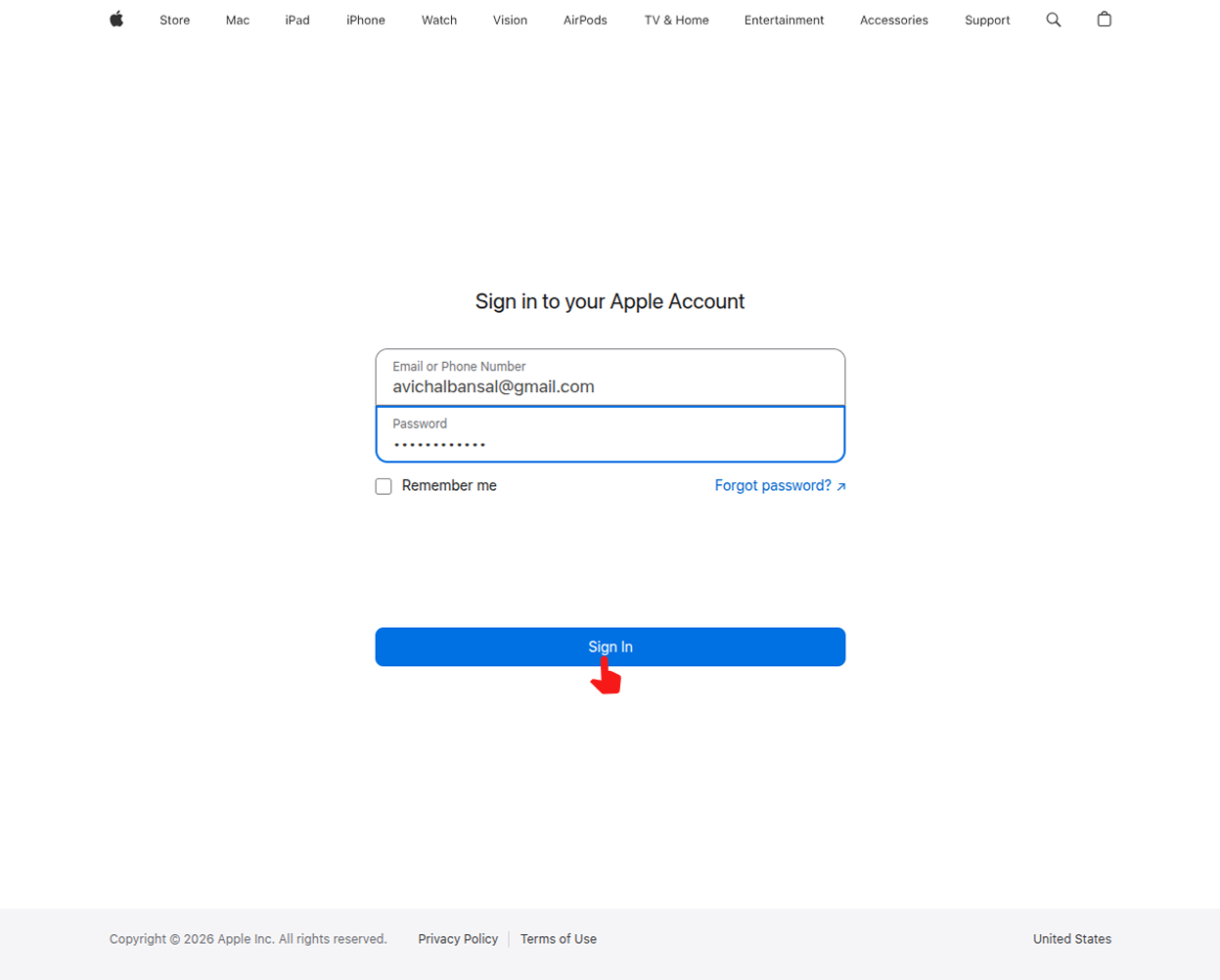
- Complete any two-factor authentication if prompted.
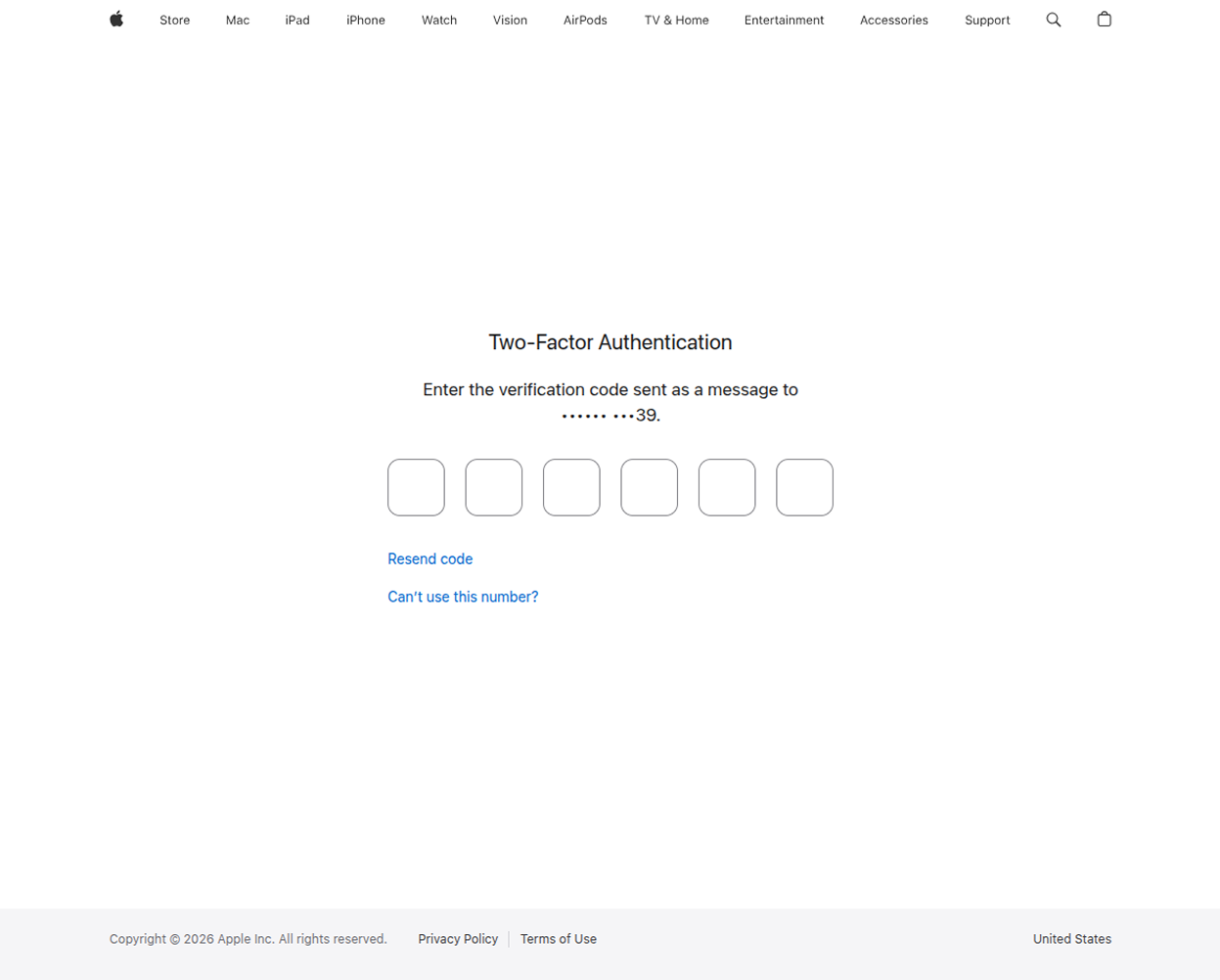
- Access the APNs certificate management page.
- Creating the APNs Certificate
Once signed in to the Apple Push Certificates Portal, create a new APNs certificate by uploading the CSR file downloaded from MobiHeal. Apple uses the CSR file to generate a certificate that enables secure communication between Apple devices and the MobiHeal MDM server.
- Click Create a Certificate.
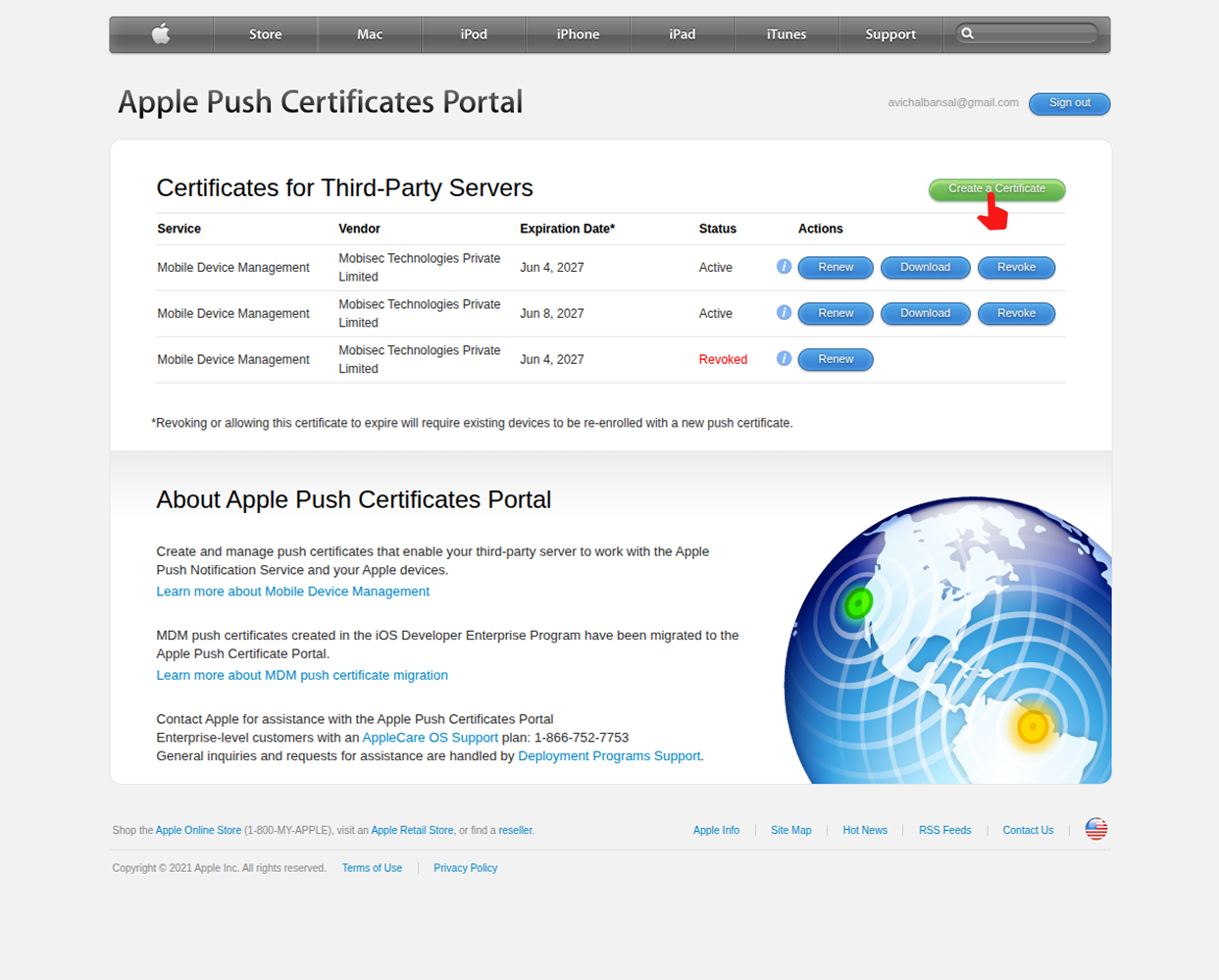
- Accept Apple's Terms and Conditions.
- Browse and select the CSR file downloaded from MobiHeal.
- Upload the CSR file.
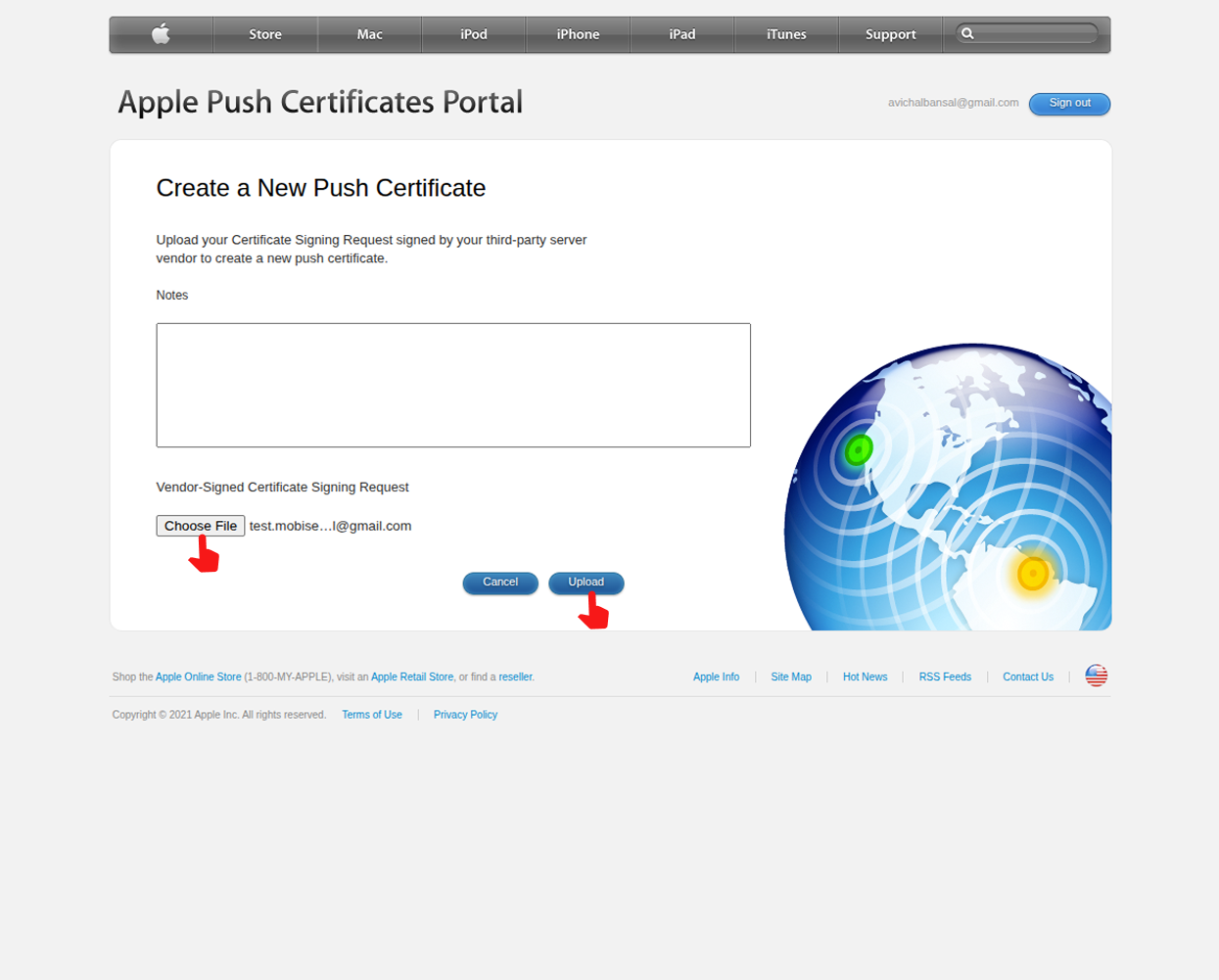
- Click Create to generate the certificate.
- Downloading the APNs Certificate
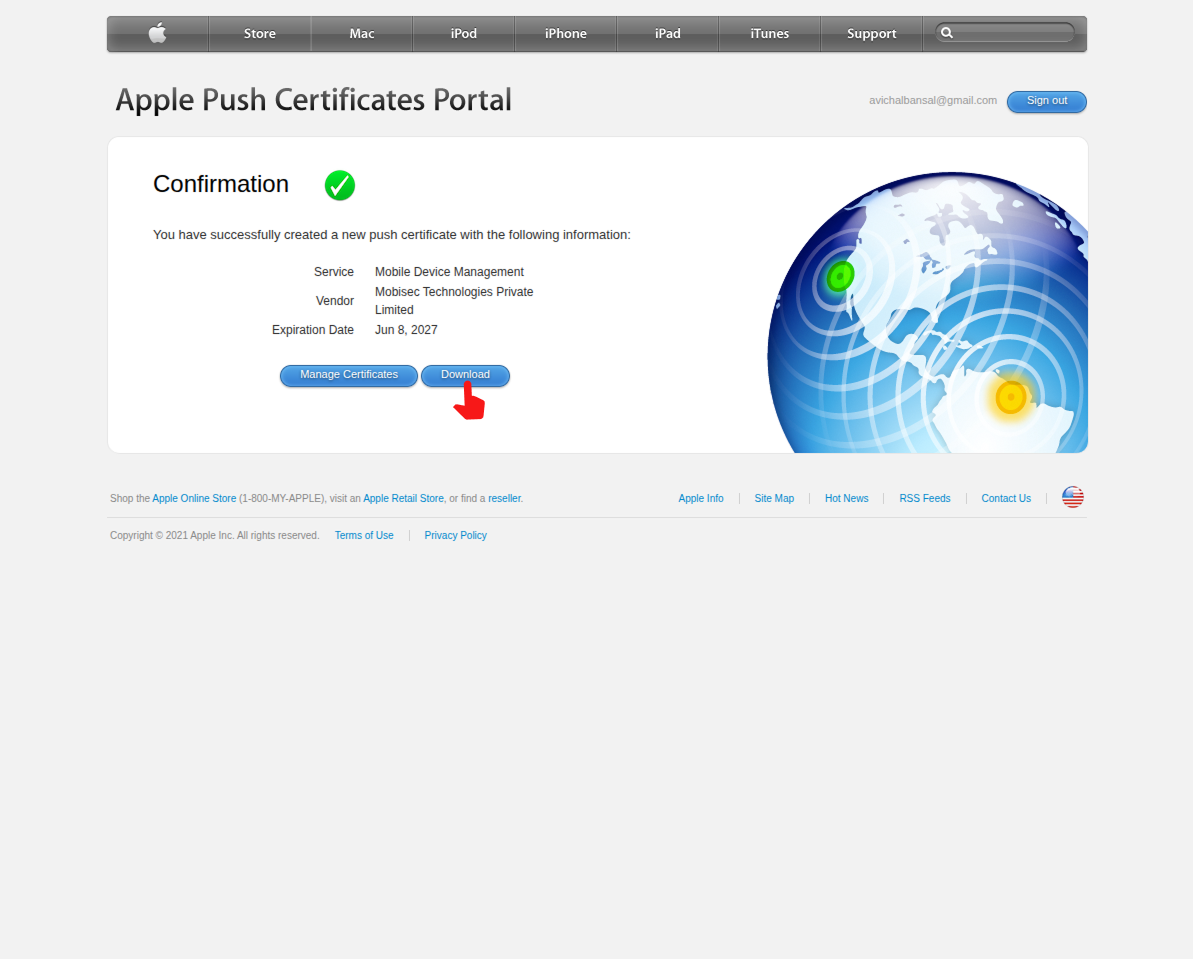
After the CSR file is successfully processed, Apple generates the APNs certificate. Download the generated certificate file to your computer. This file is required to complete Apple Device Enrollment within MobiHeal.
- Review the certificate details.
- Click Download to save the APNs certificate.
- Store the certificate securely.
- Ensure the file is not renamed or modified.
- Uploading the APNs Certificate to MobiHeal
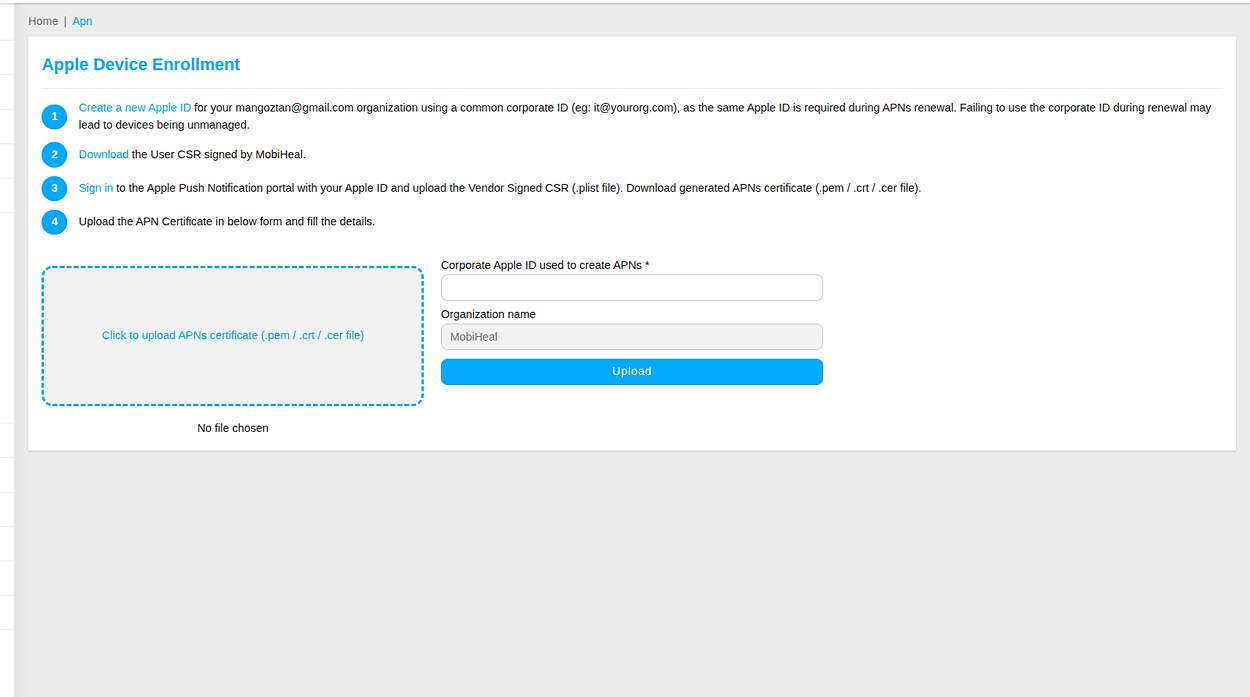
Return to the Apple Device Enrollment page in MobiHeal and complete Step 4. Upload the APNs certificate downloaded from Apple and provide the Apple ID used during certificate creation. This information allows MobiHeal to manage Apple devices securely through Apple's Push Notification Service.
- Return to the Apple Device Enrollment page.
- Click the APNs certificate upload area.
- Select the downloaded APNs certificate file.
- Enter the Corporate Apple ID used to create the certificate.
- Verify the organization name.
- Click Upload.
Generating the Enrollment QR Code
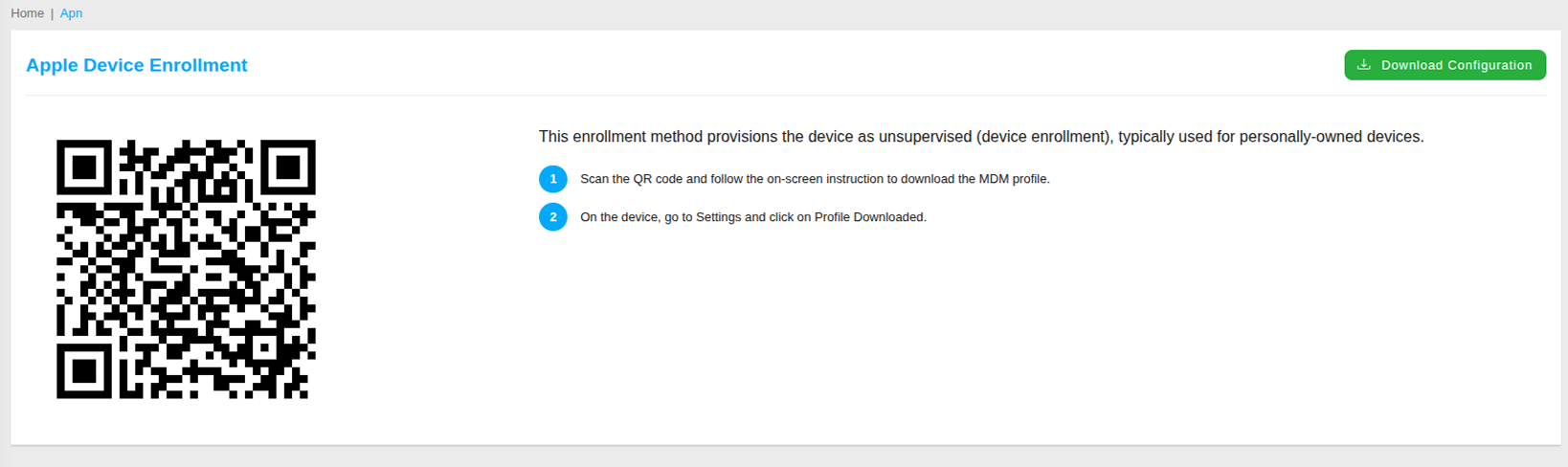
After the APNs certificate is uploaded successfully, MobiHeal automatically enables Apple device enrollment and generates an Enrollment QR Code. This QR Code is used by employees to begin the enrollment process on their iPhone or iPad.
- Wait for the APNs certificate upload to complete.
- Verify that the certificate has been uploaded successfully.
- View the generated Enrollment QR Code.
- Download or share the QR Code with the employee.
- Use the QR Code to begin device enrollment.
Scanning the Enrollment QR Code
On the iPhone or iPad, open the Camera application and scan the Enrollment QR Code generated by MobiHeal. A notification appears containing the enrollment URL.
- Open the Camera application.
- Scan the Enrollment QR Code.
- Tap the enrollment notification that appears.
- Safari opens the MobiHeal enrollment page.
- Review the enrollment instructions displayed on the screen.
Downloading the Enrollment Configuration
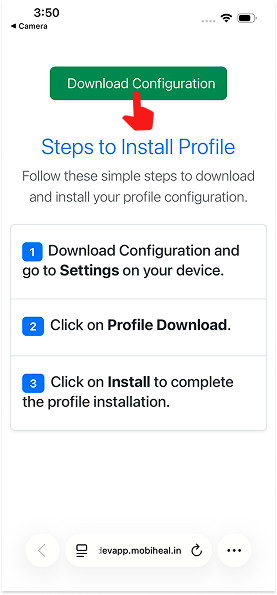
The enrollment page provides the configuration profile required to enroll the device into MobiHeal.
- Tap Download Configuration.
- Allow the profile download if prompted.
- Wait for the configuration profile to download successfully.
- Close Safari and open the Settings application.
Locating the Downloaded Profile
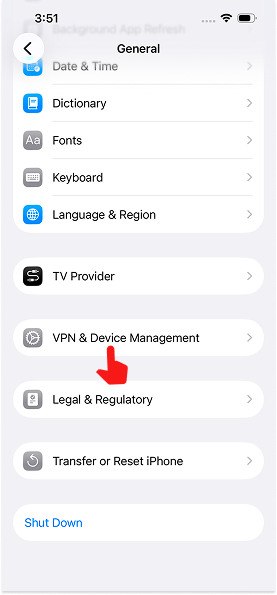
After downloading the profile, navigate to the Device Management section to access the downloaded configuration profile.
- Open Settings.
- Tap General.
- Scroll down and select VPN & Device Management.
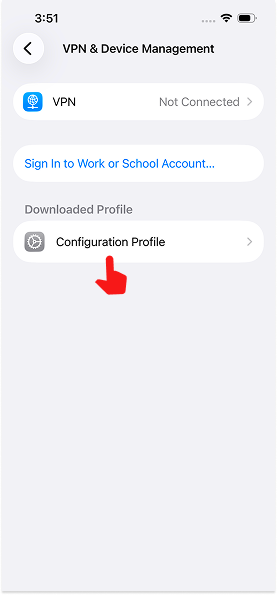
Under Downloaded Profile, tap Configuration Profile.
Installing the Enrollment Profile
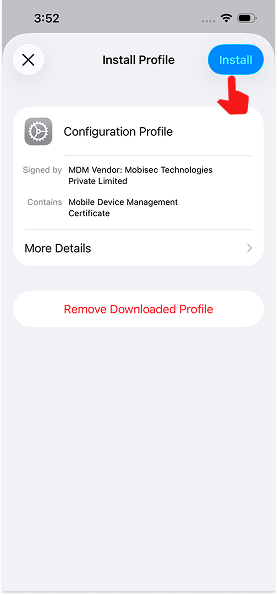
The downloaded profile must be installed before the device can be managed by MobiHeal.
- Review the profile information displayed on the Install Profile screen.
- Tap Install in the upper-right corner.
- If prompted, enter the device passcode.
- Review the management warning displayed by iOS.
- When the Remote Management prompt appears, tap Trust to approve enrollment.
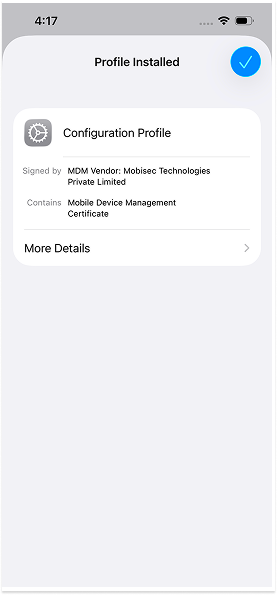
- Wait for the profile installation to complete.
Completing Device Enrollment
After the profile is installed and trusted, the device automatically communicates with MobiHeal and completes enrollment.
- Wait a few moments for enrollment to finish.
- Return to the MobiHeal Admin Console.
- Navigate to Managed Devices.
- Verify that the iPhone or iPad appears in the device inventory.
- Confirm that the device enrollment status is shown as Active.
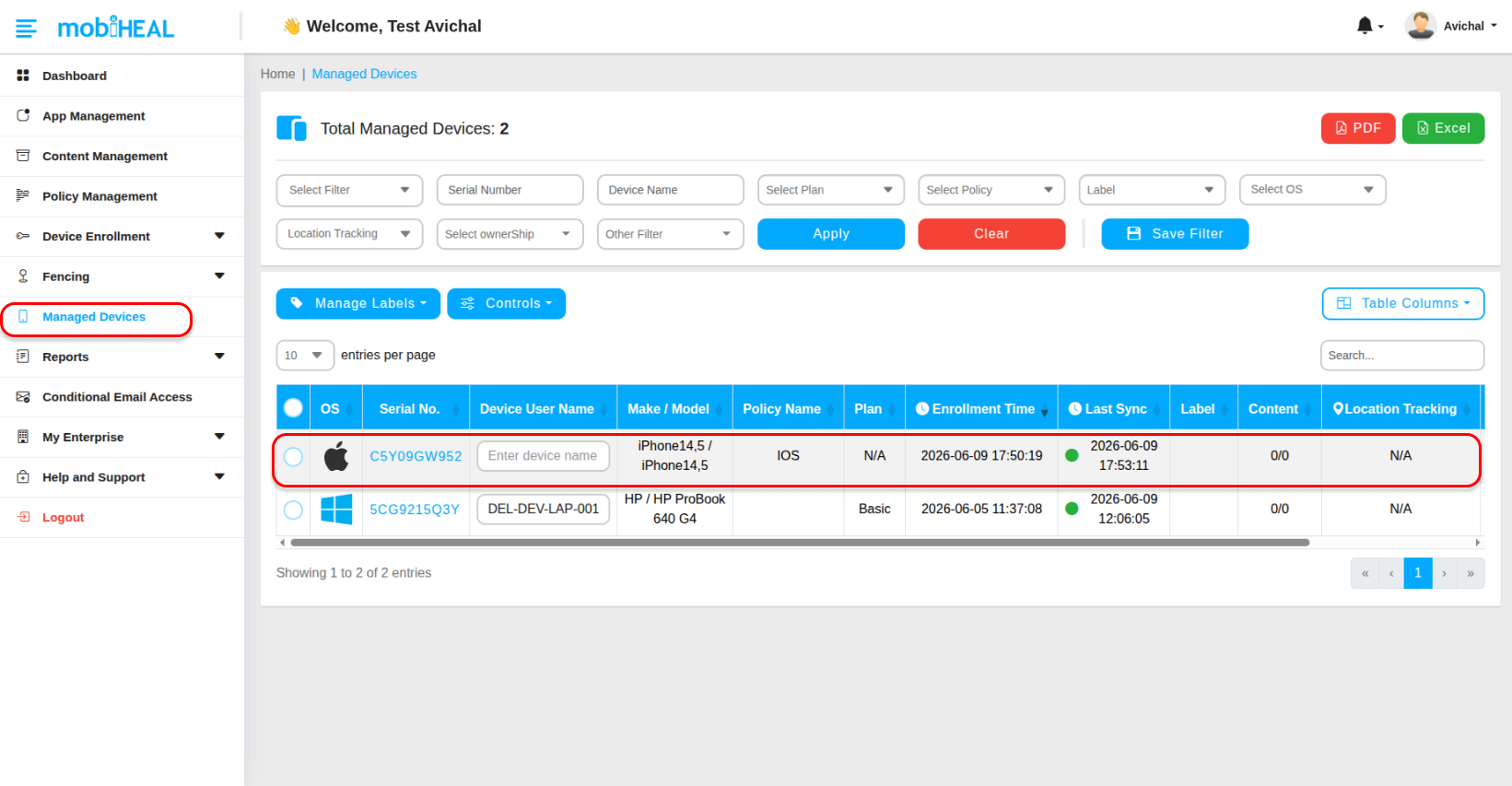
Result
The iPhone or iPad is now successfully enrolled in MobiHeal and can receive device management policies, applications, and security configurations from the organization.