App Deployment Rules, Installation Types & Update Priorities
The Install Apps section is where your Android app catalog becomes a set of enforced deployment rules. For every application in your MobiHeal App Management catalog, you define exactly how it should be handled on Android devices assigned to this policy — whether it is mandatory, optional, forbidden, or required before the device can even be used. Combined with per-app update priority controls, this section gives you complete lifecycle management over every application on your Android fleet.
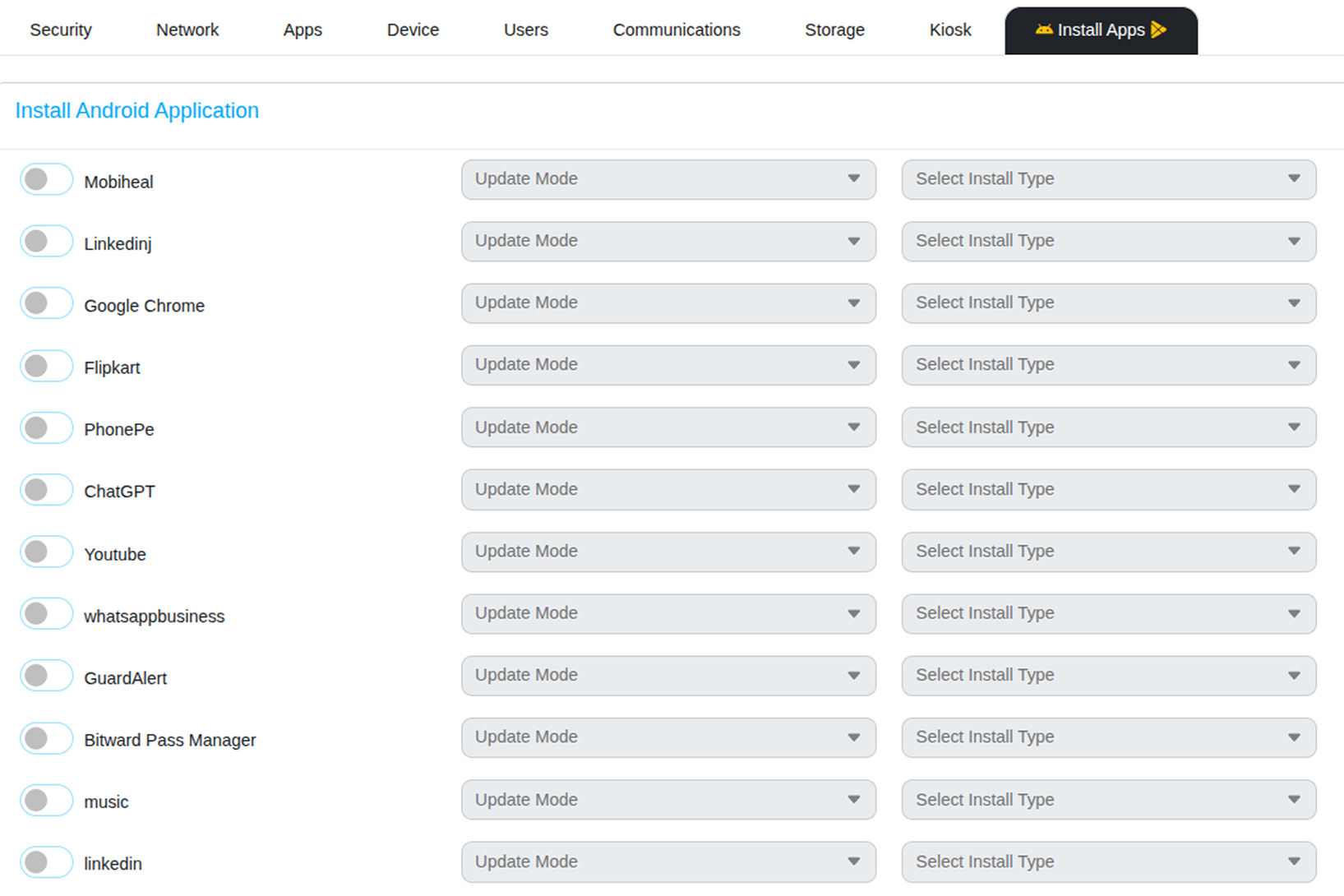
Accessing App Deployment Rules
- Open the Android policy you want to configure from the Policy Management list.
- Click the Install Apps button in the policy navigation bar — located to the right of the Kiosk tab.
- You will see a complete list of all applications currently available in your App Management catalog. Each app has its own Install Type and Update Mode dropdowns that you configure independently.
Installation Types
For each Android application in your catalog, use the Select Install Type dropdown to define how that app is handled on all devices assigned to this policy.
Force Installed
The app is automatically installed on the Android device and cannot be removed by the user. This is the most commonly used setting for critical business applications — ensuring every device in the fleet always has the required tools installed and available regardless of what the user attempts.
Pre-Installed
The app is installed automatically when the Android policy is applied, but the user may be able to remove it depending on other restriction settings in the policy. Use this for recommended but non-essential applications that the organization wants available by default without forcing their permanent presence on the device.
Blocked
The app is explicitly forbidden on the Android device. If it is already installed, it will be hidden or uninstalled automatically when the policy is applied. Use this to prevent specific consumer apps, social media platforms, or known security risks from running on corporate devices.
Available
The app is made available in the Managed Google Play Store for the user to download voluntarily if they wish. It is not pushed to the Android device automatically. Useful for optional productivity tools or apps that only certain users within the policy group might need.
Required for Setup
The Android device provisioning process will not complete until this specific app is successfully installed. Use this for applications that are absolutely essential before the device can be handed to an employee and considered ready for use — for example, a VPN client or a device management companion app.
Update Priorities
Use the Update Mode dropdown to control how and when each individual Android application receives updates from the Play Store. This is critical for preventing bad updates from disrupting mission-critical workflows while ensuring security-relevant patches are applied as quickly as possible.
Default
The Android app updates according to the device's standard conditions — typically over Wi-Fi while the device is charging. Standard behavior suitable for most applications where update timing is not critical.
Postponed
Delays the Android app update for up to 90 days after it is published by the developer. This gives your IT team a window to test the new version in a staging environment before it automatically reaches the production fleet — preventing untested updates from breaking workflows that employees depend on daily.
High Priority
The Android app updates immediately as soon as a new version is released by the developer — regardless of battery level, charging state, or current network type. Use this for security-critical applications, compliance tools, or the MobiHeal agent itself where running the latest version is mandatory and cannot be delayed.
Unspecified
Leaves the update behavior to the Android device's or user's discretion without explicit IT control. Not recommended for managed corporate Android fleets where consistency and predictability across all devices is important.
Saving the Policy
Once you have configured the installation types and update priorities for all your Android applications, save the policy by clicking the Create or Update button in the top-right corner. A confirmation message will appear confirming the policy was saved successfully. The new app deployment rules will be distributed to all Android devices assigned to this policy the next time they sync with the MobiHeal server.
Best Practices
- Always set critical business Android apps — such as your core communication tools, security software, and the MobiHeal agent — to Force Installed so they can never be removed from the device.
- Use Postponed update mode for core workflow applications and test new versions on a staging Android device or pilot group before the 90-day window closes and the update rolls out automatically.
- Use High Priority update mode for security apps, VPN clients, and compliance-related applications to ensure vulnerabilities are patched immediately across the entire Android fleet.
- Use Blocked for known distracting apps — social media, gaming, or personal streaming services — on corporate-owned fully managed Android devices.
- Review your app deployment rules every time you add a new application to the App Management catalog to ensure it has the correct install type and update priority assigned before devices pick it up.