Android Enrollment Overview
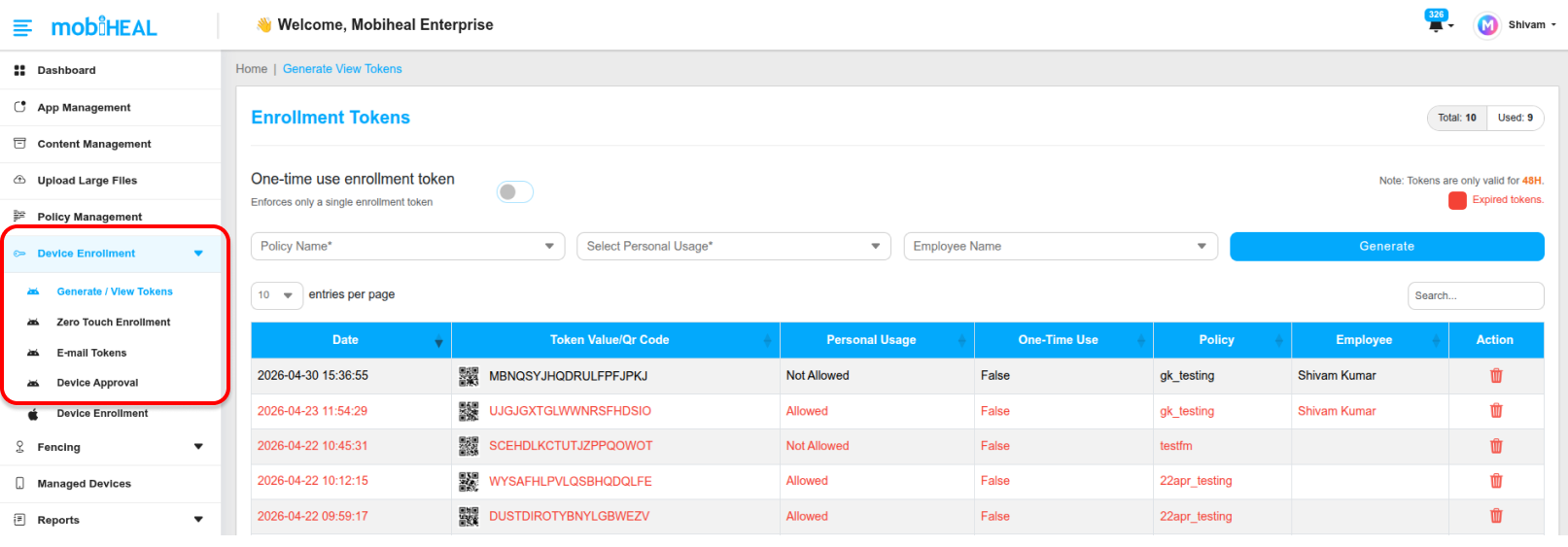
The Enrollment module is the starting point for bringing any Android device under MobiHeal management. MobiHeal supports three distinct enrollment methods for Android — each designed for a different deployment scenario. Whether you are setting up a single device in the office, deploying hundreds of devices remotely, or inviting employees to enroll their personal phones, there is a method that fits your workflow.
Android Enrollment Methods
QR Code Enrollment
The fastest method for in-person provisioning of Android devices. Generate a policy-linked QR code token from the MobiHeal console and scan it on the device during initial setup. The device automatically enrolls, applies the assigned policy, and is ready for use — no manual configuration required. Each token is valid for 48 hours and a maximum of 10 tokens can be active at any one time.
Step-by-step guide: QR Code Enrollment for Android → /help-center/android-qr-code-enrollment
Zero-Touch Enrollment
Designed for large-scale deployments. Link your Google Zero-Touch account to MobiHeal and any Android device purchased from an authorized reseller will automatically provision itself with your MobiHeal settings the moment it connects to the internet — no physical setup, no QR scanning, no IT presence required on-site.
Step-by-step guide: Zero-Touch Enrollment for Android → /help-center/android-zero-touch-enrollment
Email Enrollment
Send an enrollment invitation directly to an employee's email address. The employee follows a guided process to enroll their device — ideal for remote workers or BYOD scenarios where IT cannot physically access the device. Unused invitations can be revoked from the console at any time.
Step-by-step guide: Email Enrollment for Android → /help-center/android-email-enrollment
Choosing the Right Enrollment Method
- Deploying corporate Android devices in bulk at the office — use QR Code Enrollment.
- Purchasing devices from an authorized reseller for large-scale rollout — use Zero-Touch Enrollment.
- Onboarding remote employees or personal BYOD devices — use Email Enrollment.
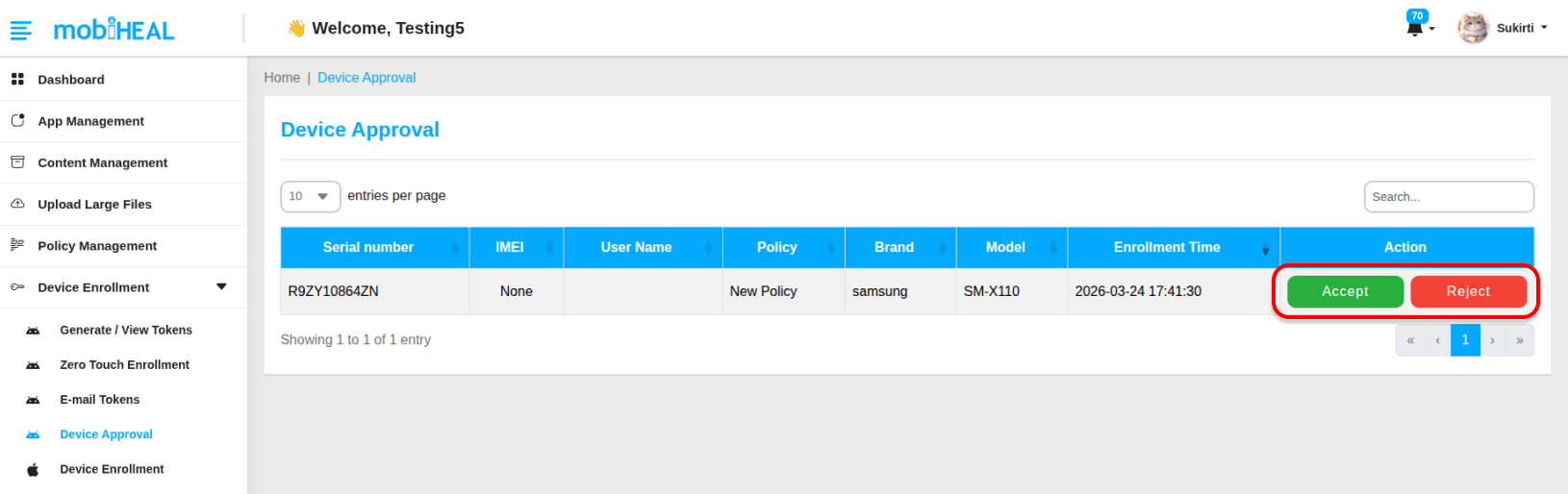
Device Approval
After enrollment, MobiHeal gives your organization full control over which devices are granted access. Administrators can review pending enrollment requests and choose to approve or reject each device before it gains access to corporate resources — adding a critical security checkpoint to the onboarding process.