QR Code Enrollment for Android
QR Code Enrollment is the fastest way to physically provision Android devices with a MobiHeal policy. During the initial device setup, the user scans the QR code and the device automatically enrolls, downloads the MobiHeal agent, applies the assigned policy, and is ready for use — all without any manual IT steps on the device itself.
Before You Begin
- Ensure the Android device is factory reset or brand new and sitting on the initial setup screen.
- Make sure you have at least one Policy already created in Policy Management before generating a token.
- The device must have a working camera to scan the QR code.
Step 1 — Navigate to Token Generation
Go to Device Enrollment in the left sidebar and select Generate / View Tokens.
Step 2 — Configure Your Enrollment Token
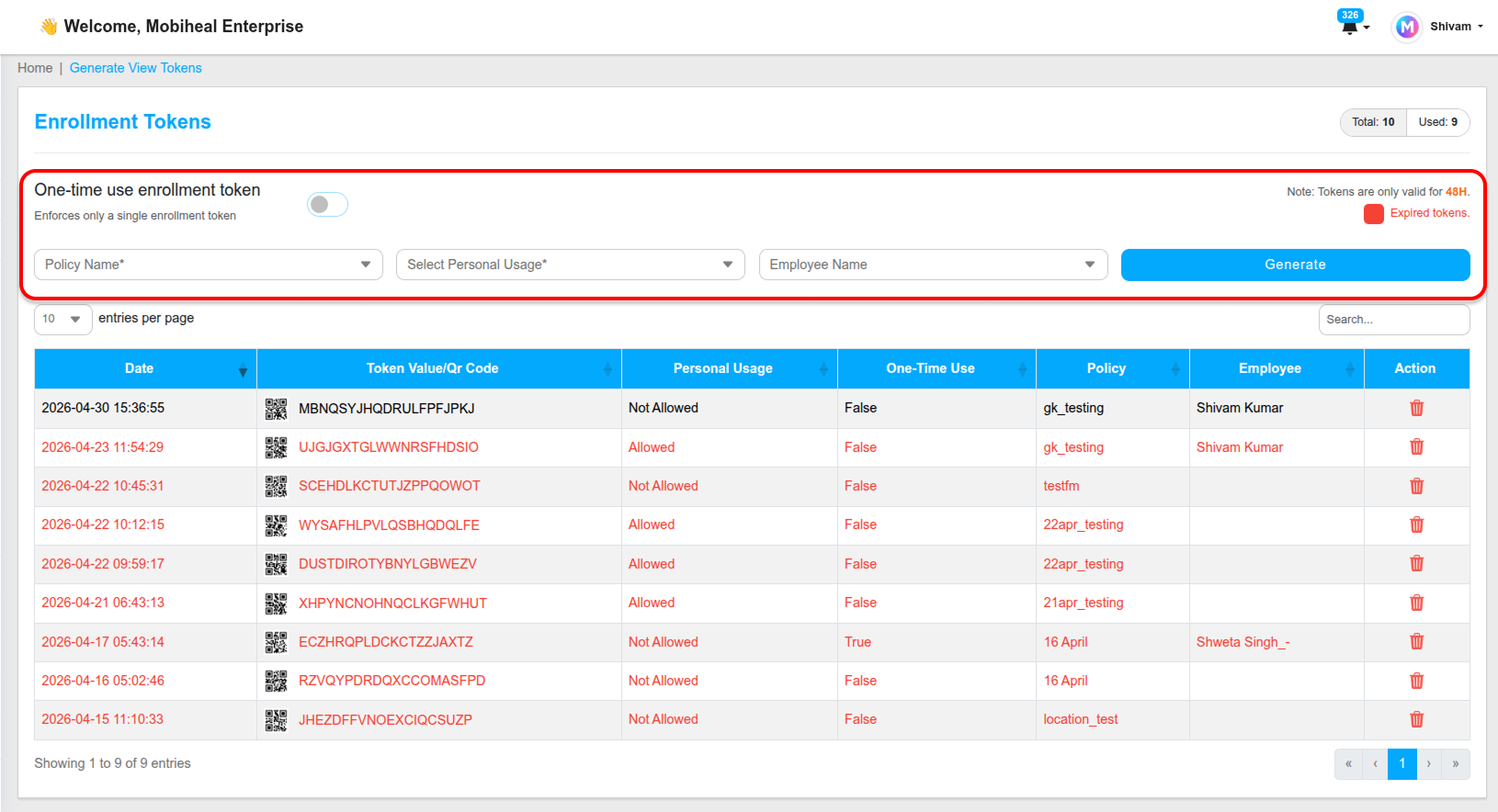
Policy Name
Select the pre-configured security policy you want to apply to this device immediately upon enrollment. The policy will be enforced as soon as the device completes provisioning.
Personal Usage
This setting defines the Android management mode for the device:
- Personal usage is disallowed — The device becomes Fully Managed (Device Owner). The organization has complete control over the entire device. Best for corporate-owned hardware.
- Personal usage is allowed — A Work Profile (Profile Owner) is created alongside the personal profile. The organization manages only the work side. Best for BYOD deployments.
Employee Name
Optionally assign the token to a specific employee for tracking purposes. This makes it easier to identify which device belongs to which user in your Managed Devices list after enrollment.
Step 3 — Generate the Token
Click the Generate button. The new token will appear in the list below the form. Each token is valid for 48 hours from the time of generation.
Note: A maximum of 10 enrollment tokens can be active at any one time. Delete unused tokens from the list to free up slots before generating new ones.
Step 4 — Distribute the QR Code
- Click the QR Code icon in the Token Value column to view the code on screen.
- Click Save to download the QR code as an image file.
- Print the image and distribute it physically to your deployment sites or hand it to the technician setting up the device.
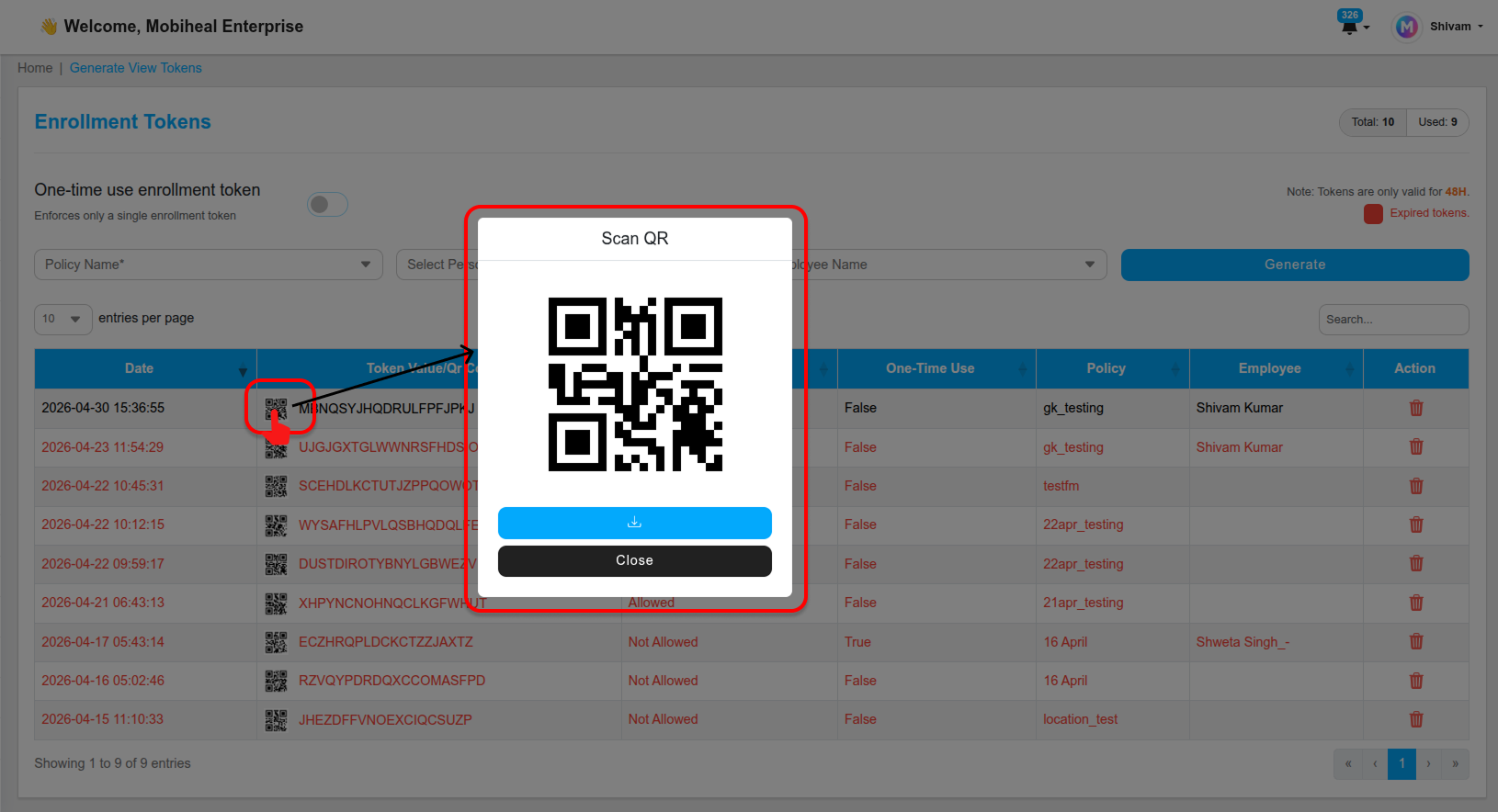
Step 5 — Scan on the Android Device
On the Android device's initial setup screen, tap the setup wizard several times until the QR code scanner appears. Point the camera at the printed or on-screen QR code. The device will automatically download the MobiHeal agent, apply the policy, and complete enrollment without any further user interaction.