Zero-Touch Enrollment for Android
Zero-Touch Enrollment (ZTE) is designed for organizations deploying Android devices at scale. Once your Google Zero-Touch account is linked to MobiHeal, any Android device purchased from an authorized reseller will automatically configure itself with your MobiHeal settings the moment it connects to the internet — with zero manual intervention from IT or the end user.
Before You Begin
- Devices must be purchased from a Google-authorized zero-touch reseller.
- You need a Google Account associated with your corporate device purchasing account.
- MobiHeal must be configured as your EMM (Enterprise Mobility Management) provider in the zero-touch portal.
Step 1 — Navigate to Zero-Touch Enrollment
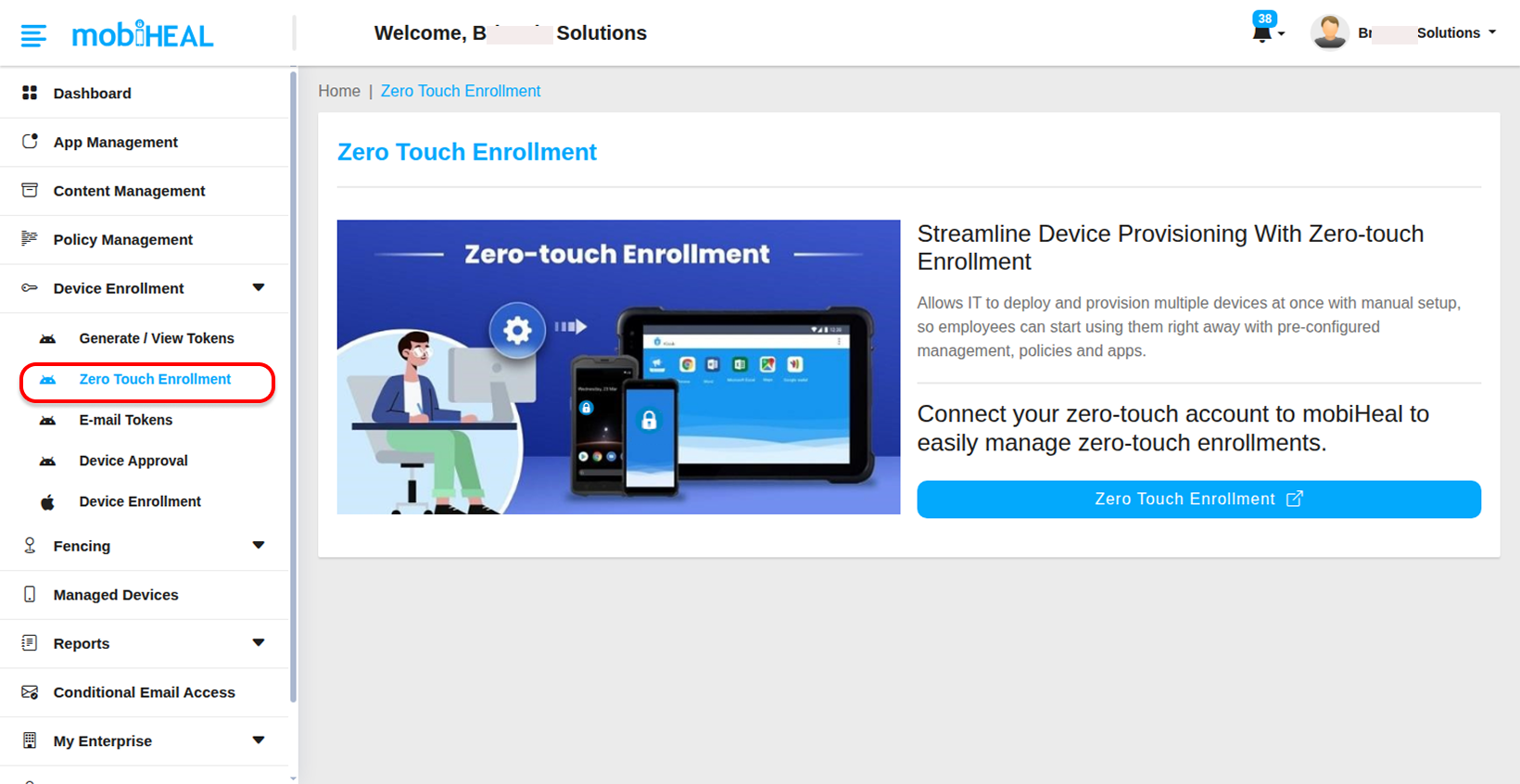
Go to Device Enrollment in the left sidebar and select Zero Touch Enrollment.
Step 2 — Link Your Zero-Touch Account
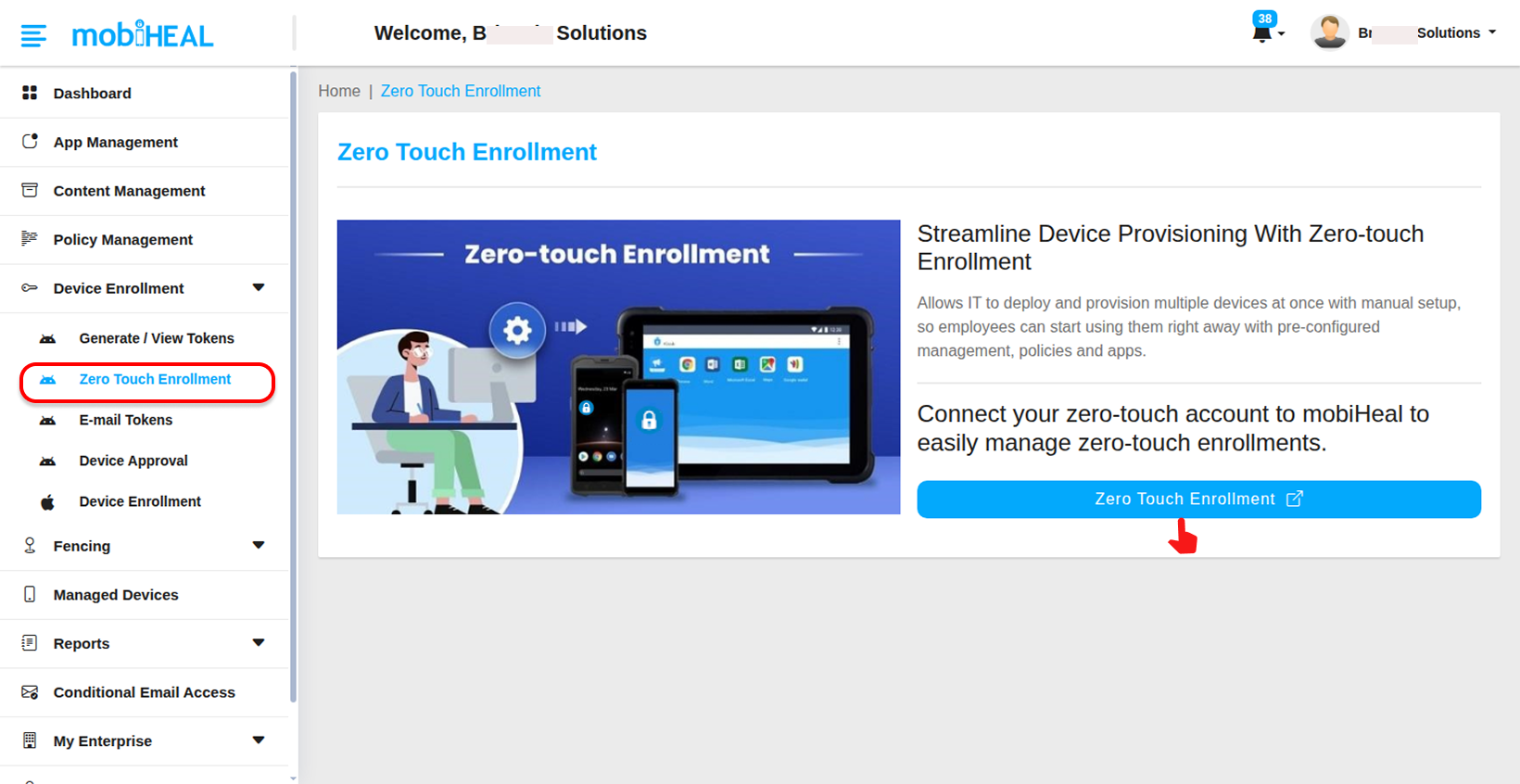
Click the Zero Touch Enrollment link on the page. This opens Google's enterprise zero-touch portal in a new browser tab.
- Sign in with the Google Account associated with your corporate device purchases.
- Follow the on-screen prompts to link your zero-touch account to MobiHeal as your EMM provider.
- Once linked, MobiHeal will appear as the management platform for all devices registered under your zero-touch account.
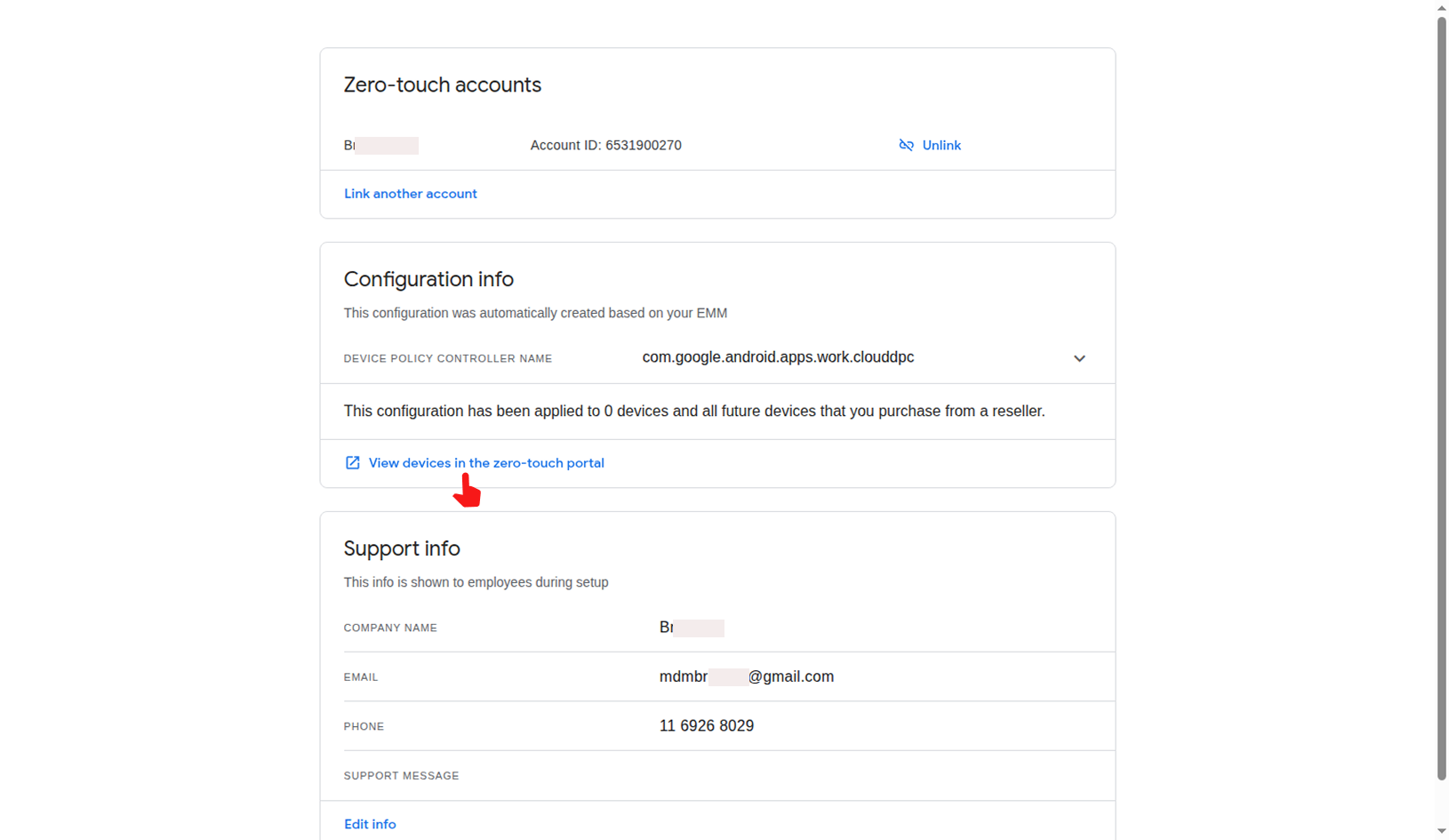
When you click on View devices in the zero-touch portal, it will redirect you to the configuration .
Step 3: Create and Manage Configurations
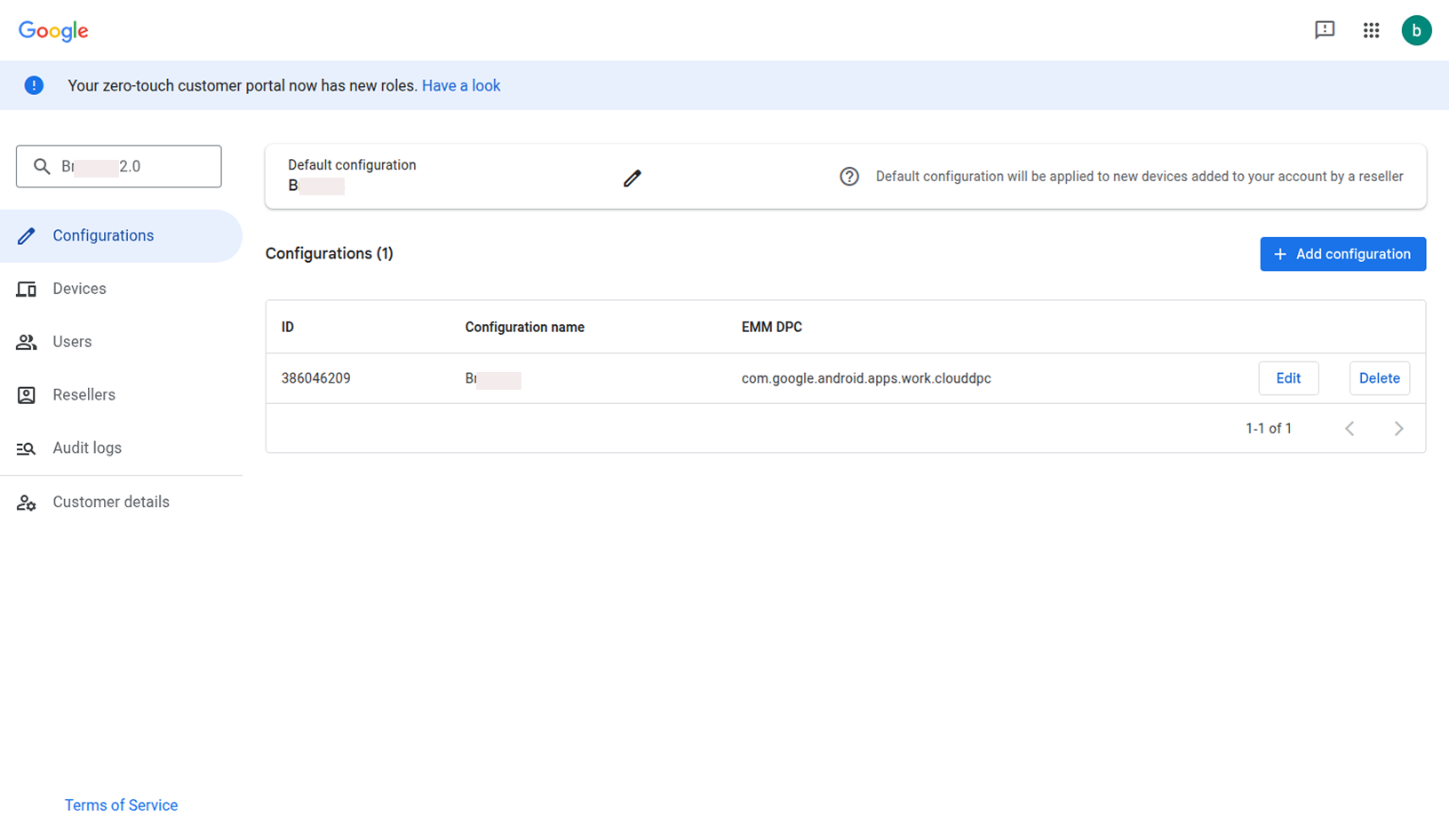
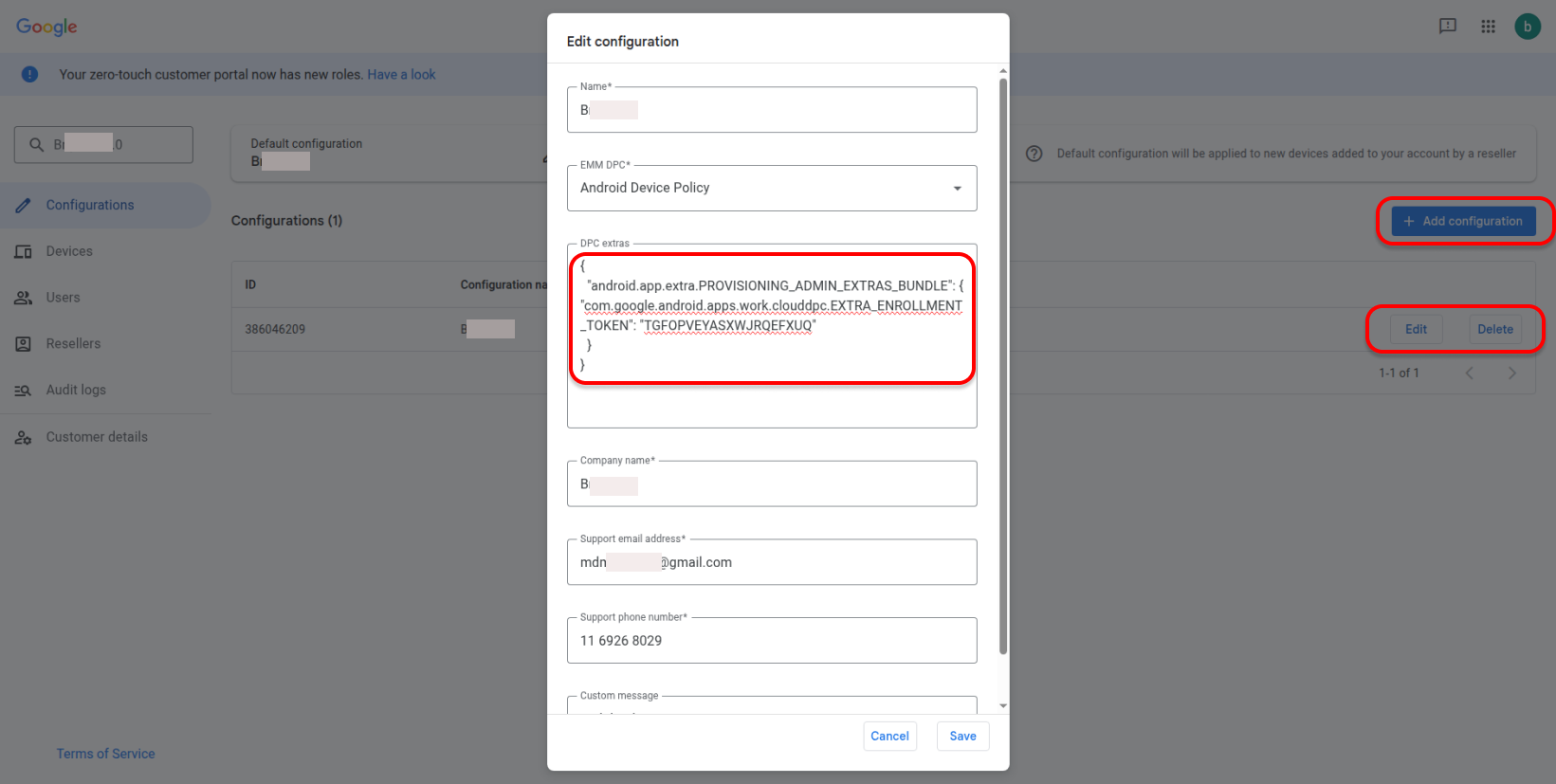
In the Google portal, you can use the Add configuration button to create new setup profiles. You can also Edit or Delete existing configurations to update DPC extras or support information.
Important: Configuring DPC Extras
When you add or edit a configuration, you must provide the specific enrollment data to link the device to your MobiHeal environment.
Note: You will need to paste the Token Value (the JSON code) generated from the MobiHeal QR Code Generator into the DPC extras field. This ensures the device knows exactly which policy and organization to join during the automated setup. In the EMM DPC dropdown menu, ensure you select Android Device Policy.
Step 4 — Set a Default Configuration
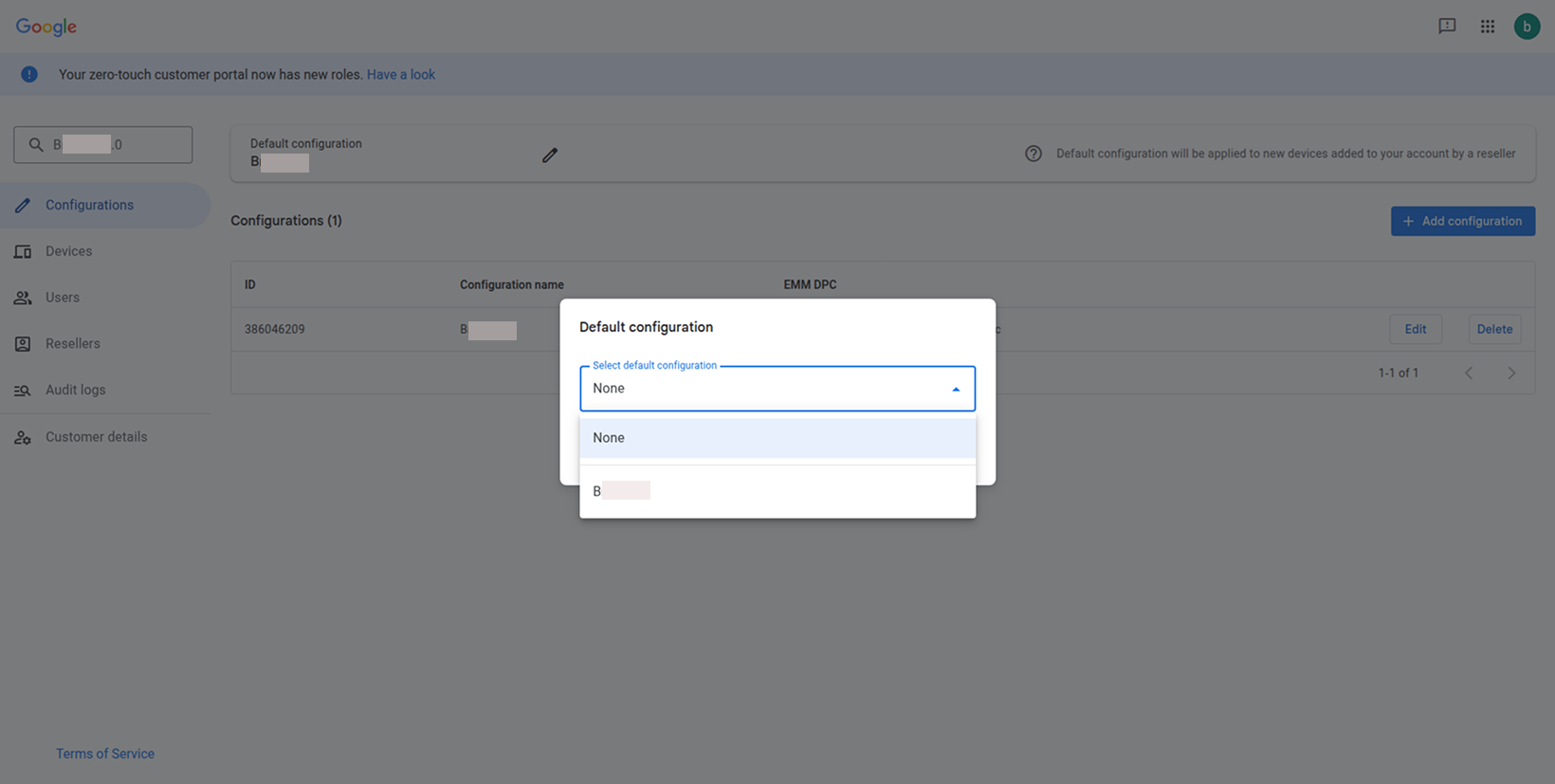
To ensure all new devices purchased from your reseller get the right settings automatically, you can set a Default configuration. Click the "pencil" icon next to the default configuration section to choose your preferred setup.
Step 5 — View and Manage Registered Devices
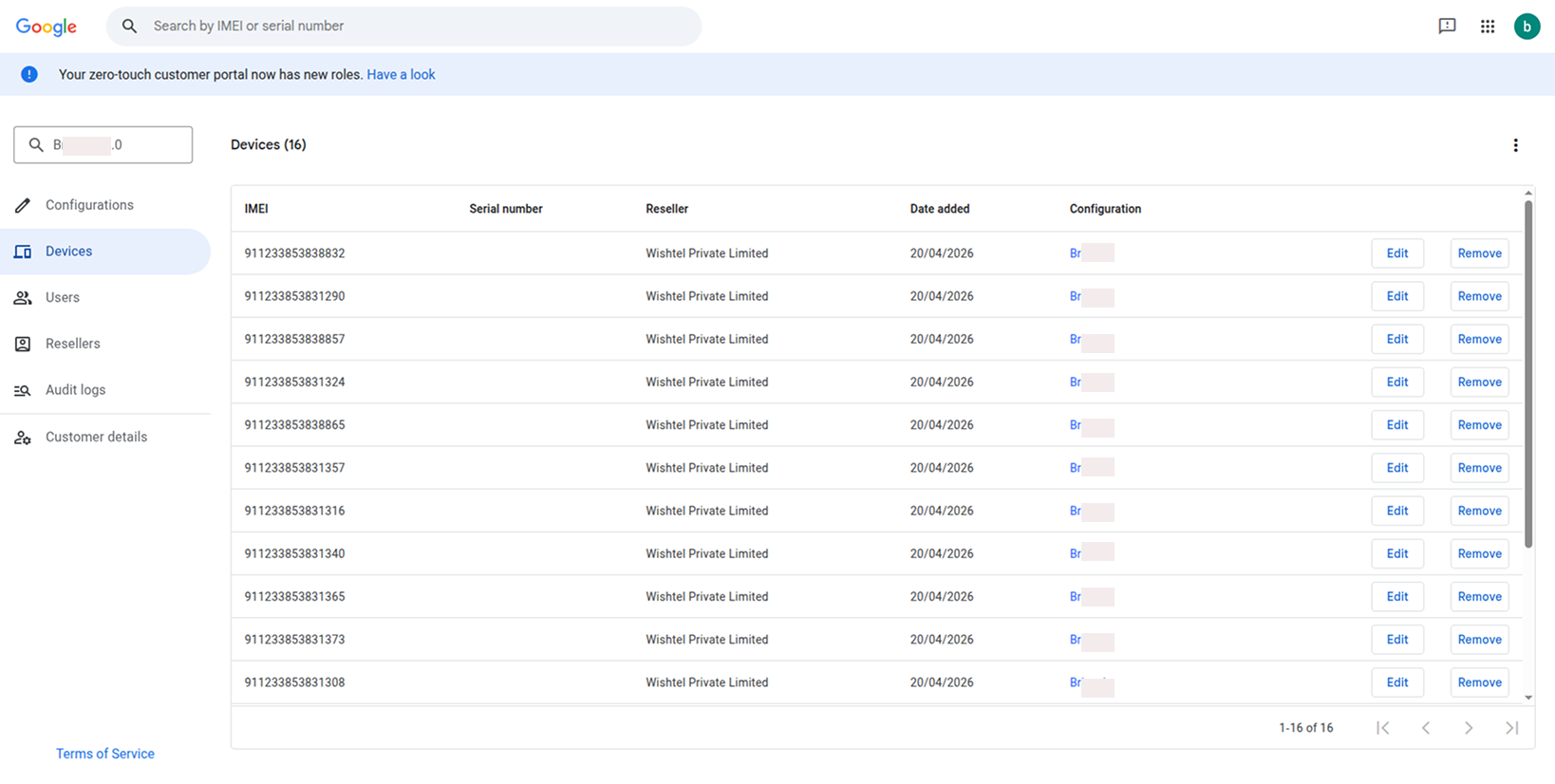
Under the Devices tab in the Google portal, you can see a list of every device registered by your reseller. You can see the IMEI, and which specific configuration is assigned to each device.
Best Use Case
Zero-Touch Enrollment is ideal for large-scale deployments where devices are shipped directly from the reseller to employees or branch offices. IT never needs to physically touch the device before it reaches the end user.
Important Setup Notes:
- Powering On: After completing the portal configuration, you should turn on the devices to begin enrollment.
- Existing Devices: If a device is already powered on or in use, it must be factory reset to trigger the Zero-Touch process.
- Automatic Enrollment: Once all steps are finished and the device is powered on, it will enroll into MobiHeal by default upon connecting to the internet.