Email Enrollment for Android
Email Enrollment is the most convenient method for onboarding remote employees or personal BYOD Android devices. The administrator sends an enrollment invitation directly to the employee's email address. The employee follows a simple guided process to enroll their device — no physical access or IT intervention required at any point.
Step 1 — Navigate to Email Tokens
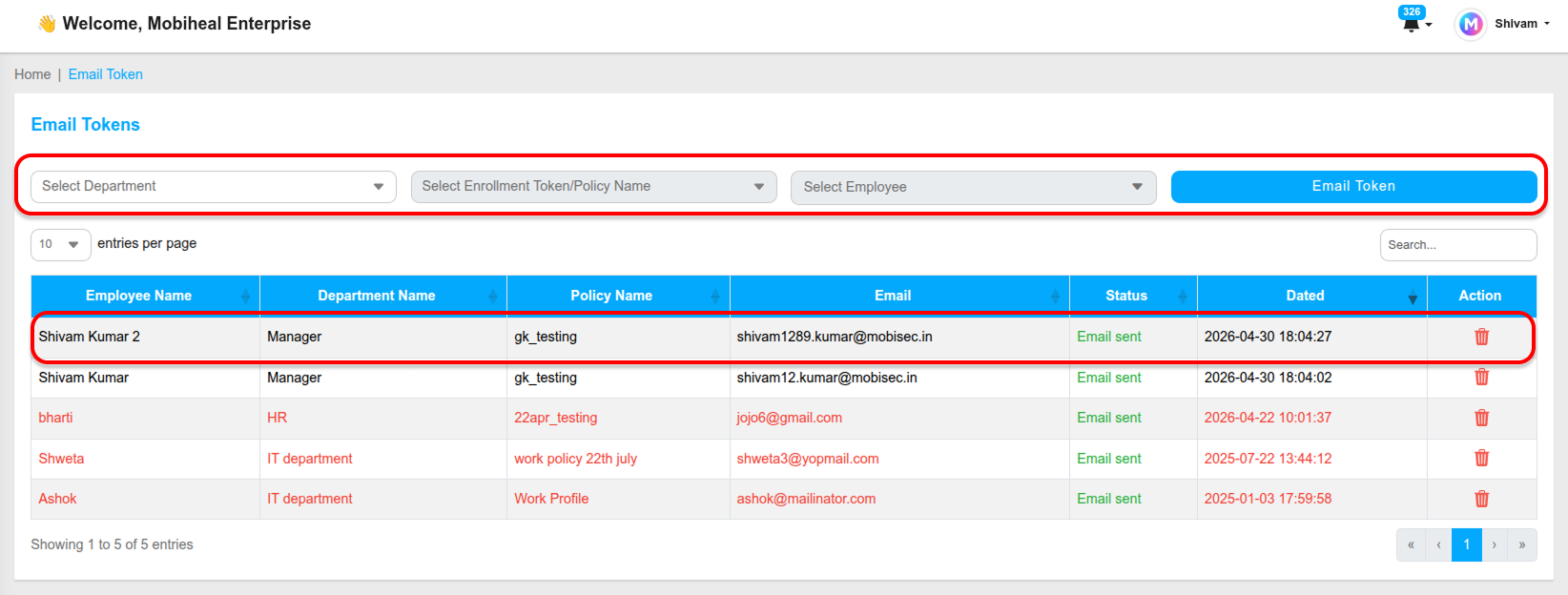
Go to Device Enrollment in the left sidebar and select Email Tokens.
Step 2 — Select Your Target
Select Department
Filter the employee list by their internal department to narrow down your selection when working with large organizations.
Select Enrollment Token / Policy
Choose the enrollment configuration and security policy that will be applied to the device once the employee completes enrollment.
Select Employee
Choose the specific employee from the dropdown. The enrollment invitation will be sent to their registered corporate email address.
Step 3 — Send the Invitation
Click the Email Token button. The system will immediately send an enrollment invitation to the selected employee's email. The status column in the token table will update to Email Sent confirming the invitation was dispatched successfully.
Managing Sent Invitations
If an employee no longer needs to enroll, or if an invitation was sent in error, administrators can delete the token directly from the list to revoke the invitation before it is used.
What the Employee Receives
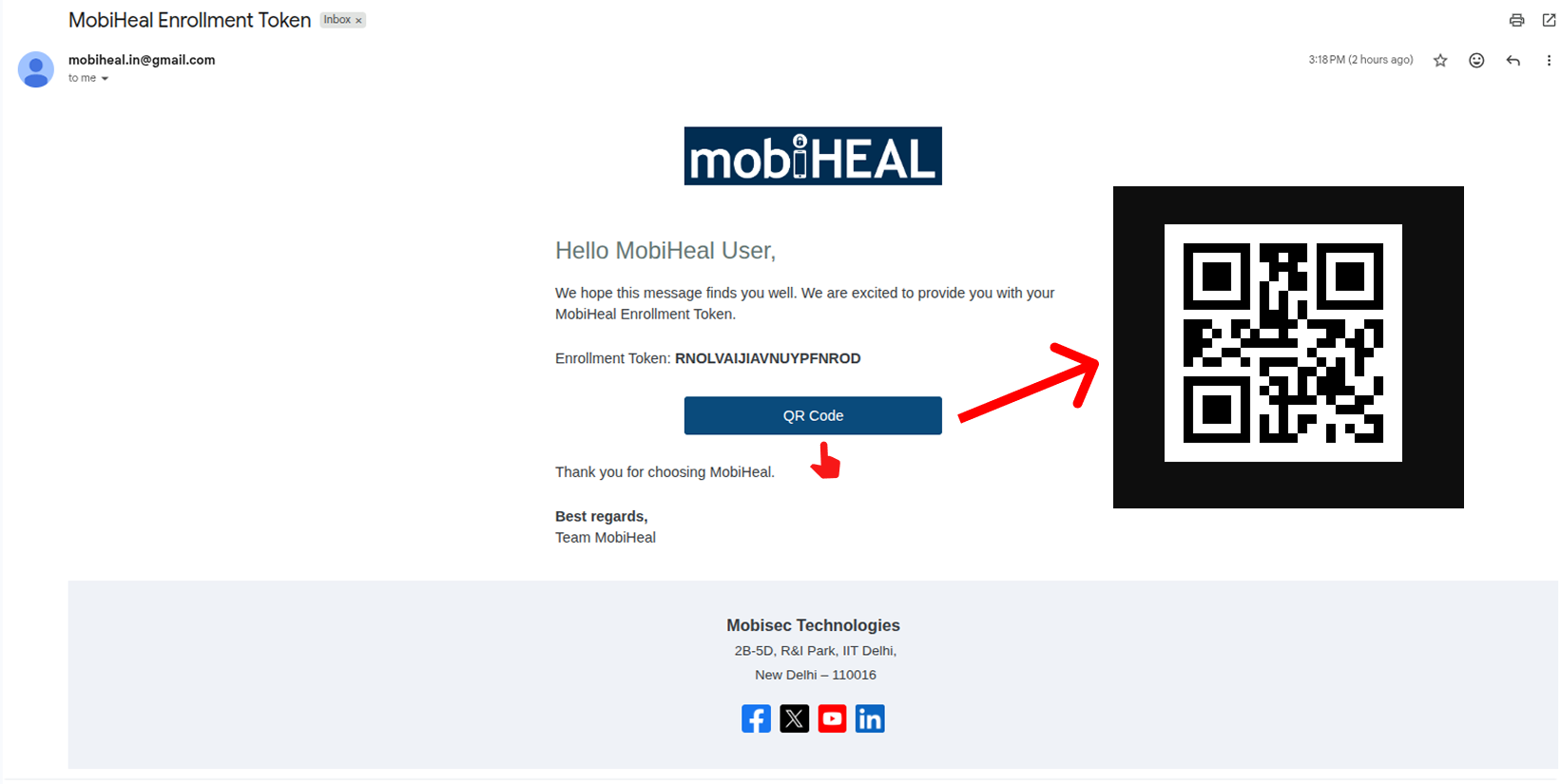
The employee receives an email containing a link and step-by-step instructions to download the MobiHeal agent on their Android device. Once installed, the agent guides them through the enrollment process and applies the assigned policy automatically — creating a Work Profile that keeps corporate data separate from their personal apps and data.