Device Enrollment Using Apple Configurator
Before enrolling a corporate-owned iPhone or iPad into MobiHeal, the device must first be prepared using Apple Configurator. Apple Configurator allows administrators to create Blueprints, assign a Device Management Server, and configure supervision settings required for fully managed device enrollment. Follow the steps below to prepare the device.
Connecting the Device
Begin by connecting the corporate-owned iPhone or iPad to a Mac using a USB cable. Once connected, Apple Configurator automatically detects the device and displays it in the All Devices section.
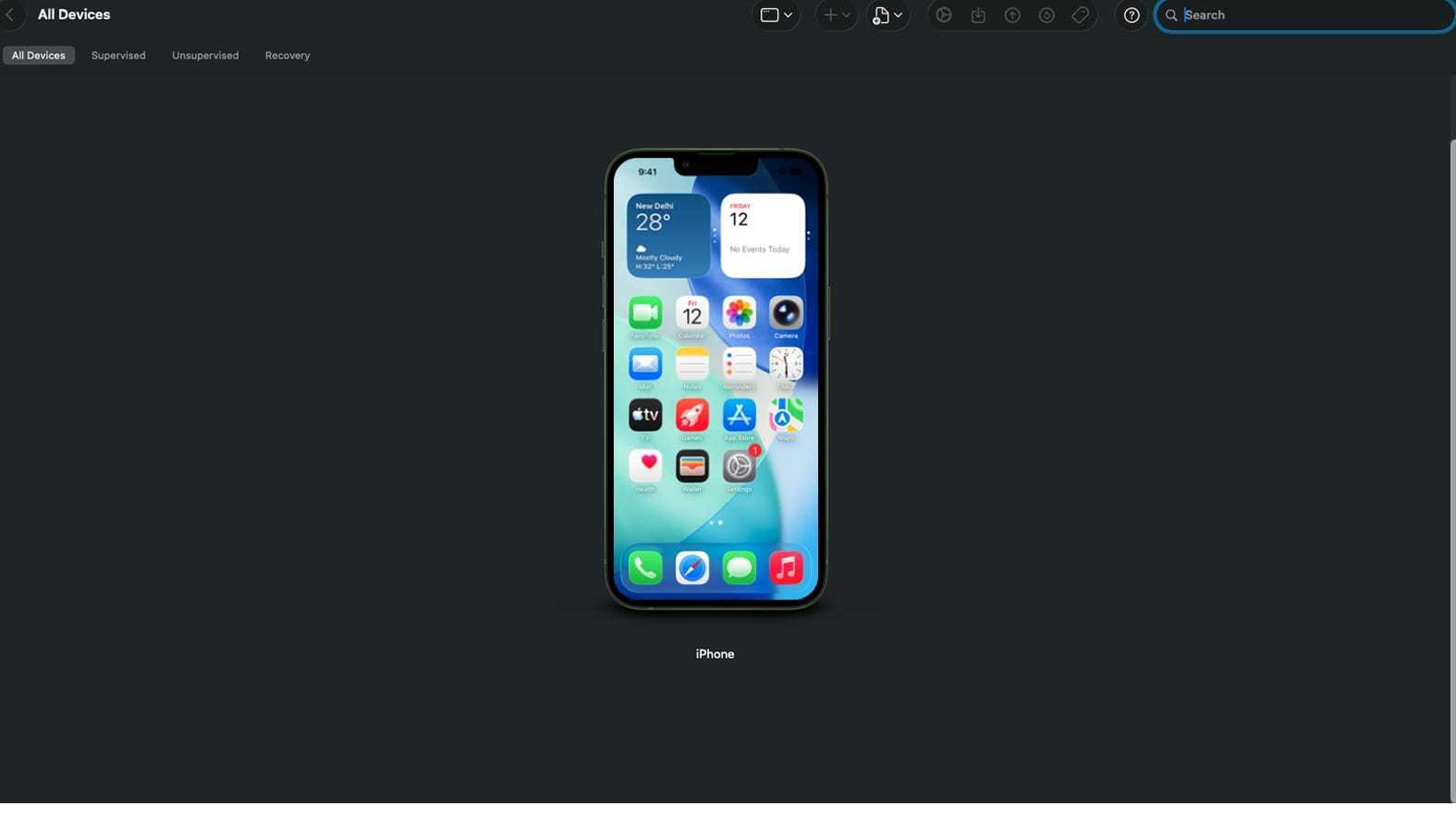
- Connect the iPhone or iPad to the Mac using a USB cable.
- Open Apple Configurator.
- Trust the Mac if prompted on the device.
- Verify that the device appears in the All Devices section.
- Select the Device
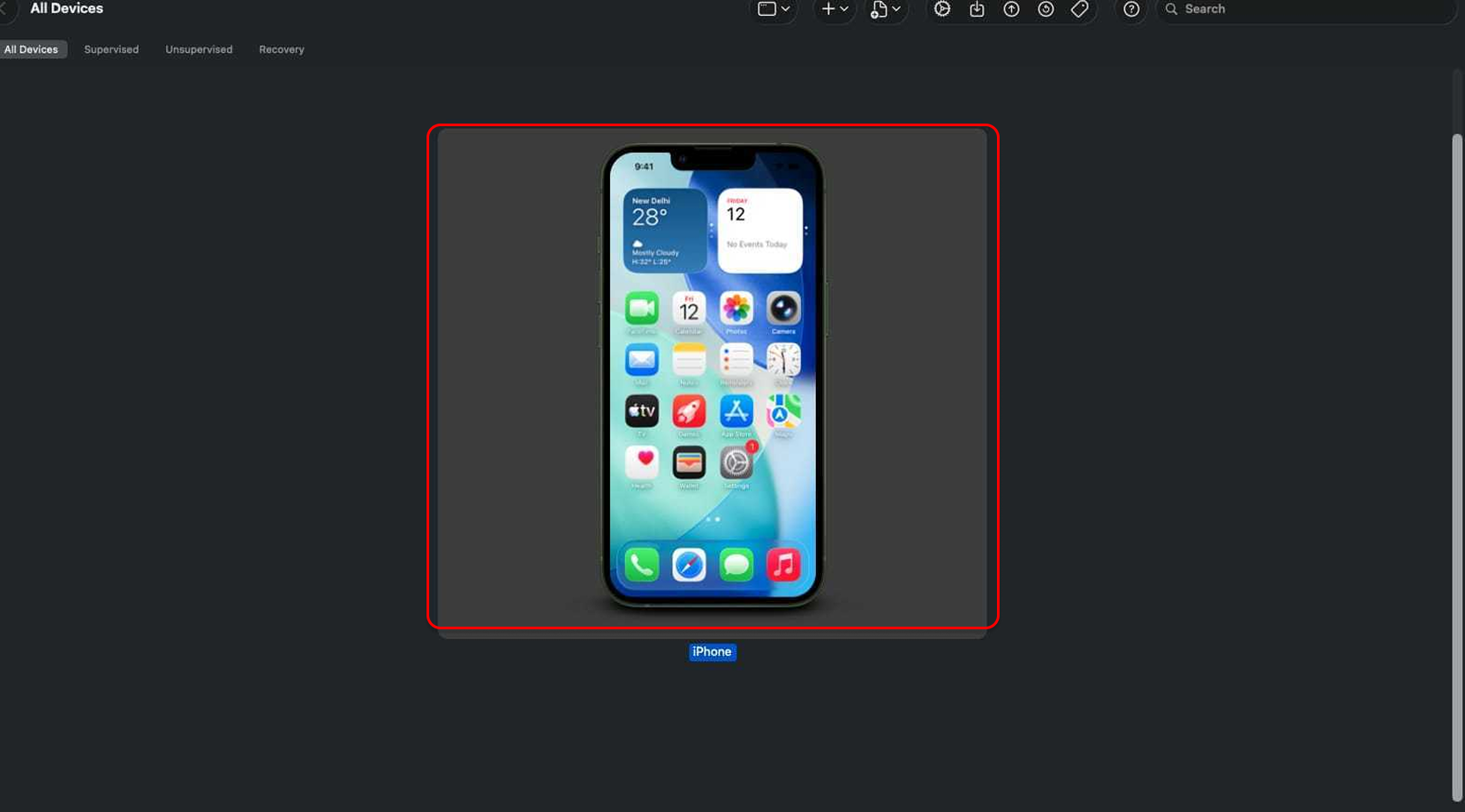
Creating a New Blueprint
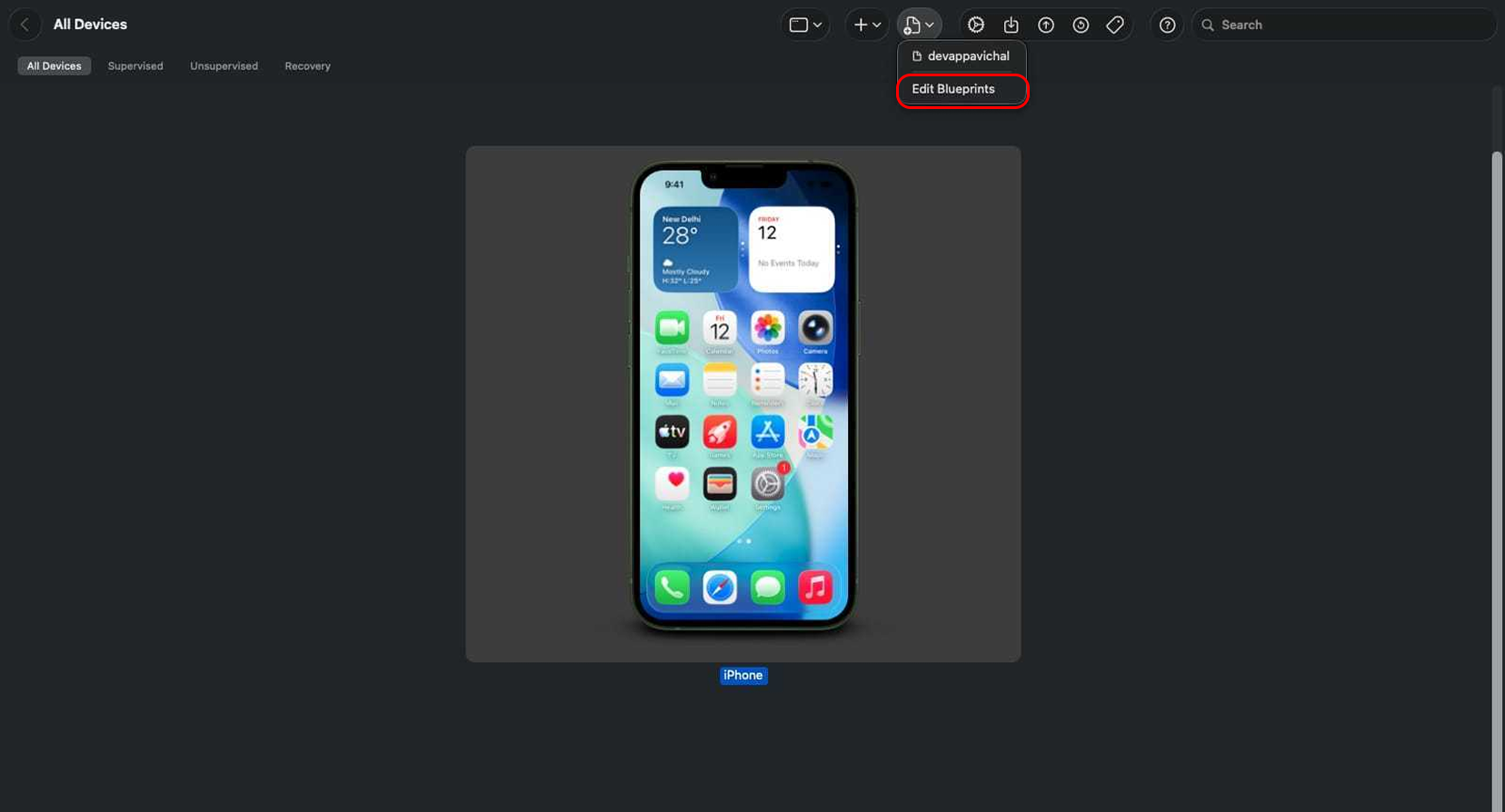
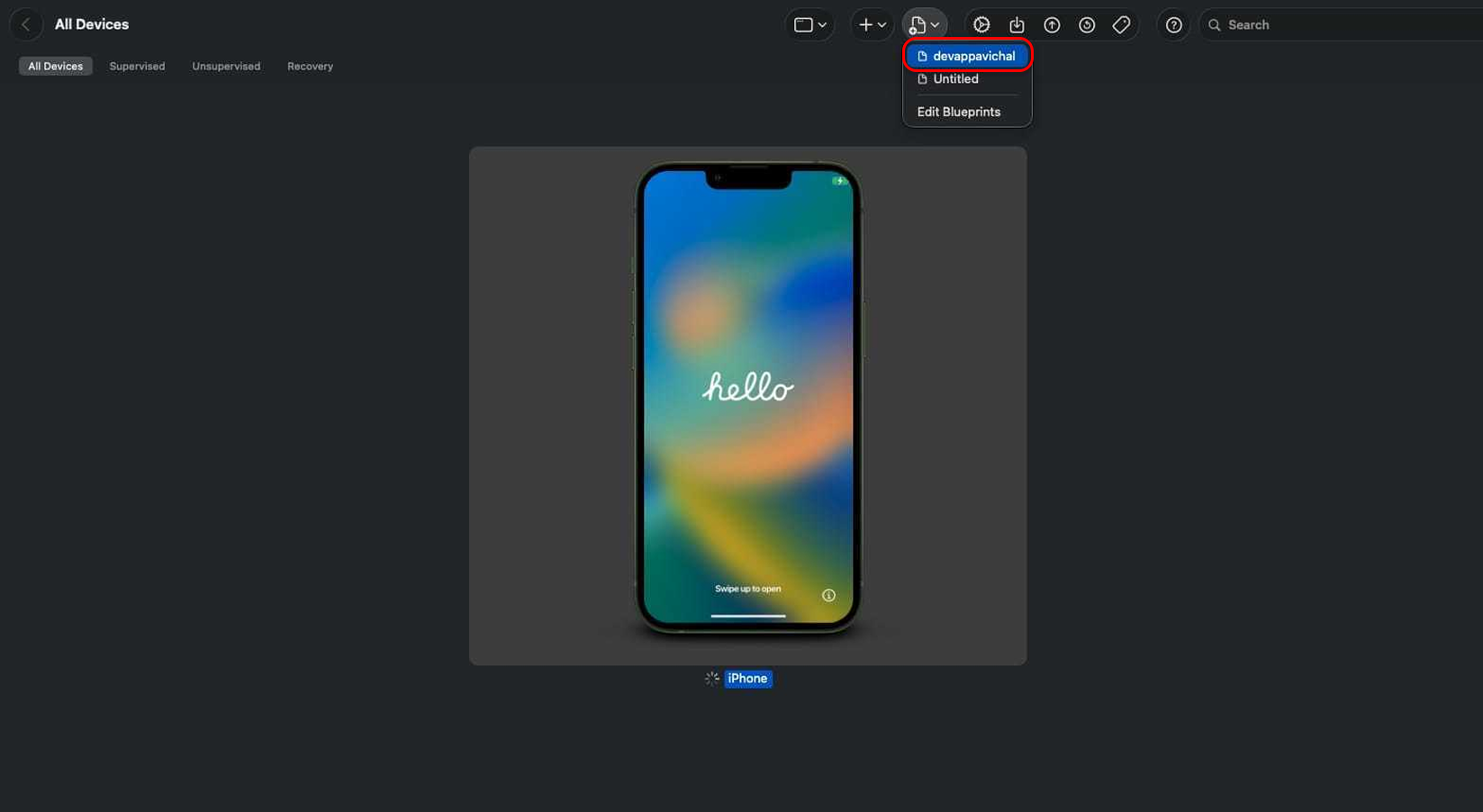
Blueprints allow administrators to define preparation settings that can be reused across multiple devices. Create a new Blueprint before starting the supervision process.
- Open Apple Configurator.
- Click New Blueprint.
- Provide a name for the Blueprint.
- Select iPad, iPhone, and iPod touch as the target device type.
- Save the Blueprint.
- Preparing the Blueprint
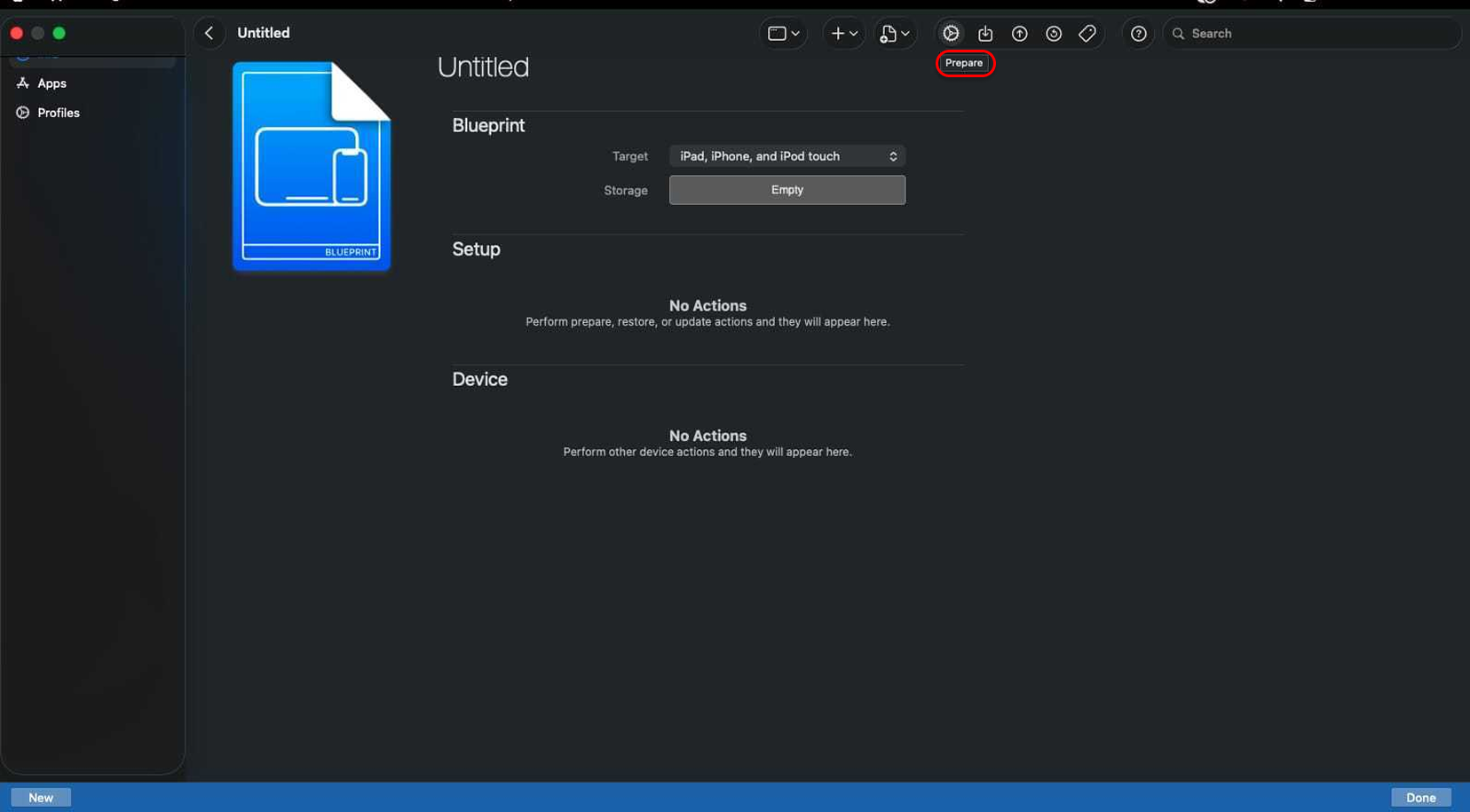
After creating the Blueprint, initiate the preparation process. This launches the configuration wizard used to prepare devices for management.
- Open the newly created Blueprint.
- Click the Prepare button from the toolbar.
- Review the Blueprint information.
- Continue to the preparation wizard.
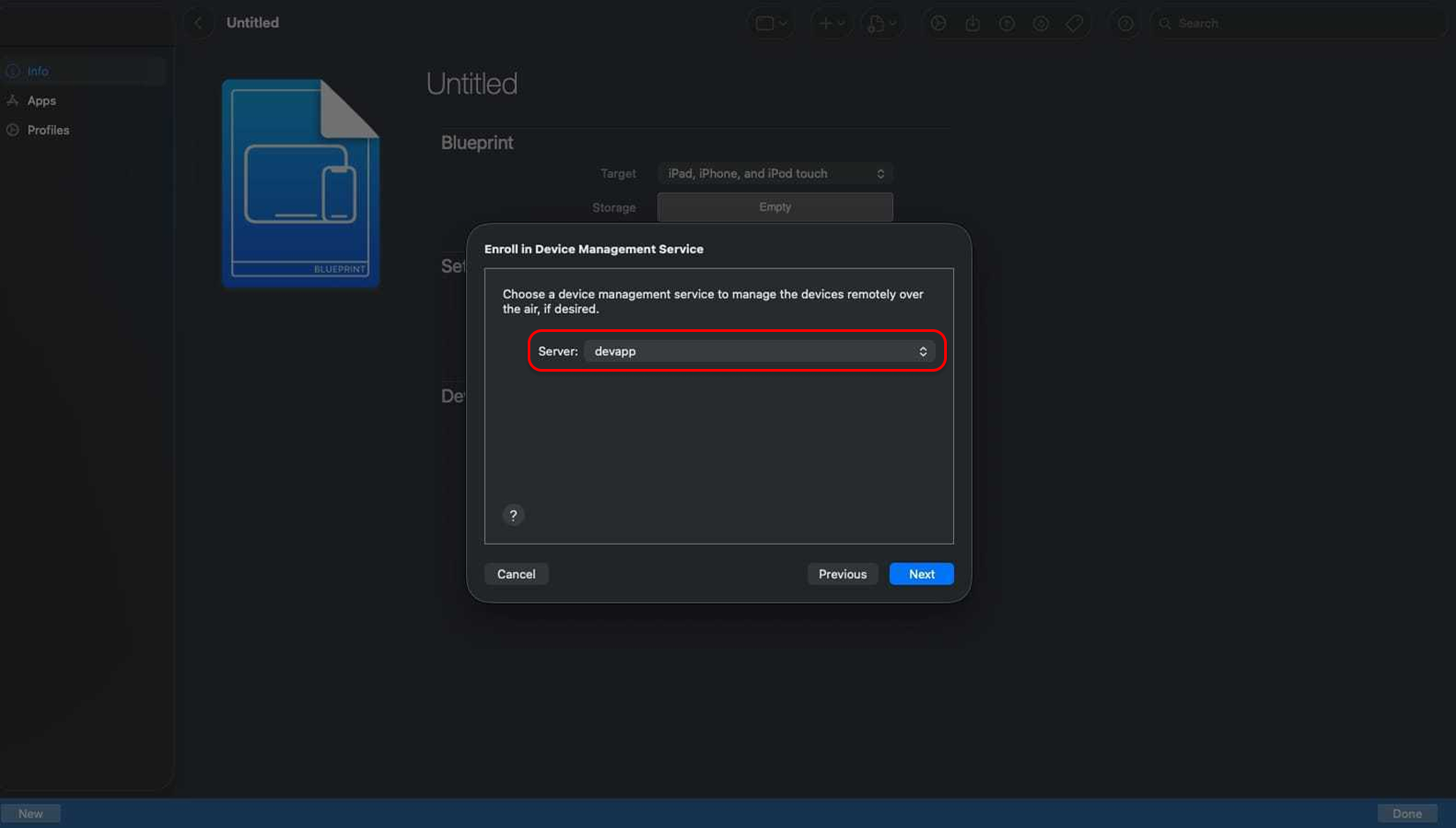
Selecting the Device Management Server
During the preparation wizard, Apple Configurator prompts you to choose a Device Management Server. This server contains the MDM enrollment configuration that will be used to manage the device after enrollment.
- Review the available Device Management Servers.
- Select the appropriate MDM server.
- Verify the server details.
- Click Next to continue.
Assigning the Device to an Organization
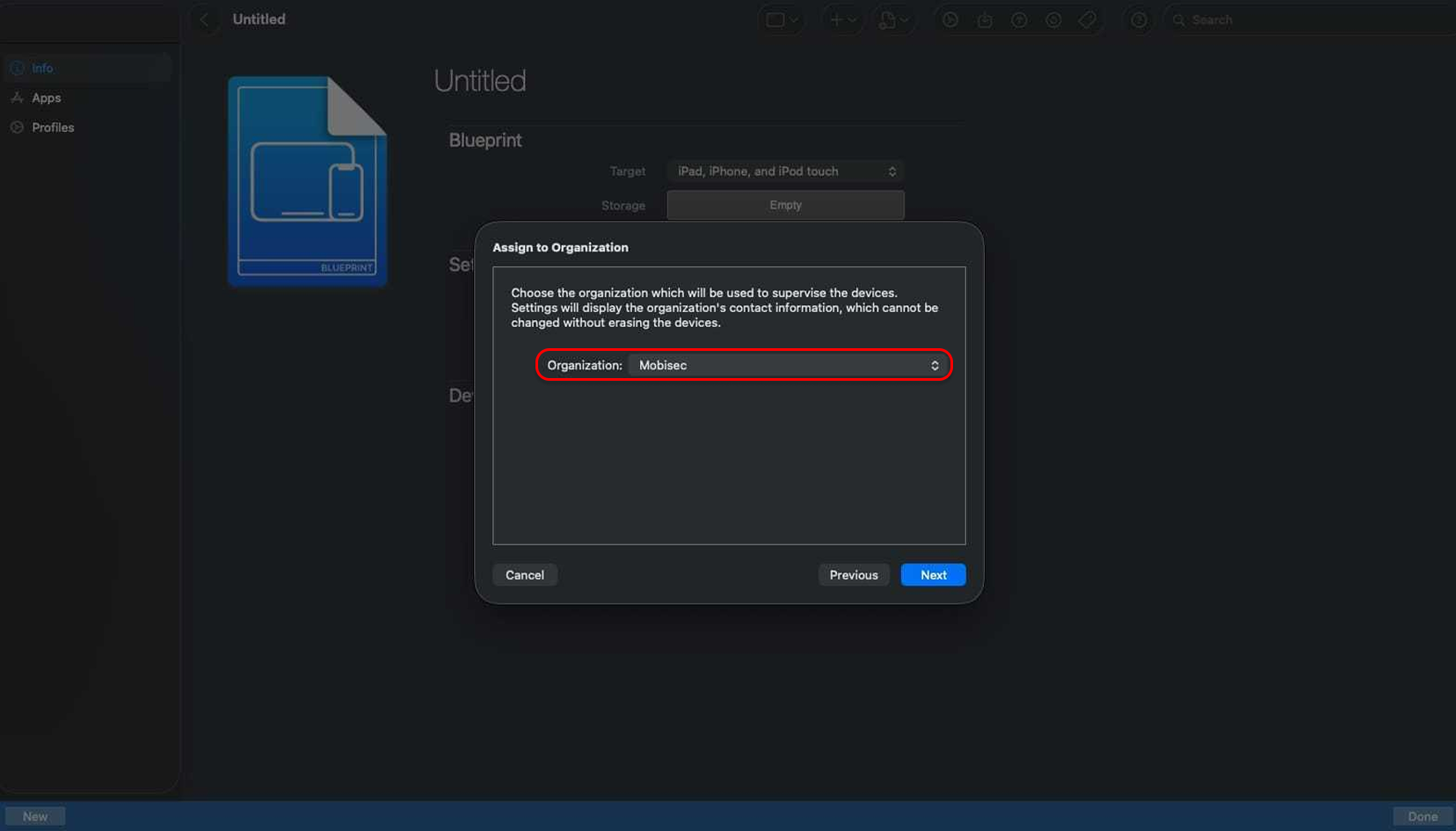
The preparation wizard will now prompt you to select an organization identity. The selected organization will be associated with the supervised device and used for corporate management.
Choose the appropriate organization from the available list and verify the organization details. Once selected, click Next to continue.
Configuring Device Preparation Settings
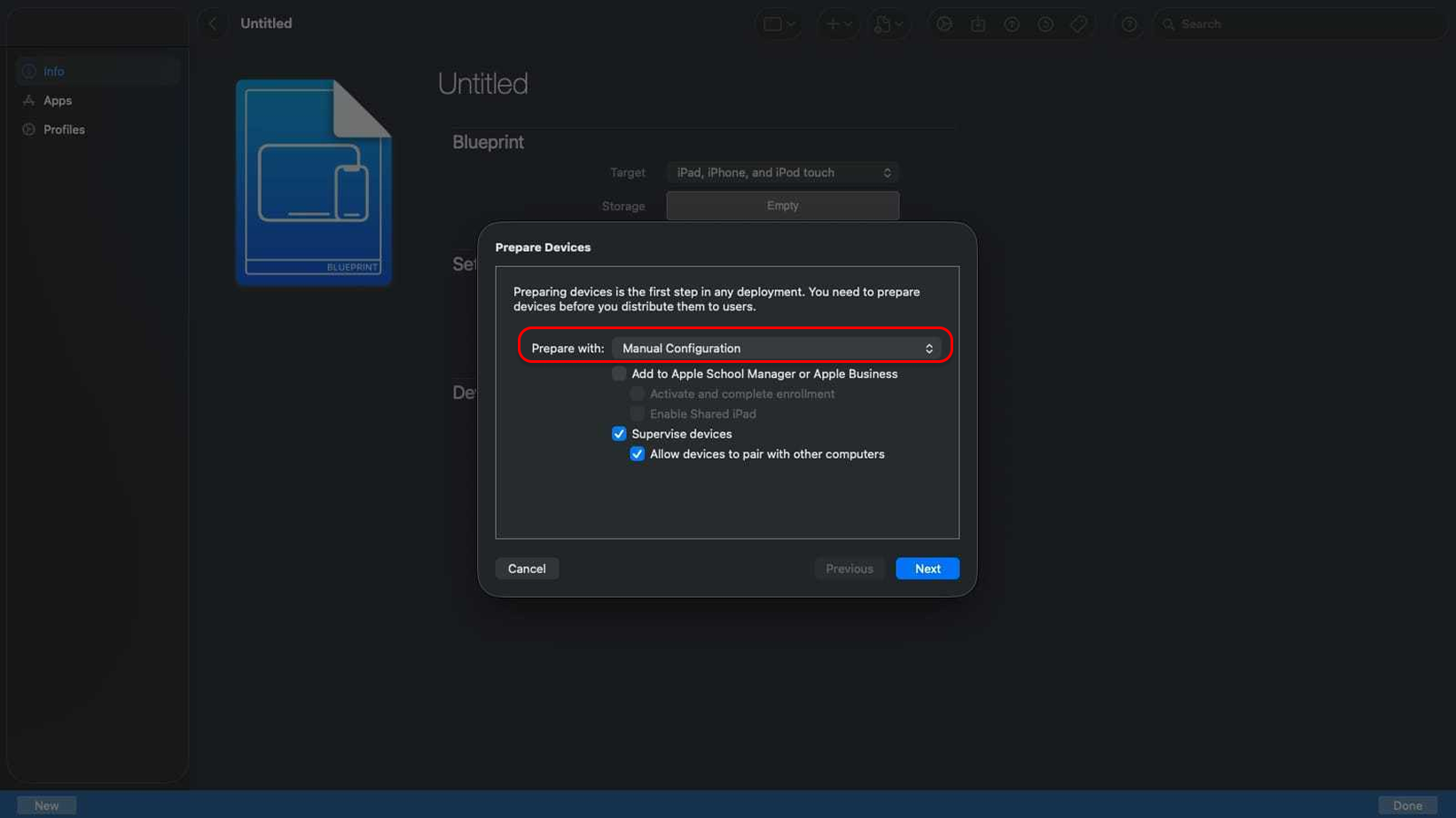
Apple Configurator now displays the device preparation settings. These settings determine how the supervision process will be applied to the selected iPhone or iPad.
Review the preparation options and confirm that they match your organization's deployment requirements. Click Next to proceed.
Configuring the iOS Setup Assistant
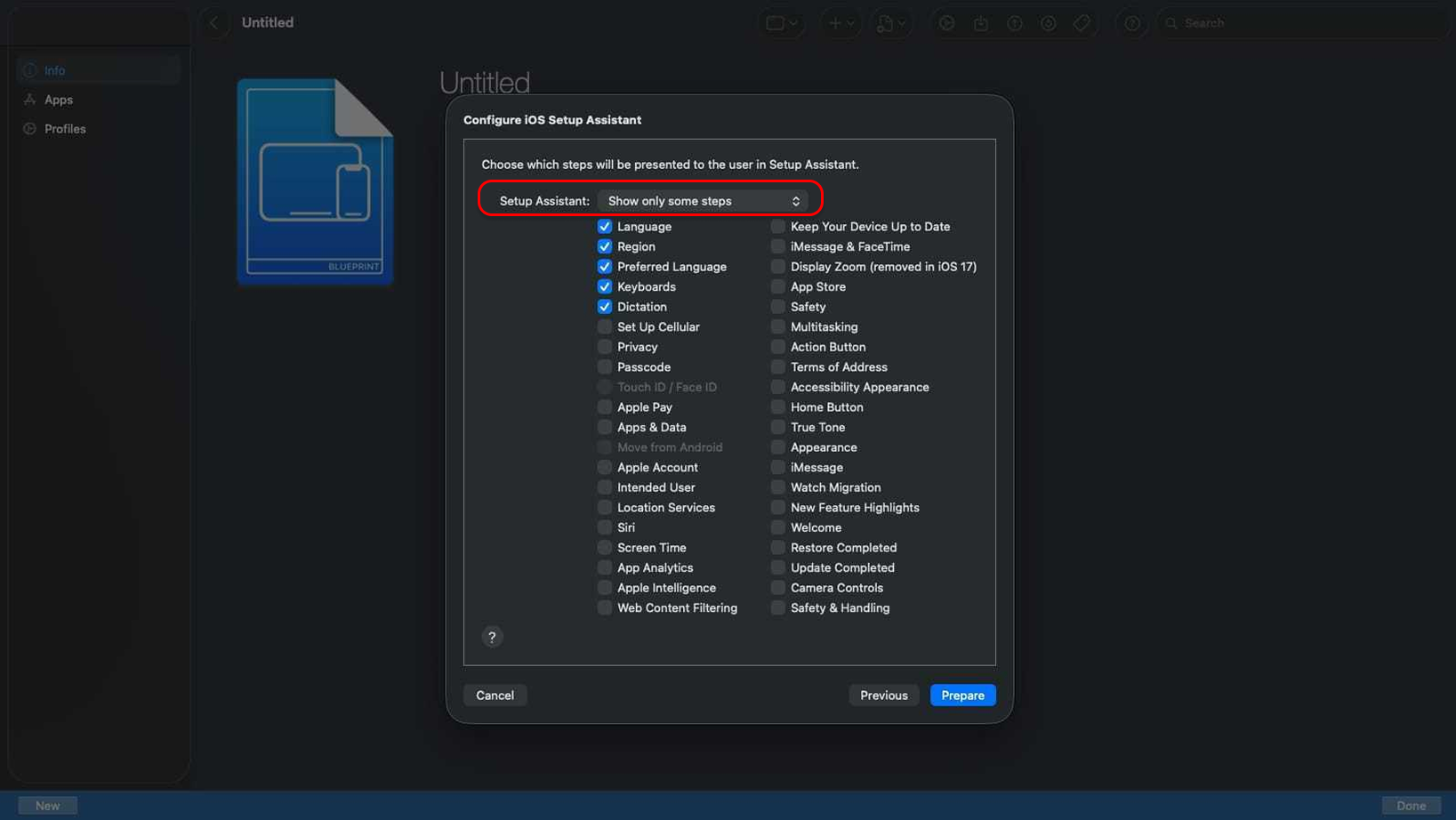
The Setup Assistant configuration screen allows administrators to control which setup screens are displayed to end users during device activation.
Select the setup screens that should be displayed or hidden during onboarding. Hiding unnecessary screens helps streamline the device setup experience for users. Click Next when finished.
Selecting the Configuration Profile
Choose the configuration profile that will be associated with the device during enrollment. The selected profile determines the management settings that will be applied after activation.
Review the available profiles, select the required configuration, and click Next to continue.
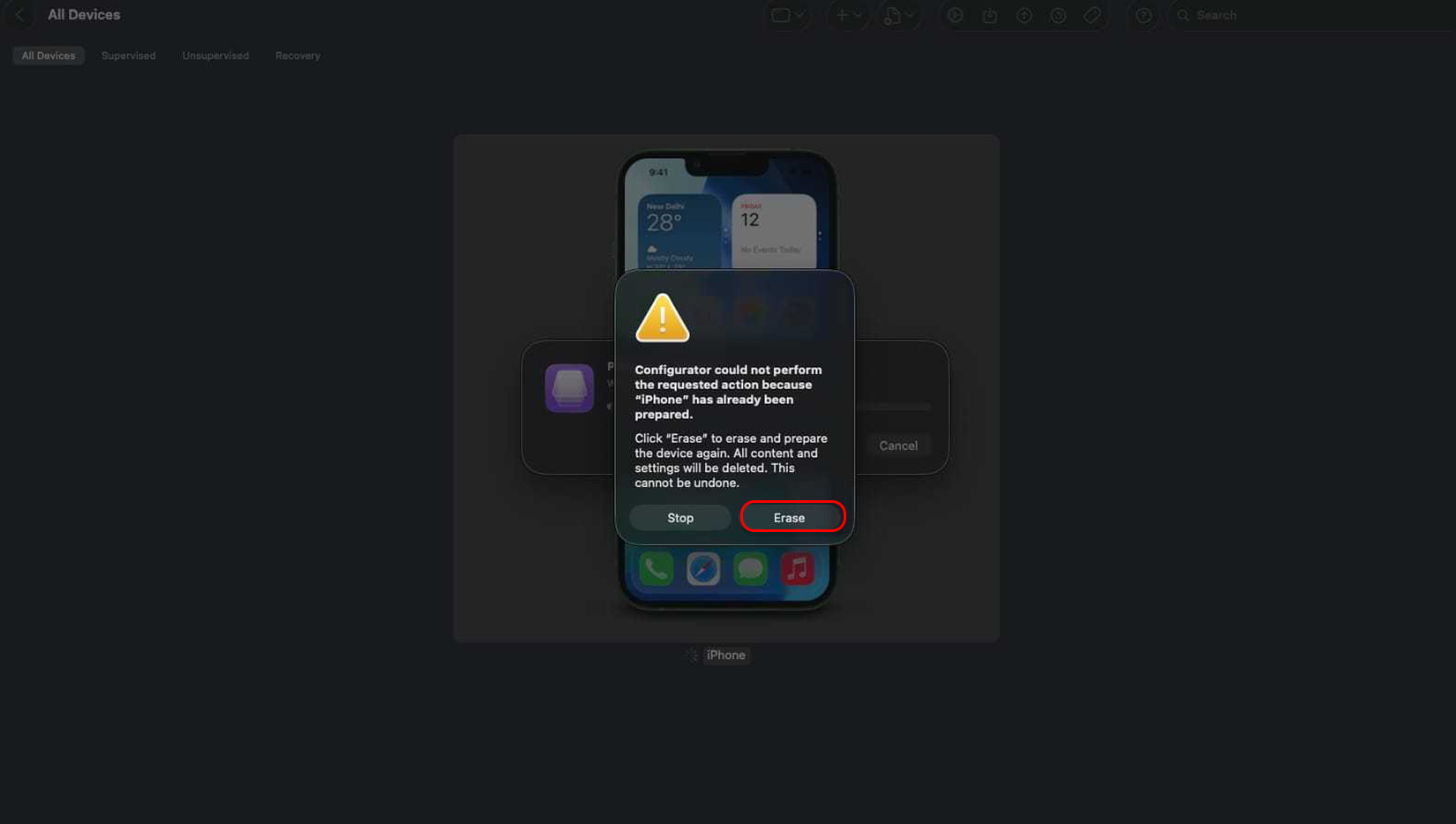
Confirming Device Erasure
Before supervision settings can be applied, Apple Configurator must erase the device. This ensures that the device is prepared correctly for corporate ownership and management.
Review the warning message and click Erase to begin the preparation process. Any existing data on the device will be removed.
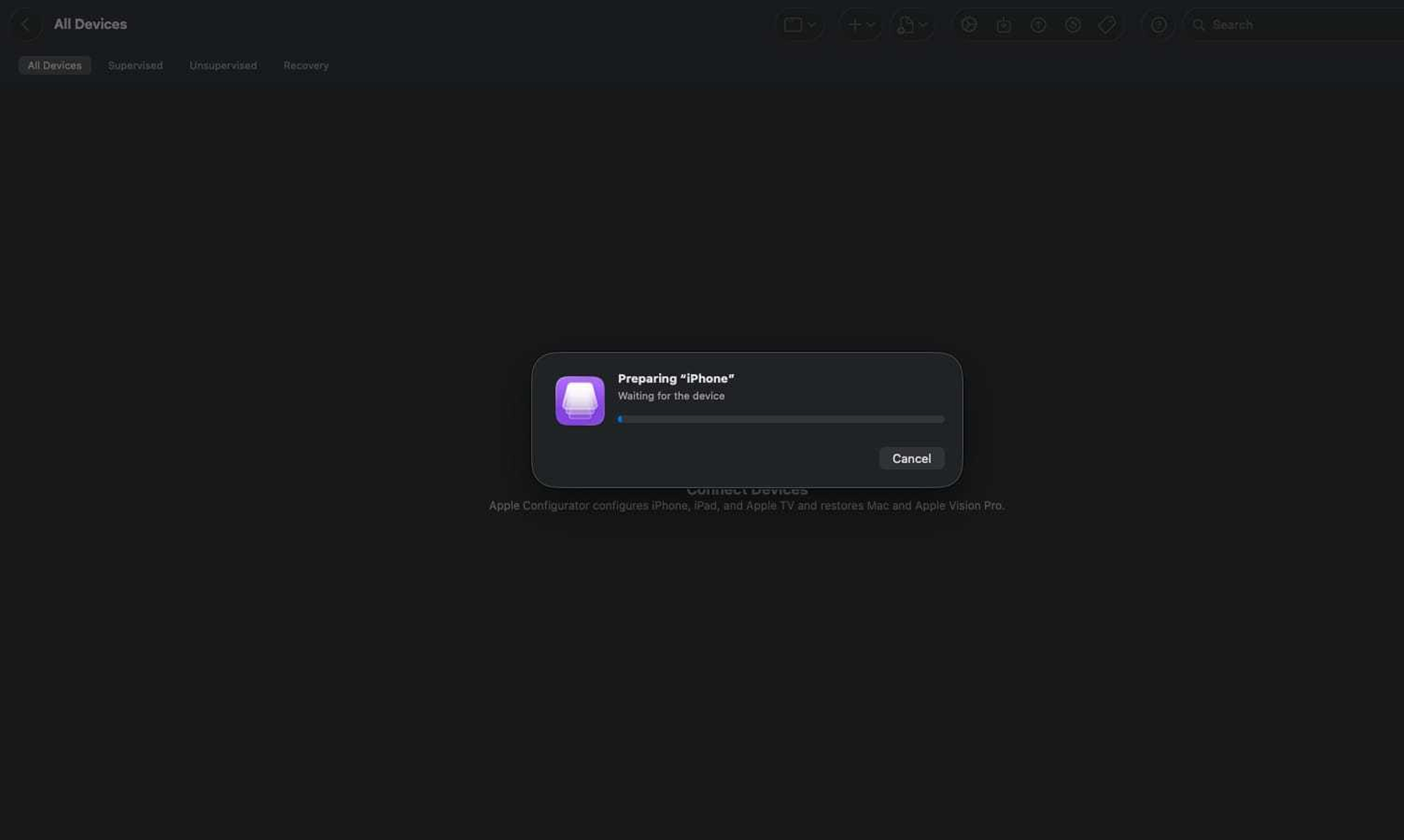
Preparing the Device
Apple Configurator will now prepare the device using the selected Blueprint and enrollment settings. During this process, the device may restart and the preparation progress will be displayed within Apple Configurator.
Do not disconnect the device while preparation is in progress. Wait until the process completes successfully.
Verifying Device Preparation
After preparation is completed successfully, the device appears as a supervised device within Apple Configurator. The supervision profile and enrollment configuration have now been applied.
Verify that the device status reflects successful preparation before proceeding with activation.
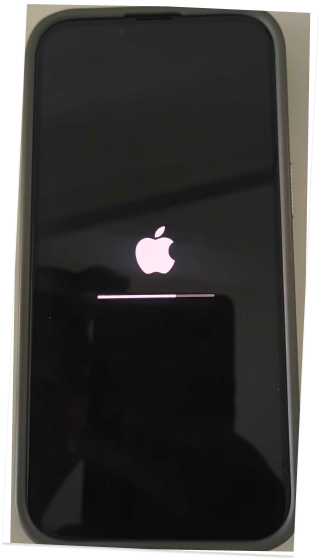
Completing Device Enrollment
Once the device restarts, proceed through the iPhone or iPad setup process. During activation, the Remote Management screen will appear and the device will automatically receive its enrollment configuration.
Complete the remaining setup steps and grant any required permissions. After activation is finished, the device will enroll into MobiHeal and receive the assigned applications, policies, and management settings.
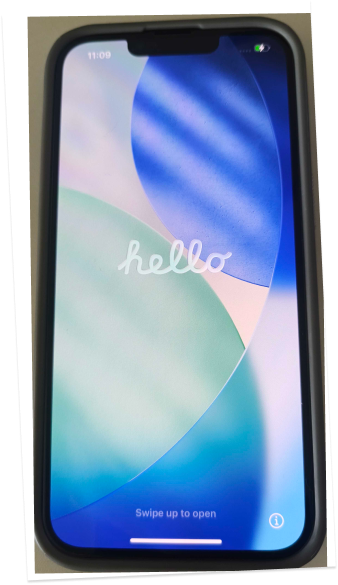
The corporate-owned iPhone or iPad has now been successfully prepared, supervised, and enrolled into MobiHeal. Administrators can now deploy applications, enforce security policies, configure restrictions, and manage the device remotely through the MobiHeal console.